Manage subscriptions
Every portal member has the ability to review, edit, and cancel subscription to changes on portal records or entities in one place. In the default configuration of the Notifications functionality, managing subscriptions is different depending on the user role:
- End users (members without the Administrator or Subscription Manager role) have the ability to view and manage their direct record-level subscriptions that they opt in directly on a grid or detail page as well as advanced page-level subscriptions created for their member group by administrators or subscription managers. End users cannot view or edit advanced page-level subscription card. Administrators and subscription managers have the ability to hide advanced page-level subscriptions from subscribers.
- Administrators have the ability to configure advanced page-level subscriptions for member groups, which can include various conditions/filters that must be met for a notification to be sent. Administrators do not manage subscription for individual records (direct subscriptions).
- Subscription managers have the ability to configure advanced page-level subscriptions for member groups as well as their own record-level (direct) subscriptions. Subscription managers do not have administrative permissions for other areas, not related to notification subscription management.
Manage subscriptions as end user (member without the Administrator or Subscription Manager role)
Members without the Administrator role can view their page-level subscriptions (created for them by administrators or subscription managers) as well as disable subscriptions.
To manage notification subscriptions as end user:
- Sign in to the front end with an account that doesn't belong to the Administrator or Subscription Manager member role.
- On the header of any page, select [Your Member Name] > Manage subscriptions.
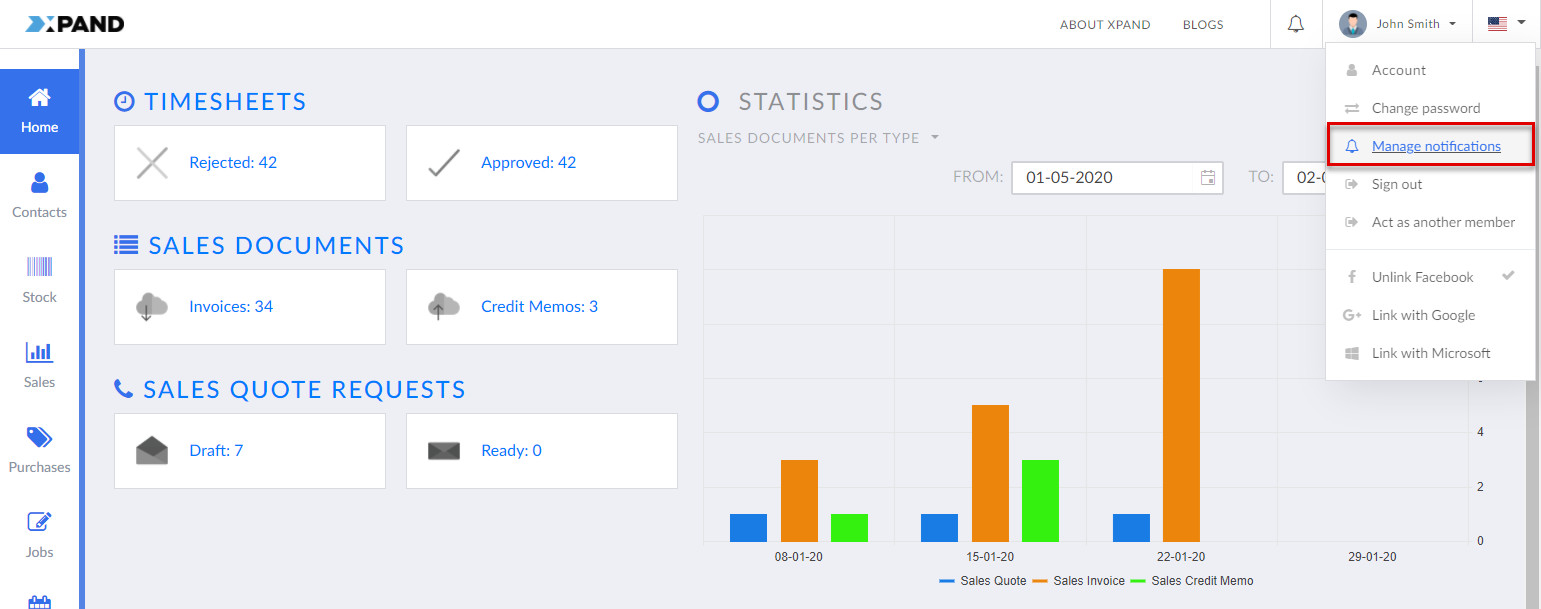
The Manage subscriptions page for end user shows all their subscriptions, both Direct record-level subscriptions (subscriptions to changes on a record that they opt in directly on a grid or detail page) on the Record tab and Advanced page-level subscriptions, configured by the administrators or subscription managers, on the Page tab. You will see additional advanced page-level subscriptions here if you belong to a role, for which such a subscription was configured. Administrators and subscription managers have the ability to hide advanced page-level subscriptions from subscribers so that the subscribers couldn't manage them.
The Title and Description columns are now automatically populated using the pattern configured for the Notifications action on the portal page where the subscription was created.
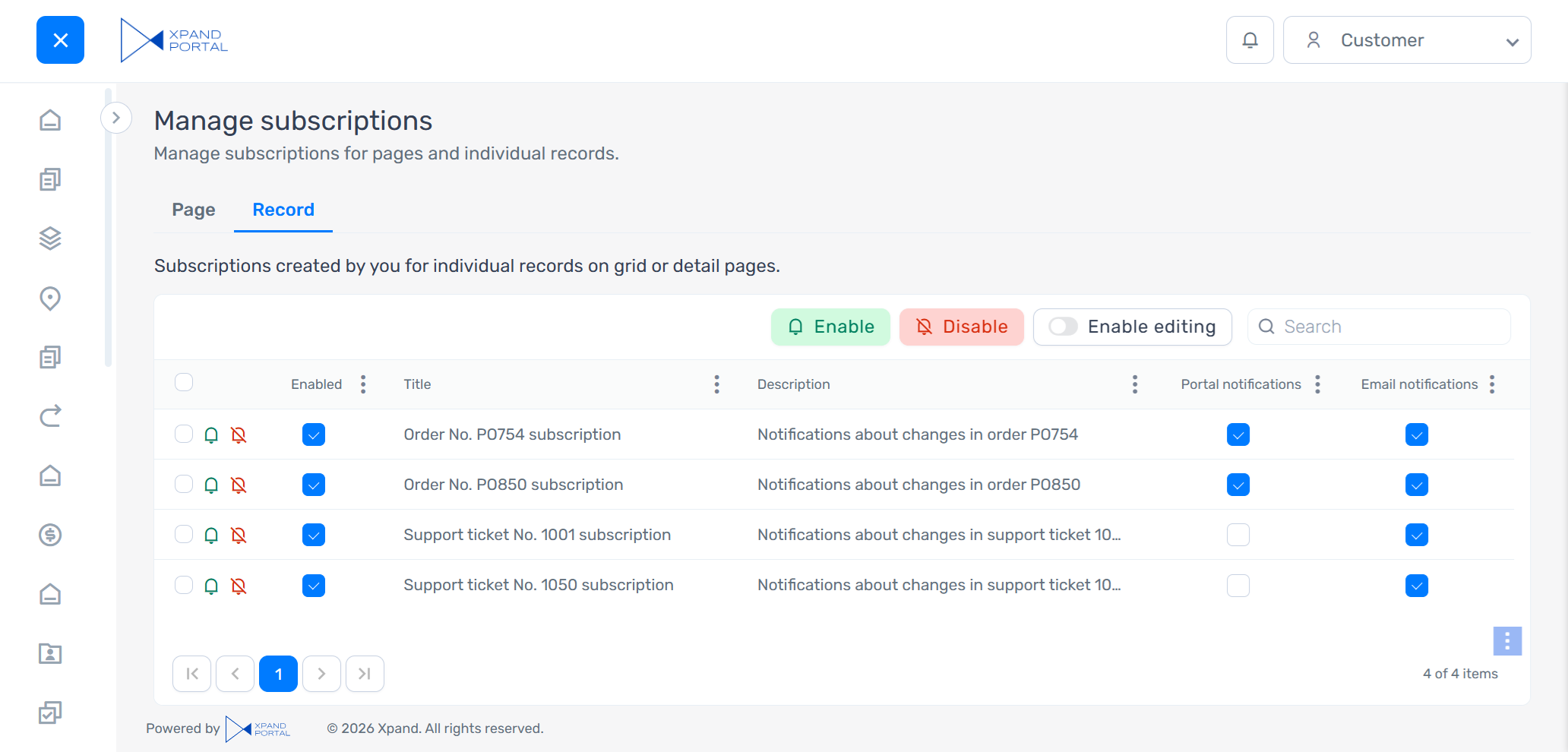
- On the Record tab, end users can manage their individual record-level subscriptions:
- Enable editing to be able to manage subscriptions: toggle the Enable editing switch.
- Disable subscriptions to stop receiving notifications for them: select lines with subscriptions that you want to disable, and then select the Disable action. Alternatively, select the
 icon on a subscription line.
 - Enable subscriptions to resume notifications for them: select lines with subscriptions that you want to enable, and then select the Enable action. Alternatively, select the
 icon on a subscription line.
 Important
- Direct record-level subscriptions that are disabled or have both portal and email notifications turned off are automatically deleted the next day.
- Direct record-level subscriptions are deleted after 30 days, even if they remain enabled.
- Disable or enable a specific type of notifications:
- Clear the Portal notifications checkbox to no longer receive notifications on the portal (in the top right corner) or select the checkbox to resume notifications of this type.
- Clear the Email notifications checkbox to no longer receive notifications by email or select the checkbox to resume notifications of this type.
- On the Page tab, end users can view (if allowed by administrators or subscription managers) and manage page-level subscriptions for their member group if any:
- Enable editing to be able to manage subscriptions: toggle the Enable editing switch.
- Disable or enable a specific type of notifications:
- Clear the Portal notifications checkbox to no longer receive notifications on the portal (in the top right corner) or select the checkbox to resume notifications of this type.
- Clear the Email notifications checkbox to no longer receive notifications by email or select the checkbox to resume notifications of this type.
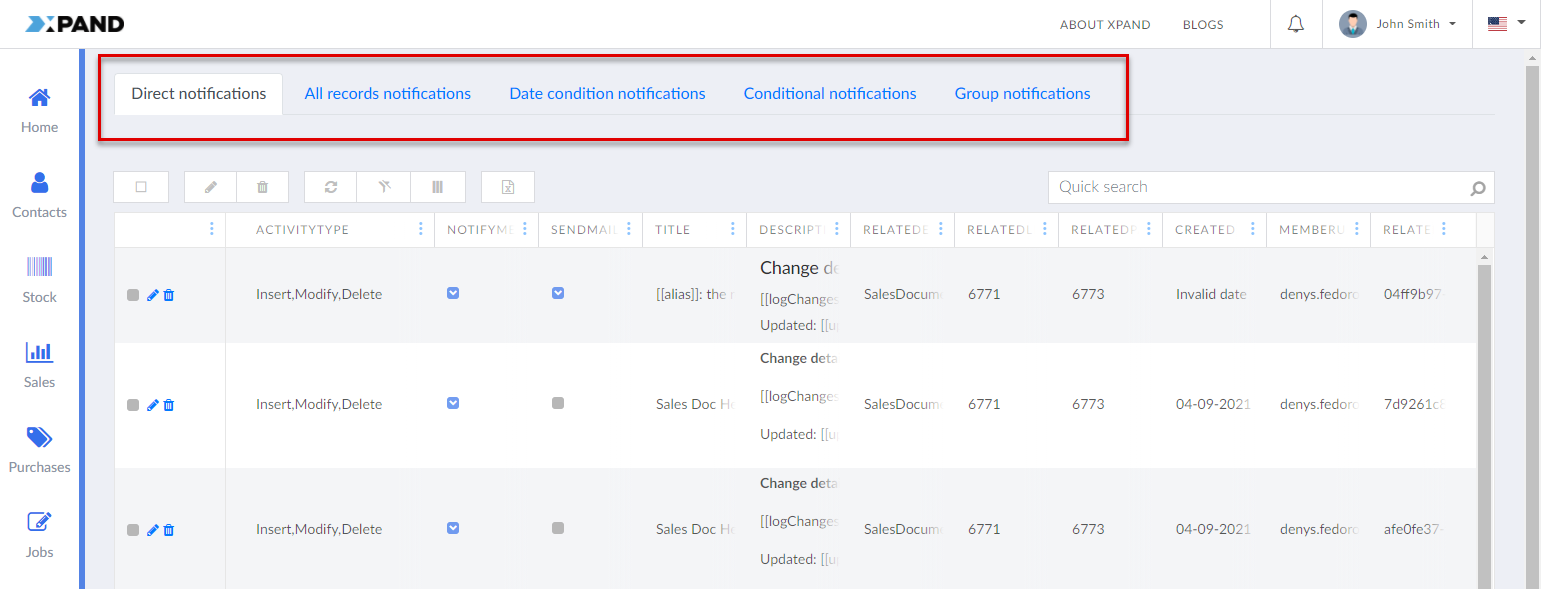
New page-level subscriptions can only be created or edited by administrators and subscription managers.
Manage subscriptions as portal administrator (member with the Administrator role)
If you are a member with the Administrator role, in the default configuration of the Notifications functionality, you have the ability to create and edit advanced page-level subscriptions with various conditions or filters that must be met for a notification to be sent/shown. These subscriptions are configured for member groups, which means that notifications are sent/shown to all members that belong to the member groups, specified on the notification setup card. Administrators do not manage individual record-level subscriptions.
To manage notification subscriptions as administrator (member with the Administrator role):
- Sign in to the front end with an account that belongs to the Administrator member role.
- On the header of any page, select [Your Member Name] > Manage subscriptions.
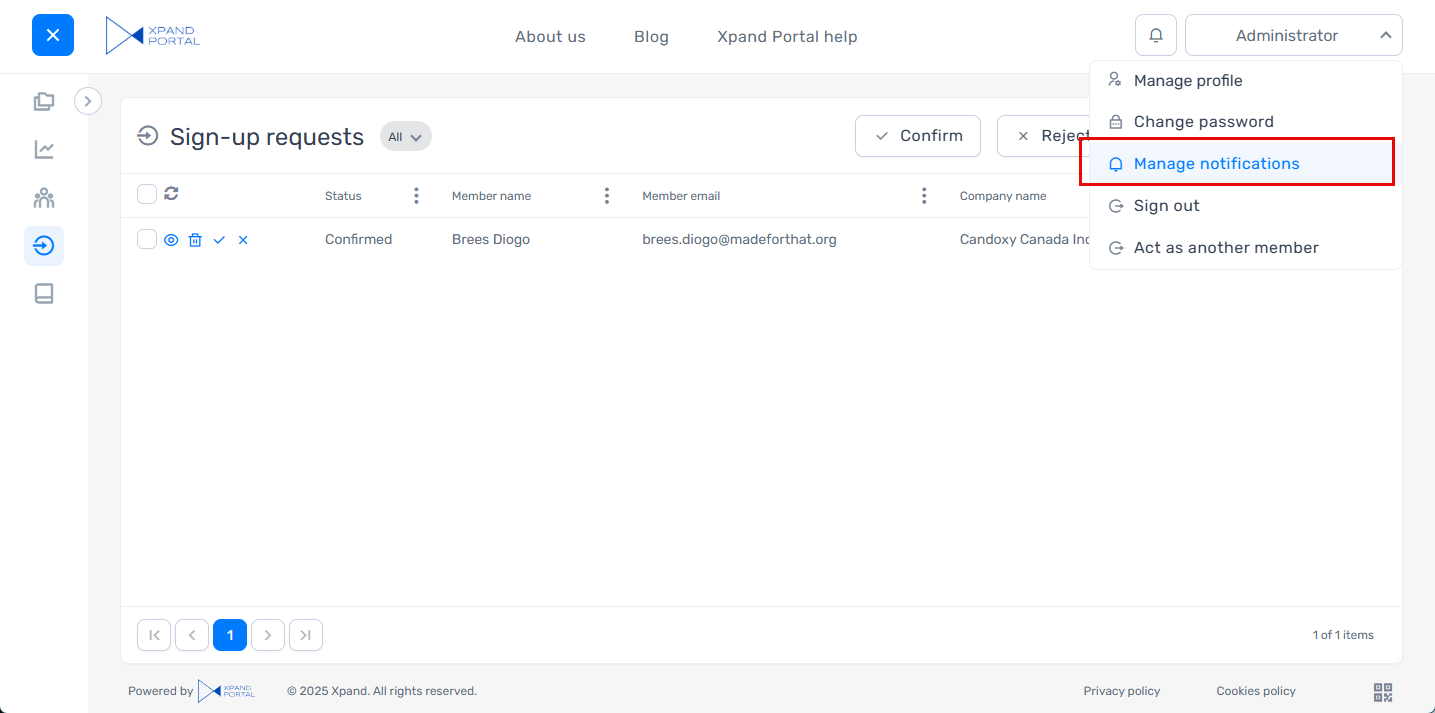
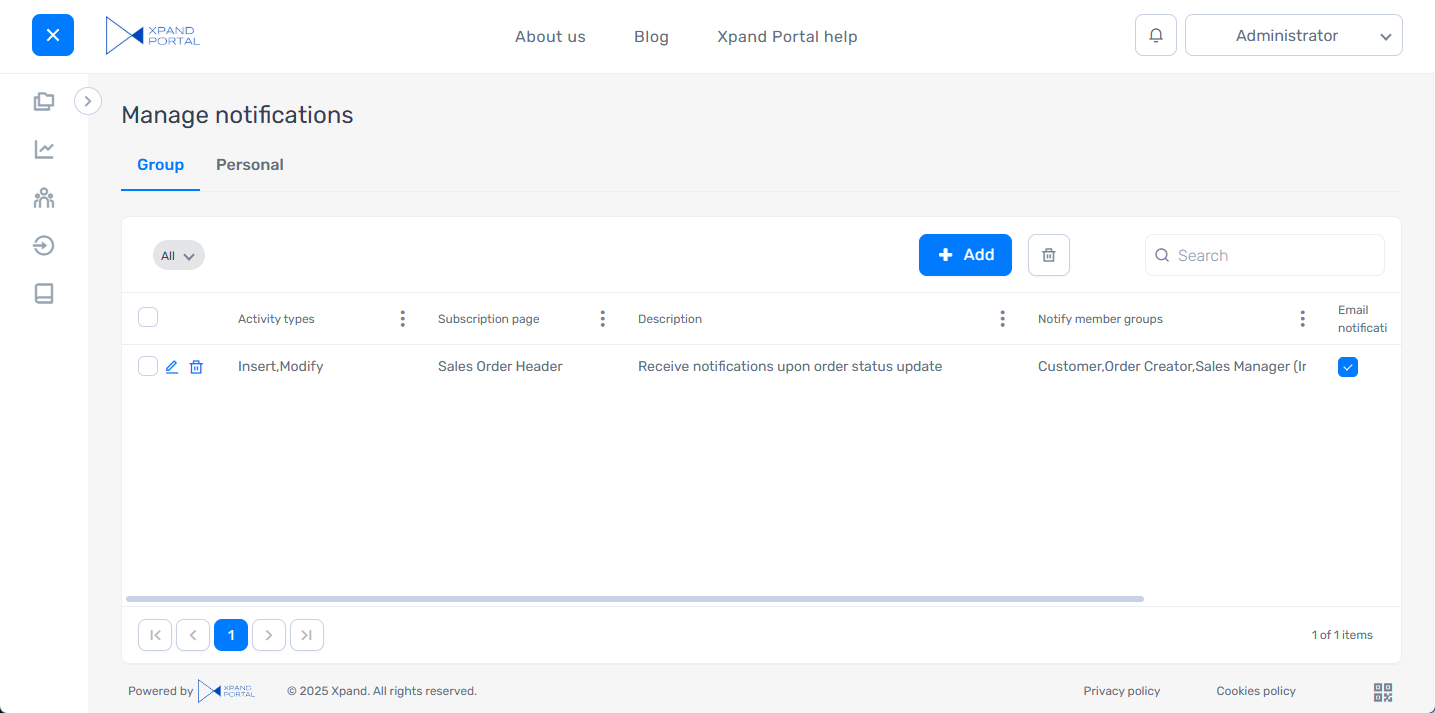
- On the Manage notifications page for administrators, administrators can manage advanced page-level subscriptions as follows:
- Disable page-level subscriptions for the corresponding member groups to to stop receiving notifications for them: select lines with subscriptions that you want to disable, and then select the Disable action. Alternatively, select the icon on a subscription line.
- Enable page-level subscriptions to resume notifications for the corresponding member groups: select lines with subscriptions that you want to enable, and then select the Enable action. Alternatively, select the icon on a subscription line.
- Delete page-level subscriptions: select the line(s) with the subscriptions that you want to delete, and then select the
 action on the action toolbar. Alternatively, select the
  icon on a subscription line or the action on the subscription card.
 - Edit page-level subscription: select the
 icon on a subscription line.
 - Create a page-level subscription: select the New action.
- Disable page-level subscriptions for the corresponding member groups to to stop receiving notifications for them: select lines with subscriptions that you want to disable, and then select the Disable action. Alternatively, select the
- When editing or creating a page-level subscription, the following settings are available on the subscription card:
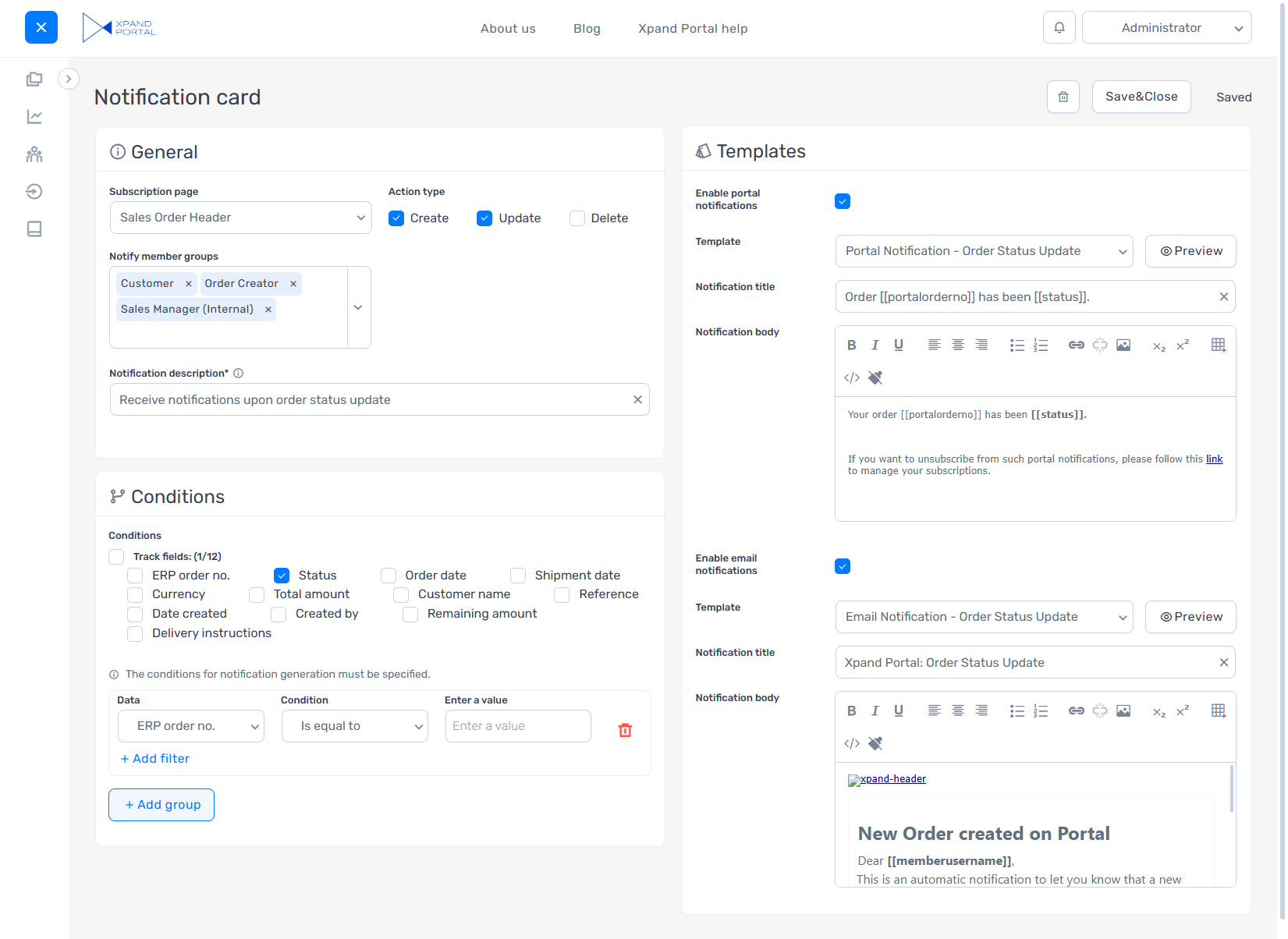
General
This group contains the general settings for this subscription.
- Enabled - Specifies that this subscription is enabled.
- Visible to subscription - Specifies that this subscription will be visible to subscribers on their Manage subscriptions page on the Page tab. The subscribers will also be able to disable the subscription in this case.
- Page - Specifies the portal page to track with this subscription. You can only select pages for which a site notification subscription entity setup was configured.
- Action type - Specifies the types of changes that will trigger a notification in this subscription.
- Create - If tracking of this activity type is enabled, you will be notified that a new record has been added.
- Update - If tracking of this activity type is enabled, you will be notified that an existing record has been changed.
- Delete - If tracking of this activity type is enabled, you will be notified that a record has been deleted.
- Notify member groups - Specifies member groups that will be receiving notifications from this subscription. If you leave this setting empty, only the member who created the subscription will be receiving notifications. If you fill in this field, the subscription will be considered a group subscription and, as a result, will be available only on the Group tab in the Manage notifications page for the portal administrator.
- Notification title - Specifies the title of this subscription. This title is displayed on the Manage notifications page.
- Notification description - Specifies a description of this subscription. This description is displayed on the Manage notifications page.
Conditions
Here you set up conditions that must be met for a notification to be sent/shown.
- Track fields – Select which fields to track on the page record of this subscription. Changes in these fields will trigger a notification.
- Add group - Select this action to add a filter group that will be used as a condition for notifications (for example, when a certain field value is equal to the value you specify).
Templates
Here you select and configure portal notification templates that will be used for notifications in this subscription.
- Enable portal notifications - Specifies whether you want members to receive notifications on the portal (will be displayed in the Notifications pane on the header). Use this checkbox to turn on or off portal notifications for this subscription.
- Template - Specifies the title of the portal notification template that will be used for portal notifications in this subscription. The default template configured for this entity in the site settings on the Templates tab under Subscription notification templates > Portal notification template if any is set, but you can use the dropdown menu to select a different template from the list of templates configured for this notification subscription entity or edit this field if you want to override the default template title. The title of this portal notification template is shown and configured below in the Notification title field. The body of this portal notification template is shown and configured below in the Notification body field. You can select the Preview button to preview how a portal notification with this portal notification template will look like.
- Notification title - Specifies the title of the portal notification template that will be used for portal notifications in this subscription. The title of the portal notification template chosen in the Template field is shown, but you can edit this field to override its title. You can use variables in square brackets for parts that will be different in each notification. For example, you can use such variables as:
- [[alias]] - This variable will be substituted with the name of the entity on which a change was detected.
- [[actiontype]] - This variable will be substituted with the type of change that was made. Use this variable when you are subscribed to various notification activity types.
- Notification body - Specifies the notification body that will be used for portal notifications in this subscription. The body of the portal notification template chosen in the Template field is shown, but you can edit this field to override its body. You can use variables in square brackets for parts that will be different in each notification. For example, you can use such variables as:
- [[updated]] - This variable will be substituted with the date when a record was changed.
- [[username]] - This variable will be substituted with the portal member who made a change.
- Enable email notifications – Specifies whether you want members to receive notifications from this subscription to their email. Use this checkbox to turn on or off email notifications for this subscription.
- Template - Specifies the title of the portal notification template that will be used for portal notifications in this subscription. The default template configured for this entity in the site settings on the Templates tab under Subscription notification templates > Email notification template if any is set, but you can use the dropdown menu to select a different template from the list of templates configured for this notification subscription entity or edit this field if you want to override the default template title. The title of this portal notification template is shown and configured below in the Notification title field. The body of this portal notification template is shown and configured below in the Notification body field. You can select the Preview button to preview how a portal notification with this portal notification template will look like.
- Notification title - Specifies the title of the portal notification template that will be used for email notifications in this subscription. The title of the email notification template chosen in the Template field is shown, but you can edit this field to override its title. You can use variables in square brackets for parts that will be different in each notification. For example, you can use such variables as:
- [[alias]] - This variable will be substituted with the name of the entity on which a change was detected.
- [[actiontype]] - This variable will be substituted with the type of change that was made. Use this variable when you are subscribed to various notification activity types.
- Notification body - Specifies the email notification body that will be used for portal notifications in this subscription. The body of the portal notification template chosen in the Notification title field is shown, but you can edit this field to override its body. You can use variables in square brackets for parts that will be different in each notification. For example, you can use such variables as:
- [[updated]] - to have it substituted with the date when a record was changed.
- [[username]] - to have it substituted with the name of the portal member who made a change.
- <a href="#=editLink#">View record</a> - This will be substituted with a link to the record that was changed.
- Select Save & close to save the changes.
Manage subscriptions as subscription manager (member with the Subscription Manager role)
If you are a member with the Subscription Manager role, in the default configuration of the Notifications functionality, just like administrators, you have the ability to to create and edit advanced page-level subscriptions with various conditions or filters that must be met for a notification to be sent/shown. Advanced notifications are configured for member groups, which means that notifications are sent/shown to all members that belong to the member groups, specified on the notification setup card.
In contrast to administrators, subscription managers can also view and manage their direct (individual record-level) subscriptions, that is they see both page-level and personal record-level subscriptions, however, they don't have any administrative permissions in other application areas.
To manage notification subscriptions as subscription manager (member with the Subscription Manager role):
- Sign in to the front end with an account that belongs to the Subscription Manager member role.
- On the header of any page, select [Your Member Name] > Manage subscriptions.\
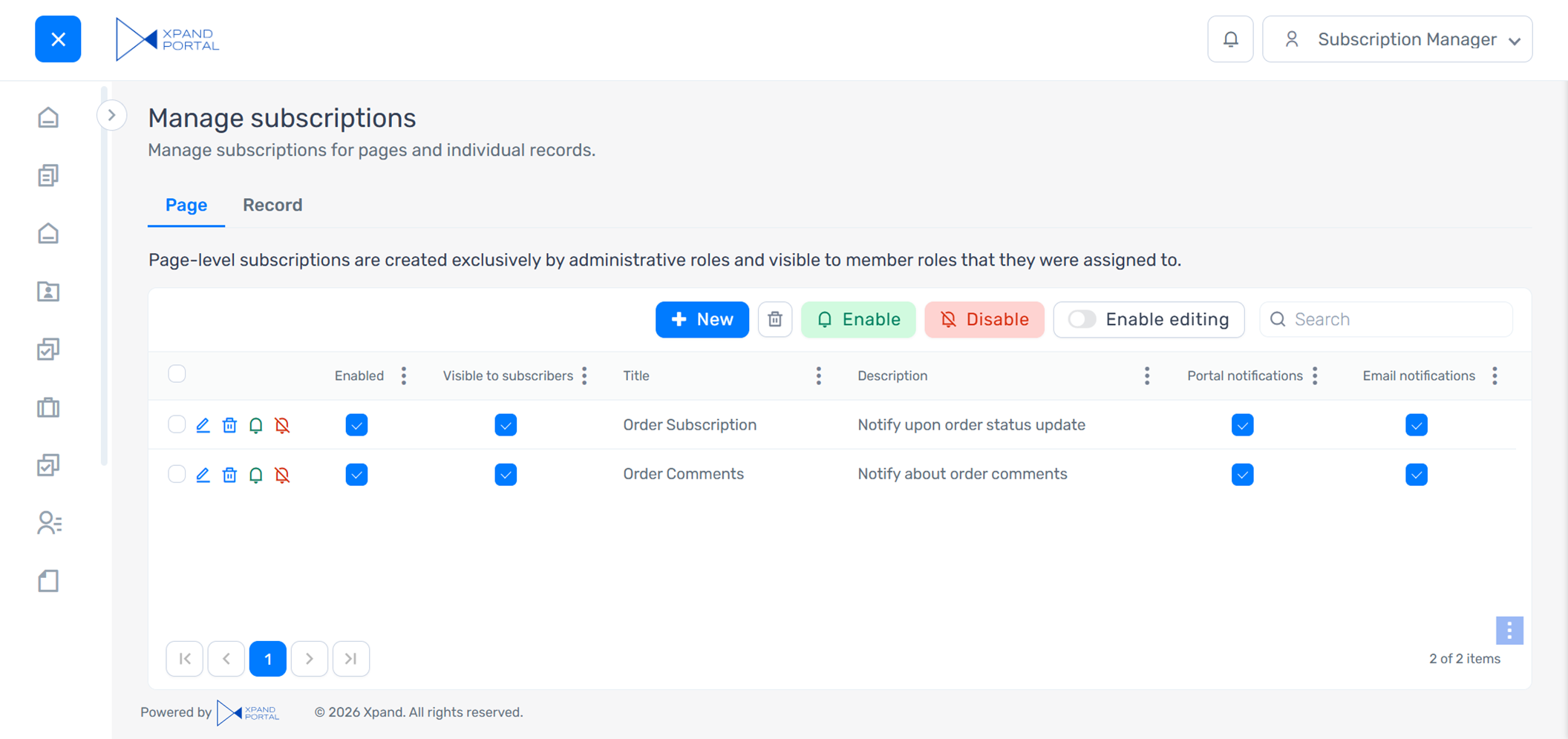
- On the Manage notifications page for subscription managers, on the Page tab, you can manage advanced page-level subscriptions as follows:
- Disable page-level subscriptions for the corresponding member groups to to stop receiving notifications for them: select lines with subscriptions that you want to disable, and then select the Disable action. Alternatively, select the icon on a subscription line.
- Enable page-level subscriptions to resume notifications for the corresponding member groups: select lines with subscriptions that you want to enable, and then select the Enable action. Alternatively, select the icon on a subscription line.
- Delete page-level subscriptions: select the line(s) with the subscriptions that you want to delete, and then select the action on the action toolbar. Alternatively, select the icon on a subscription line or the action on the subscription card.
- Edit page-level subscription: select the icon on a subscription line.
- Create a page-level subscription: select the New action.
- Disable page-level subscriptions for the corresponding member groups to to stop receiving notifications for them: select lines with subscriptions that you want to disable, and then select the Disable action. Alternatively, select the
- On the Manage notifications page for subscription managers, on the Record tab, you can manage your direct record-level subscriptions as follows:
- Enable editing to be able to manage subscriptions: toggle the Enable editing switch.
- Disable subscriptions to stop receiving notifications for them: select lines with subscriptions that you want to disable, and then select the Disable action. Alternatively, select the icon on a subscription line.
- Enable subscriptions to resume notifications for them: select lines with subscriptions that you want to enable, and then select the Enable action. Alternatively, select the icon on a subscription line.
Important
- Direct record-level subscriptions that are disabled or have both portal and email notifications turned off are automatically deleted the next day.
- Direct record-level subscriptions are deleted after 30 days, even if they remain enabled.
- Disable or enable a specific type of notifications:
- Clear the Portal notifications checkbox to no longer receive notifications on the portal (in the top right corner) or select the checkbox to resume notifications of this type.
- Clear the Email notifications checkbox to no longer receive notifications by email or select the checkbox to resume notifications of this type.
- When editing or creating a page-level subscription, the following settings are available on the subscription card:
General
This group contains the general settings for this subscription.
- Enabled - Specifies that this subscription is enabled.
- Visible to subscription - Specifies that this subscription will be visible to subscribers on their Manage subscriptions page on the Page tab. The subscribers will also be able to disable the subscription in this case.
- Page - Specifies the portal page to track with this subscription. You can only select pages for which a site notification subscription entity setup was configured.
- Action type - Specifies the types of changes that will trigger a notification in this subscription.
- Create - If tracking of this activity type is enabled, you will be notified that a new record has been added.
- Update - If tracking of this activity type is enabled, you will be notified that an existing record has been changed.
- Delete - If tracking of this activity type is enabled, you will be notified that a record has been deleted.
- Notify member groups - Specifies member groups that will be receiving notifications from this subscription. If you leave this setting empty, only the member who created the subscription will be receiving notifications. If you fill in this field, the subscription will be considered a group subscription and, as a result, will be available only on the Group tab in the Manage notifications page for the portal administrator.
- Notification title - Specifies the title of this subscription. This title is displayed on the Manage notifications page.
- Notification description - Specifies a description of this subscription. This description is displayed on the Manage notifications page.
Conditions
Here you set up conditions that must be met for a notification to be sent/shown.
- Track fields – Select which fields to track on the page record of this subscription. Changes in these fields will trigger a notification.
- Add group - Select this action to add a filter group that will be used as a condition for notifications (for example, when a certain field value is equal to the value you specify).
Templates
Here you select and configure portal notification templates that will be used for notifications in this subscription.
- Enable portal notifications - Specifies whether you want members to receive notifications on the portal (will be displayed in the Notifications pane on the header). Use this checkbox to turn on or off portal notifications for this subscription.
- Template - Specifies the title of the portal notification template that will be used for portal notifications in this subscription. The default template configured for this entity in the site settings on the Templates tab under Subscription notification templates > Portal notification template if any is set, but you can use the dropdown menu to select a different template from the list of templates configured for this notification subscription entity or edit this field if you want to override the default template title. The title of this portal notification template is shown and configured below in the Notification title field. The body of this portal notification template is shown and configured below in the Notification body field. You can select the Preview button to preview how a portal notification with this portal notification template will look like.
- Notification title - Specifies the title of the portal notification template that will be used for portal notifications in this subscription. The title of the portal notification template chosen in the Template field is shown, but you can edit this field to override its title. You can use variables in square brackets for parts that will be different in each notification. For example, you can use such variables as:
- [[alias]] - This variable will be substituted with the name of the entity on which a change was detected.
- [[actiontype]] - This variable will be substituted with the type of change that was made. Use this variable when you are subscribed to various notification activity types.
- Notification body - Specifies the notification body that will be used for portal notifications in this subscription. The body of the portal notification template chosen in the Template field is shown, but you can edit this field to override its body. You can use variables in square brackets for parts that will be different in each notification. For example, you can use such variables as:
- [[updated]] - This variable will be substituted with the date when a record was changed.
- [[username]] - This variable will be substituted with the portal member who made a change.
- Enable email notifications – Specifies whether you want members to receive notifications from this subscription to their email. Use this checkbox to turn on or off email notifications for this subscription.
- Template - Specifies the title of the portal notification template that will be used for portal notifications in this subscription. The default template configured for this entity in the site settings on the Templates tab under Subscription notification templates > Email notification template if any is set, but you can use the dropdown menu to select a different template from the list of templates configured for this notification subscription entity or edit this field if you want to override the default template title. The title of this portal notification template is shown and configured below in the Notification title field. The body of this portal notification template is shown and configured below in the Notification body field. You can select the Preview button to preview how a portal notification with this portal notification template will look like.
- Notification title - Specifies the title of the portal notification template that will be used for email notifications in this subscription. The title of the email notification template chosen in the Template field is shown, but you can edit this field to override its title. You can use variables in square brackets for parts that will be different in each notification. For example, you can use such variables as:
- [[alias]] - This variable will be substituted with the name of the entity on which a change was detected.
- [[actiontype]] - This variable will be substituted with the type of change that was made. Use this variable when you are subscribed to various notification activity types.
- Notification body - Specifies the email notification body that will be used for portal notifications in this subscription. The body of the portal notification template chosen in the Notification title field is shown, but you can edit this field to override its body. You can use variables in square brackets for parts that will be different in each notification. For example, you can use such variables as:
- [[updated]] - to have it substituted with the date when a record was changed.
- [[username]] - to have it substituted with the name of the portal member who made a change.
- <a href="#=editLink#">View record</a> - This will be substituted with a link to the record that was changed.
- Select Save & close to save the changes.