Release notes for version 4.6.0.0
| Release date | October 22, 2026 |
Version 4.6.0.0 of Xpand Portal introduces the following features and improvements:
Meet your new AI Assistant
We’re excited to introduce AI Assistant, a highlight of this release that brings a new way to explore your portal data through conversation.
Available from a widget in the corner of the portal, AI Assistant lets you ask questions in natural language. While you can ask general questions, its main focus is helping you find and understand information within your portal.
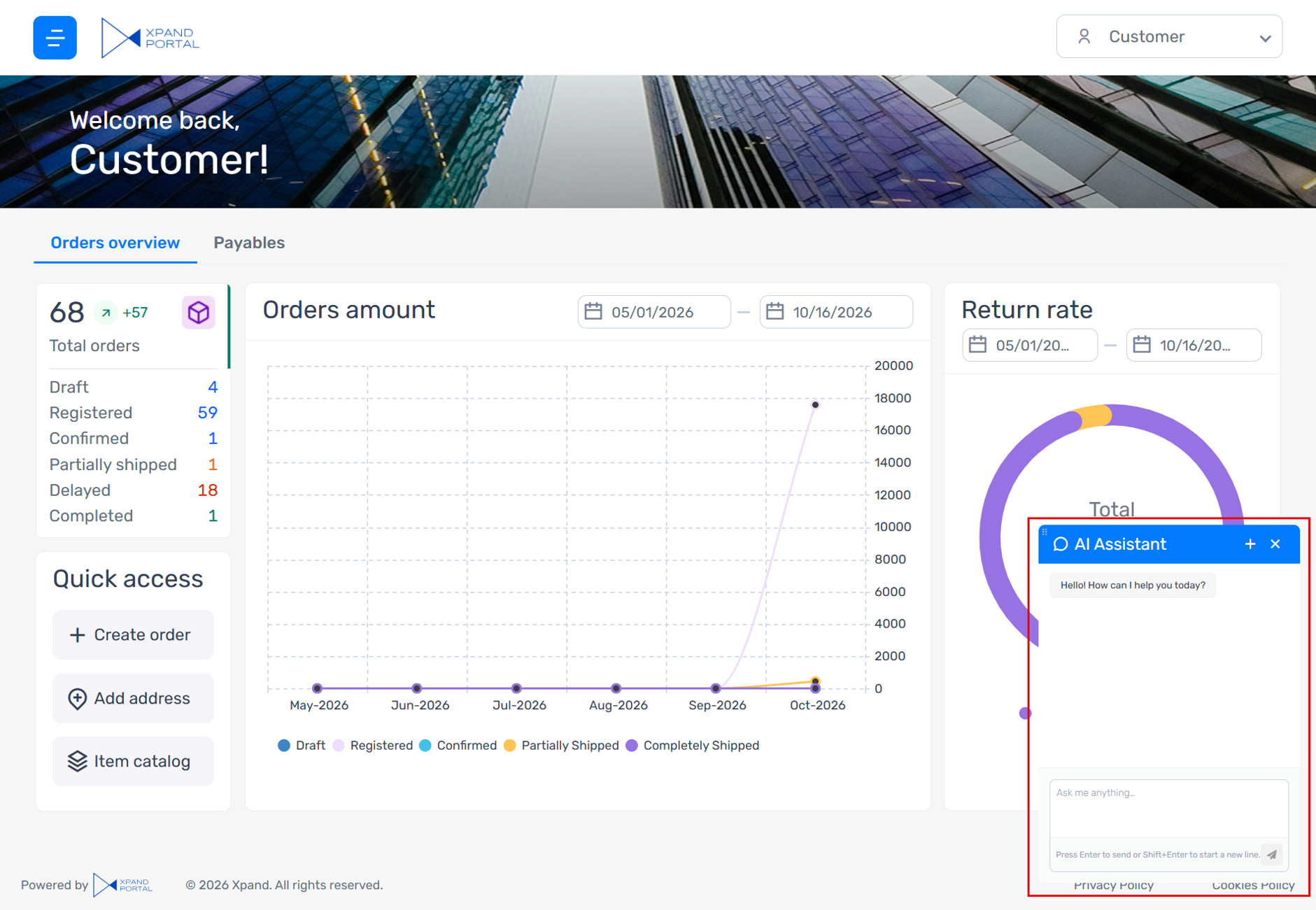
Answers with context
AI Assistant understands the page you’re viewing, other portal pages configured for its use, and the relationships between them. This context helps it answer questions about connected information across the portal.
Your existing data permissions apply. Responses only include portal data that your user role is allowed to access.
Optionally, AI Assistant can also search indexed help documentation in HTML or Markdown format, such as the Xpand Help Center, to provide relevant guidance and instructions. Responses based on help documentation can include links to the relevant documentation.
More than text
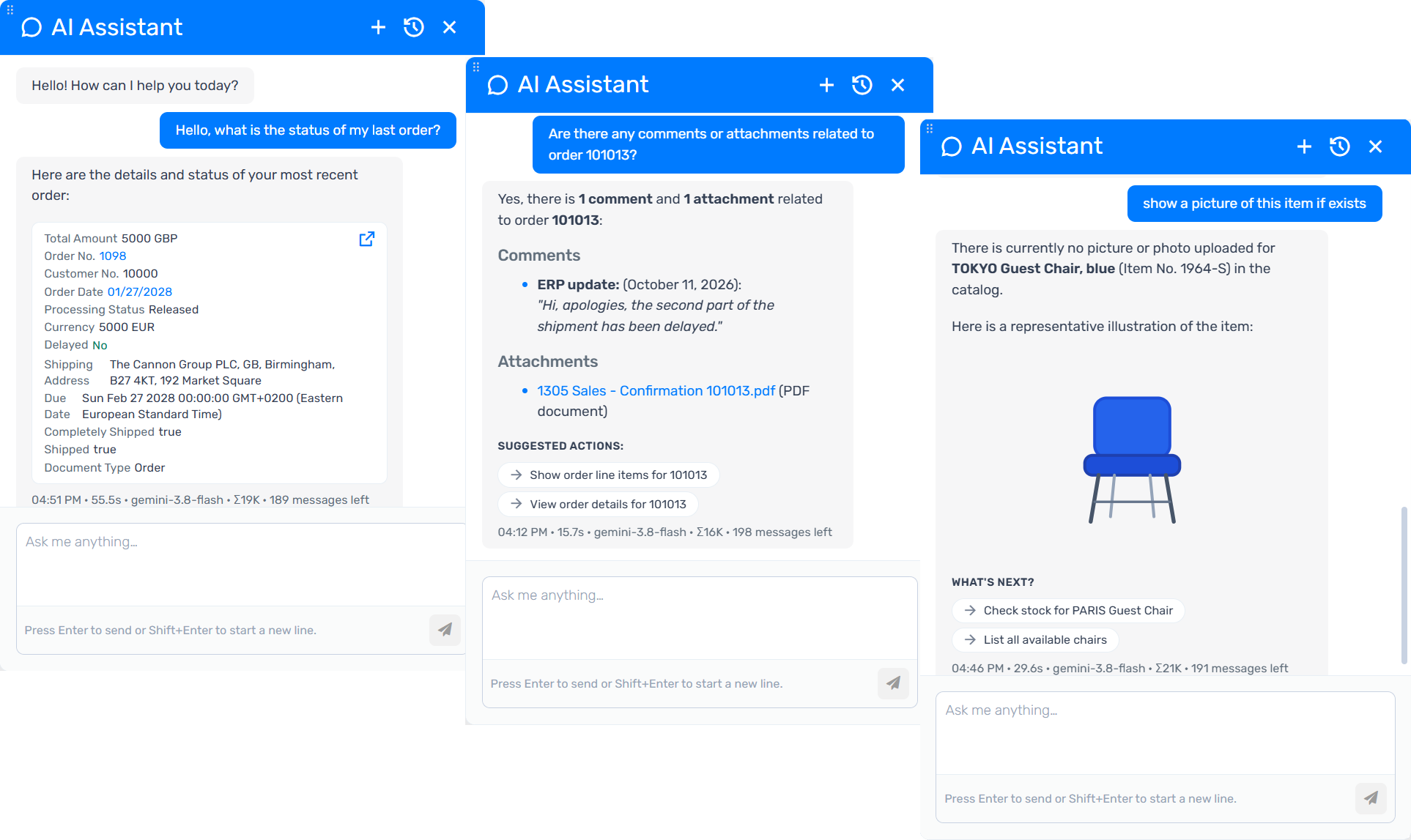
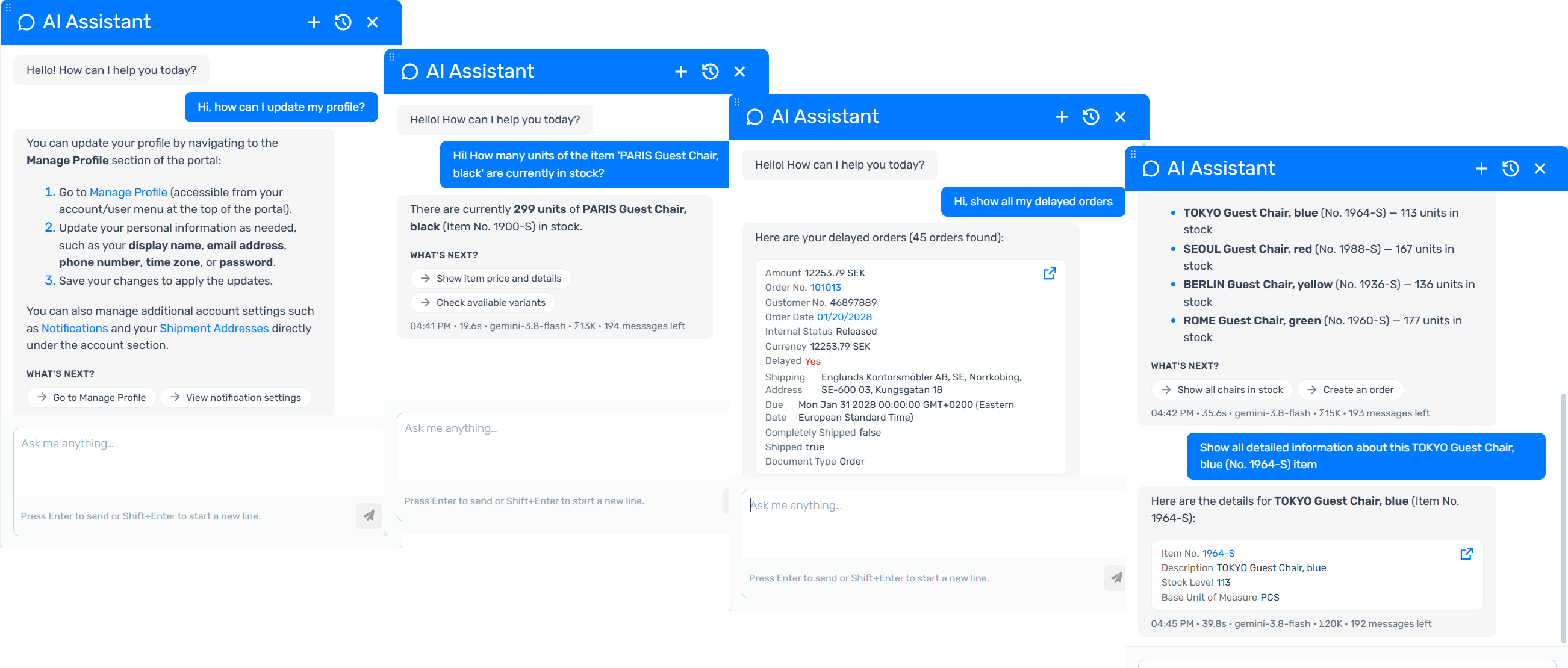
Responses about portal data can present information in a variety of formats:
- Text and lists for explanations and summaries.
- Tables and tiles for structured data.
- Images associated with portal records.
- Clickable links to related portal pages and record attachments so you can explore further.
Customizable response templates let you tailor how answers about portal data are presented.
Examples of responses about portal data:
Flexible setup and usage controls
AI Assistant supports integration through Microsoft Foundry or directly with model providers, allowing organizations to choose a supported model and connection option that suit their needs and budget.
Microsoft Foundry, previously called Azure AI Foundry, offers a catalog of models from Microsoft and other providers. Costs depend on the selected model and deployment. Learn more about Foundry models.
|
To work with Xpand Portal AI Assistant, a model must support both tool calling and reasoning. |
 Note
NoteAdministrators can configure which agent and tools the assistant uses, which portal pages and fields it can work with, and daily and monthly usage limits. Settings can also be overridden for individual pages, for example, to hide AI Assistant or use a different model on a specific page. A dedicated dashboard provides usage statistics and a log to help monitor activity.
Ready to explore AI Assistant? Set up your model integration and configure the assistant for your portal, then try asking questions about your portal data.
New Cargo Tracking Module
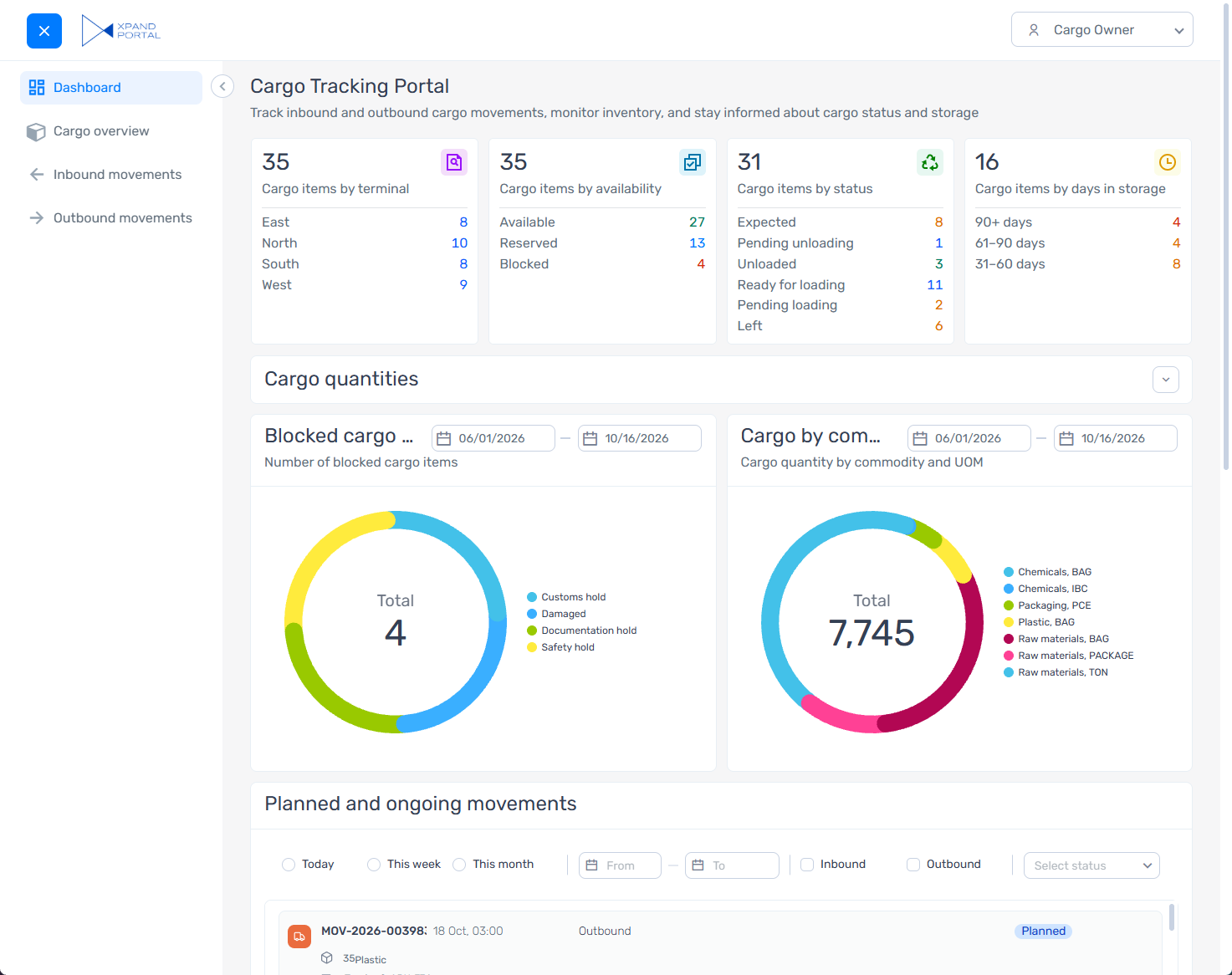
Help your customers stay informed about their cargo with the new Cargo Tracking Module. From inventory availability and storage status to inbound and outbound movements, it brings essential cargo information together in one portal.
The module provides a predefined configuration built using core Xpand Portal features, helping organizations set up a cargo tracking portal with less configuration effort.
The module brings together:
- A cargo dashboard
View cargo by terminal, availability, status, and time in storage, with quantity breakdowns and charts to help interpret the figures. - An inventory overview
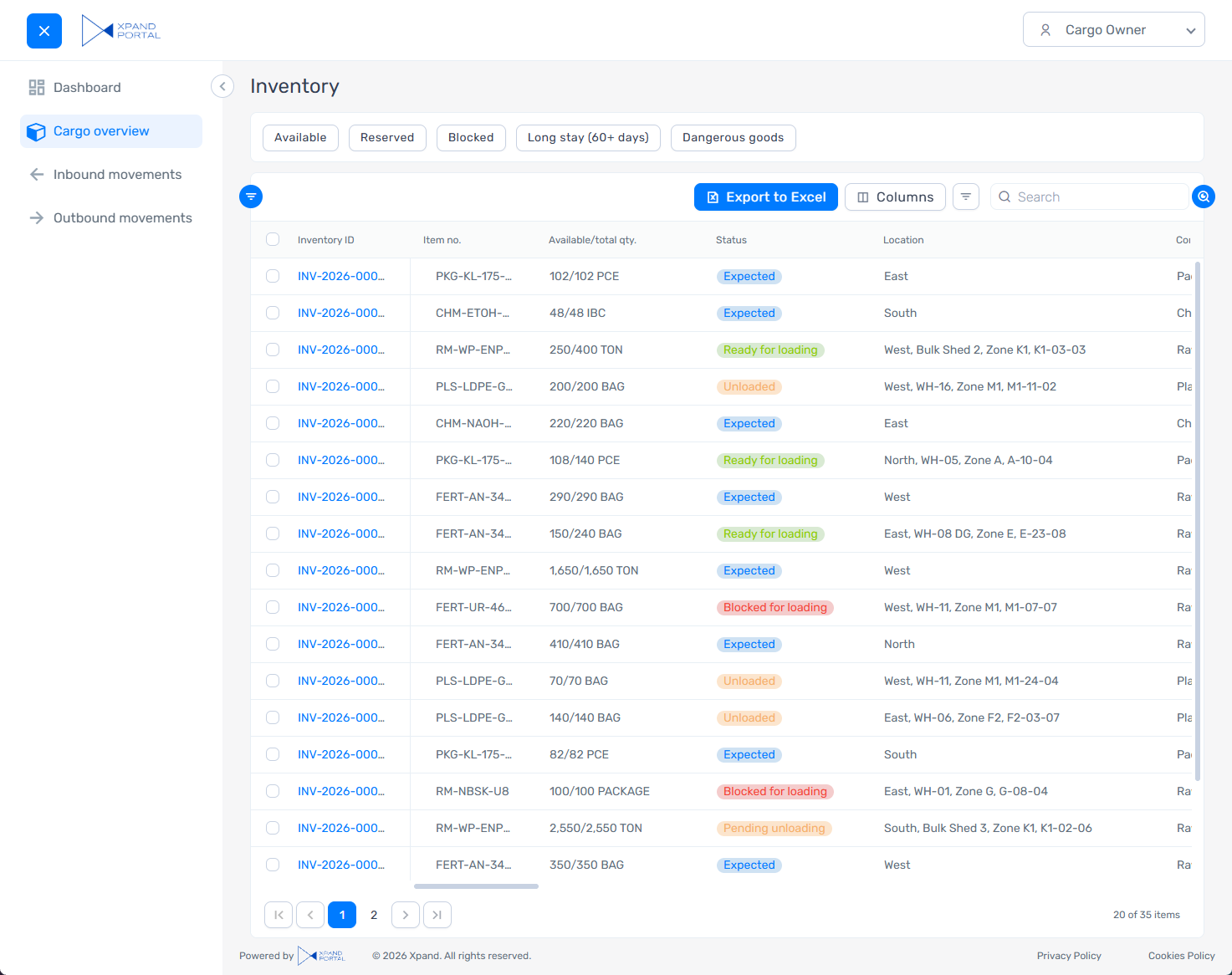
Check available and reserved quantities, cargo locations, and statuses. Quickly focus on available, reserved, or blocked cargo, items in long storage, and dangerous goods. - Inbound and outbound movements
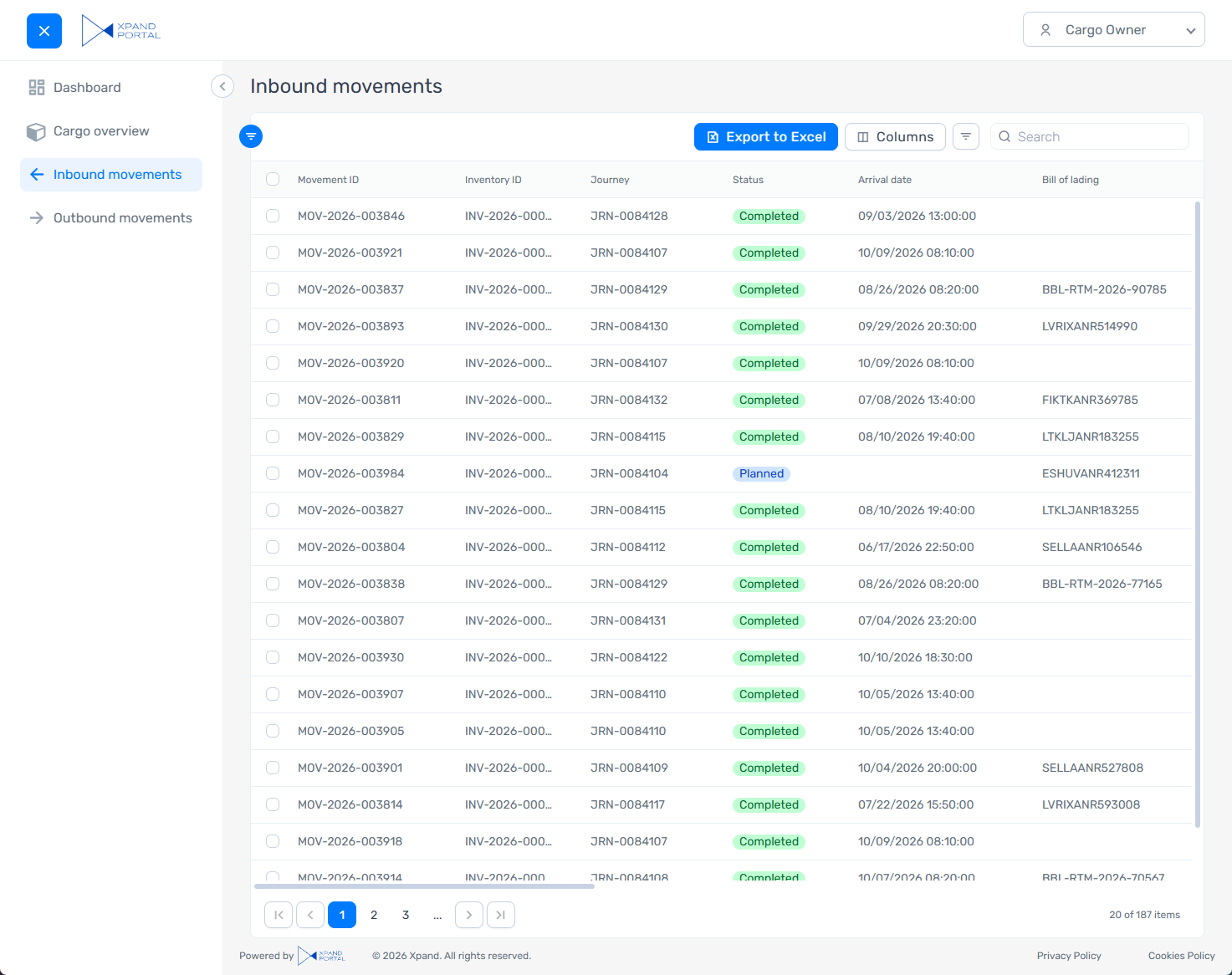
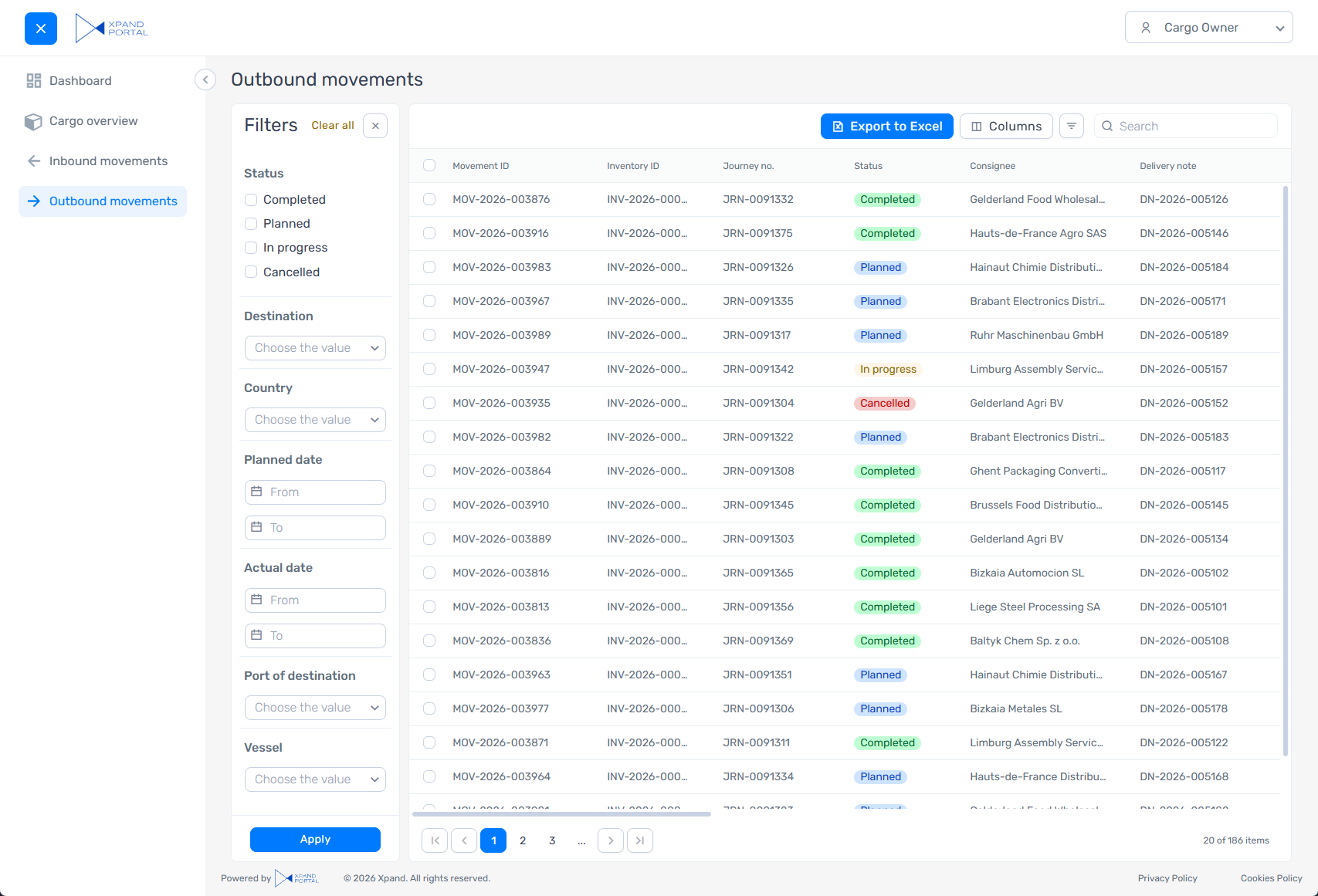
Review planned, ongoing, and completed movements, including journey references, arrival dates, consignees, and transport details. Search, filter, and export records to Excel for further analysis. - Detailed cargo information
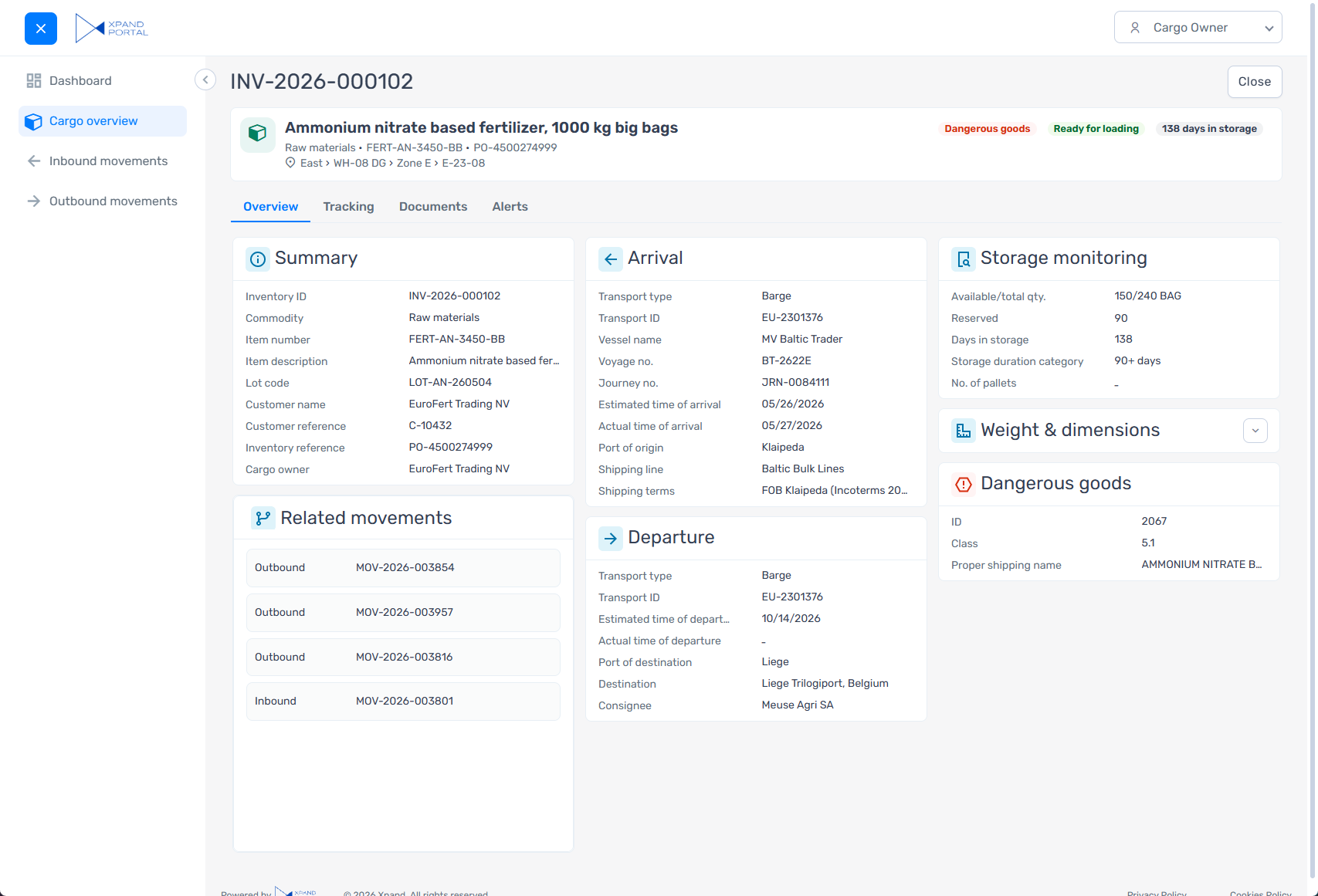
Open a cargo record to review its summary, related movements, arrival and departure details, storage duration, weight and dimensions, and dangerous goods information. - Items requiring attention
Identify delayed movements, extended storage periods, damaged cargo, and holds related to customs, documentation, or safety, with severity indicators to help prioritize follow-up.
The module helps cargo owners track progress, spot issues sooner, and check cargo information independently, reducing routine status requests and the need for staff to manually share updates.
UI improvements and refreshed design of various elements
We’ve refined the portal interface to make it clearer, more consistent, and easier to use across devices. Updated visuals and richer data displays help you interpret information at a glance, while more flexible settings give you greater control over its presentation.
Mobile and tablet version IU improvements
Building on the responsive behavior improvements introduced in version 4.4.0.0, we’ve completed the revision of the mobile and tablet interface to make it easier to use and configure.
The updated interface makes better use of smaller screens. Some of the main improvements include:
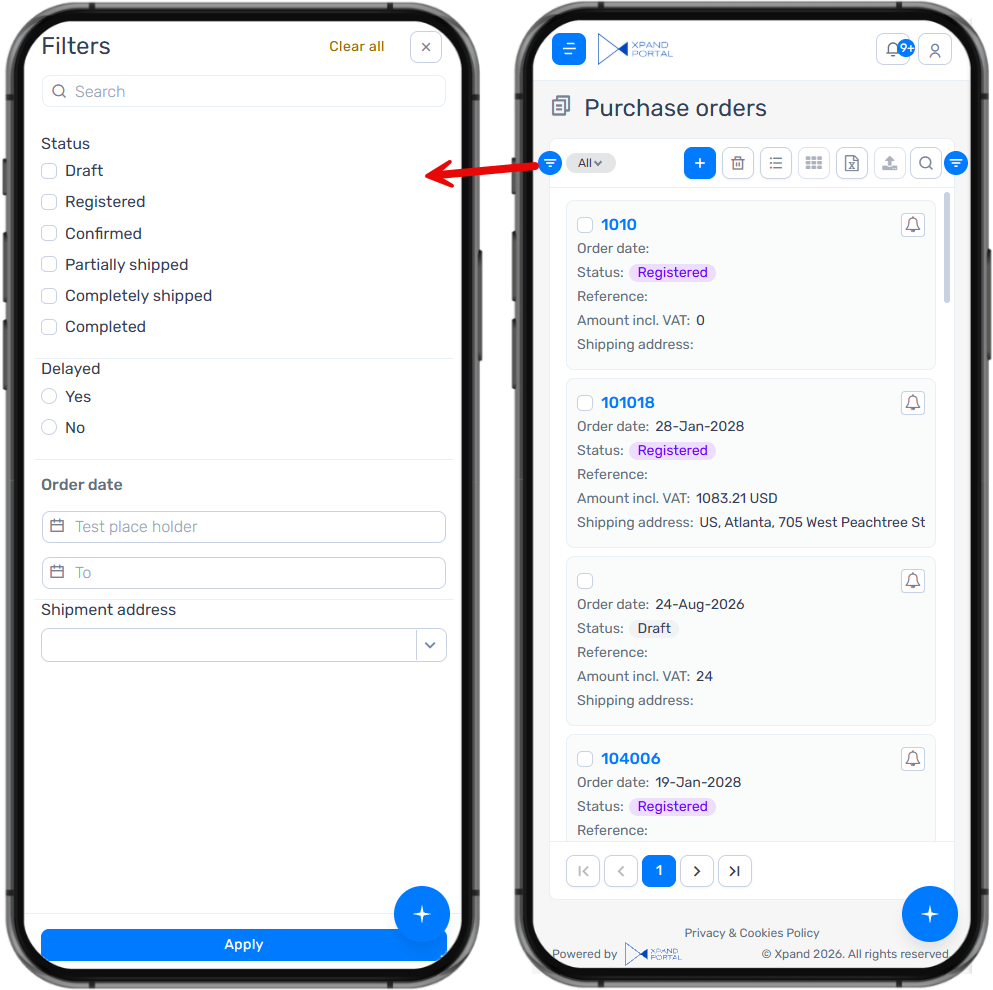
- Expandable page parts and dialogs now open in full screen or use the full screen width, providing more room for content.
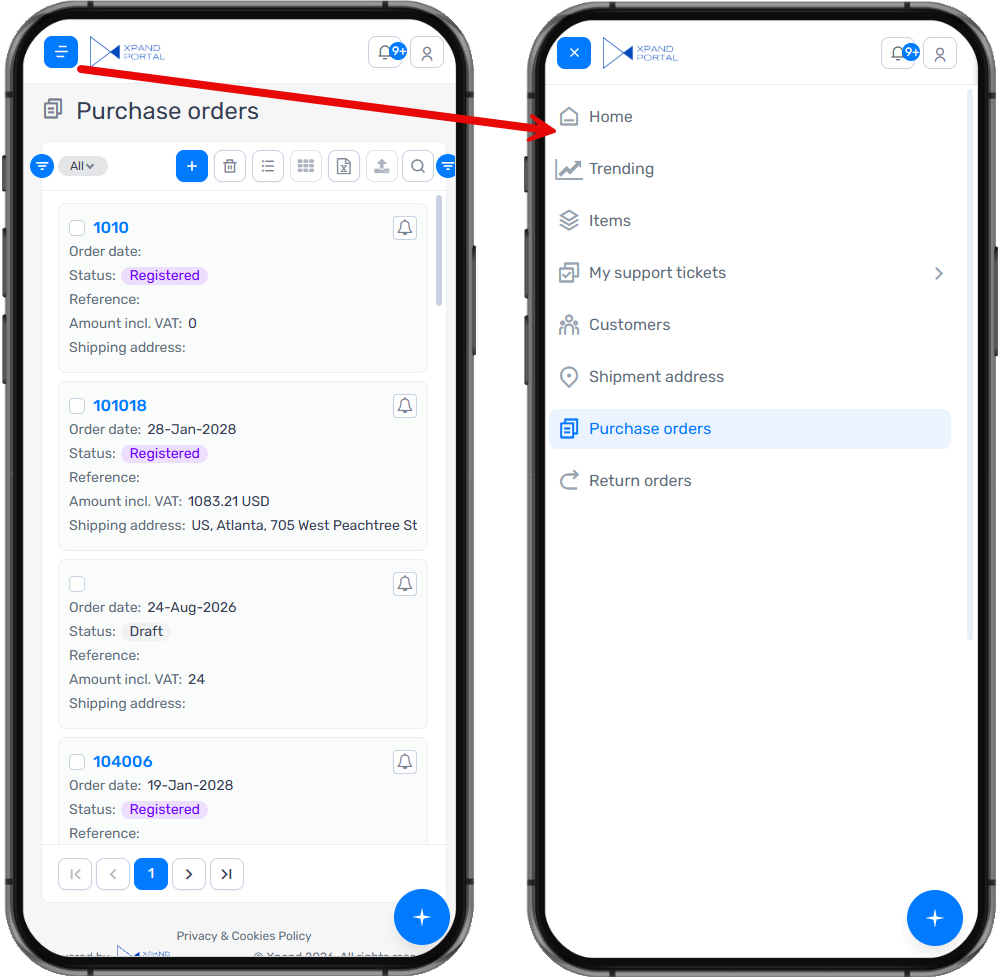
- The navigation menu expands to the full screen width.
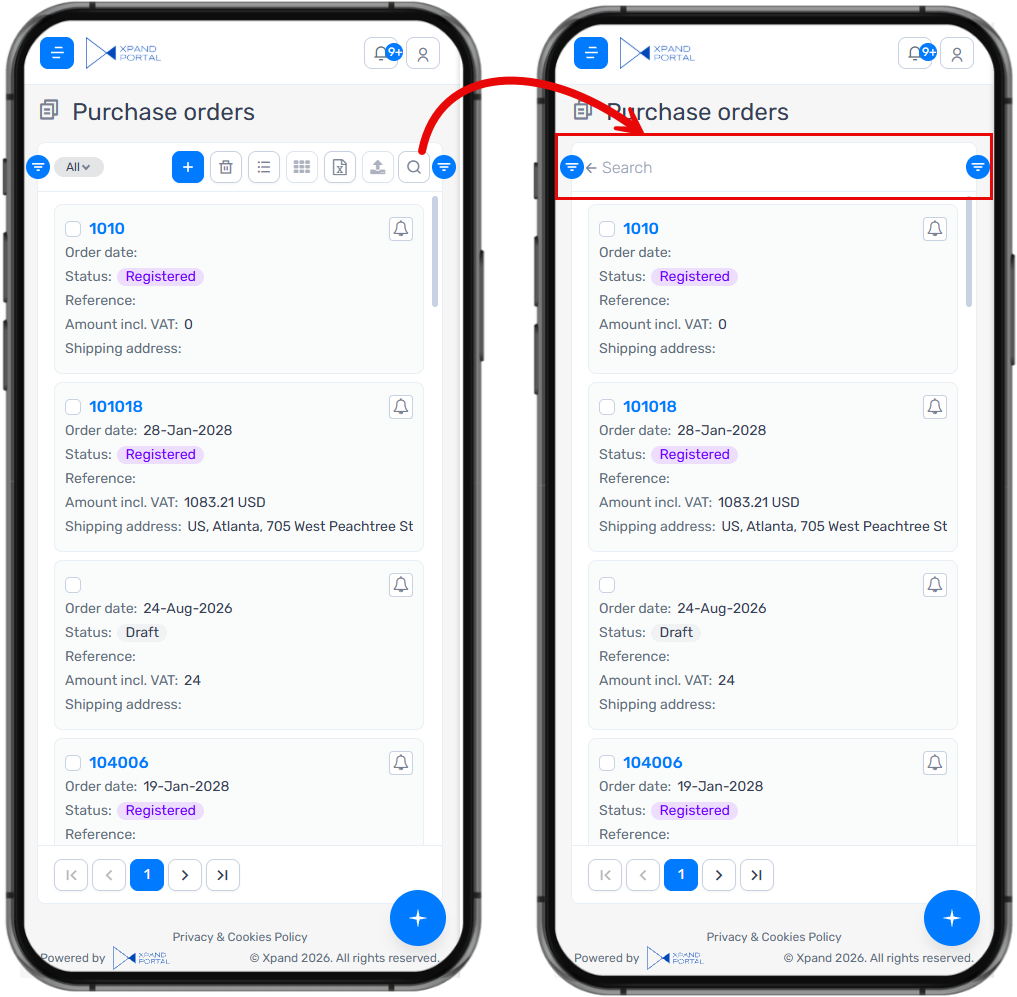
- The grid search box on mobile devices expands to full width when tapped, giving you more space to enter your search.
- Fewer actions appear directly on screen, with additional actions available in the actions menu to reduce clutter.
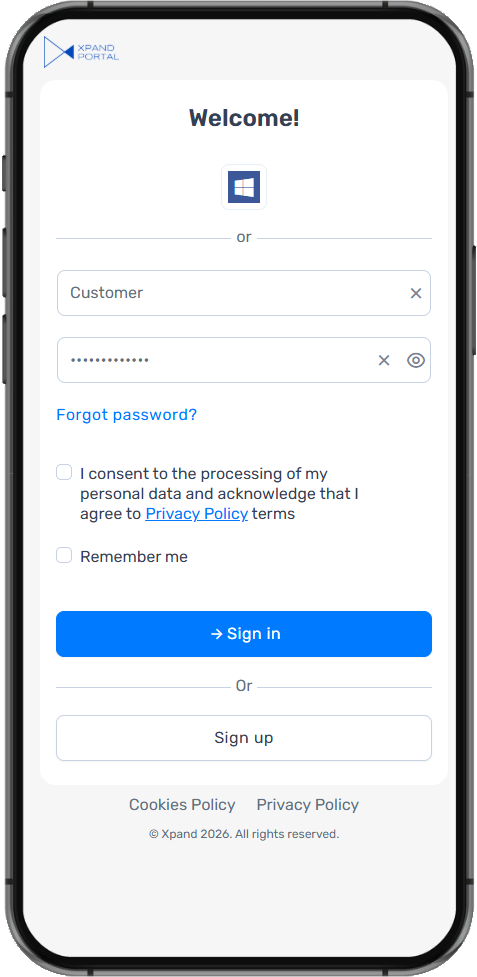
- The sign-in page image is hidden on mobile and tablet devices, keeping the focus on the sign-in form.
These highlights are part of a broader set of layout and visual improvements that create a more consistent experience across mobile and tablet devices.
Examples
Sign-in page without the sign-in image:
The search box expands to full width:
An expandable page part opens in full screen:
The menu expands to the full screen width:
Record navigation
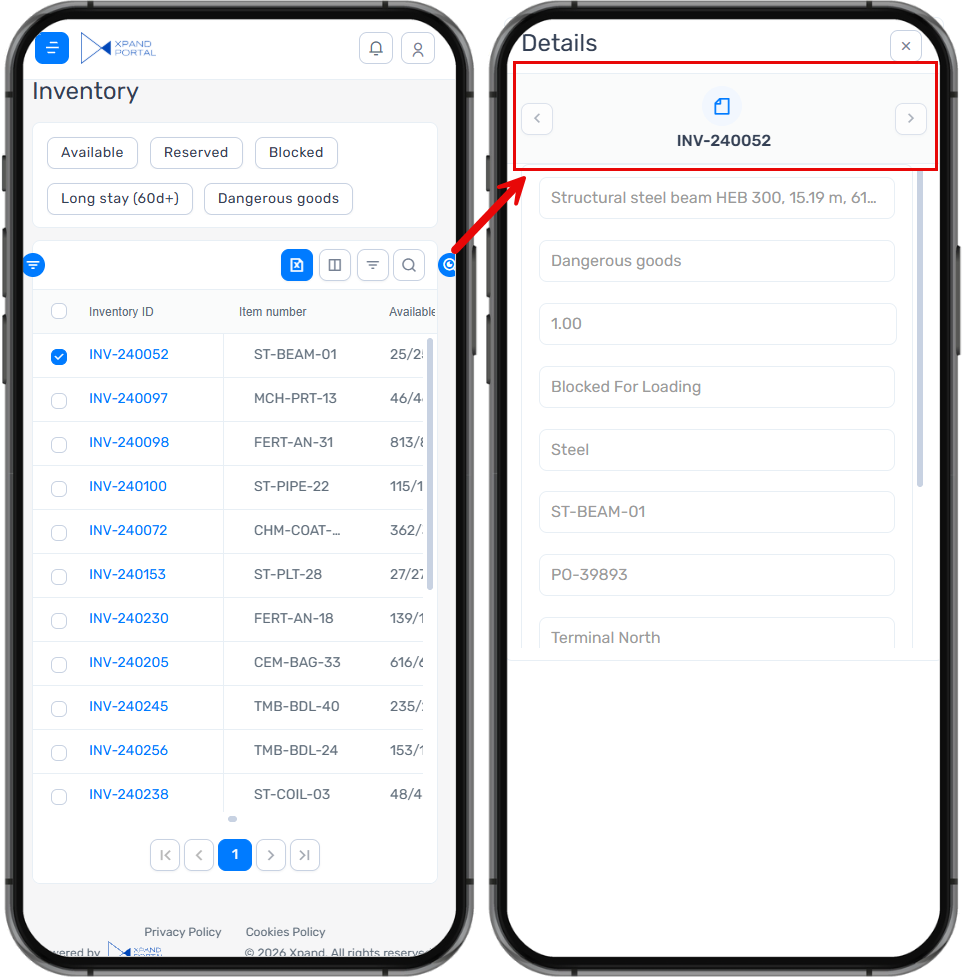
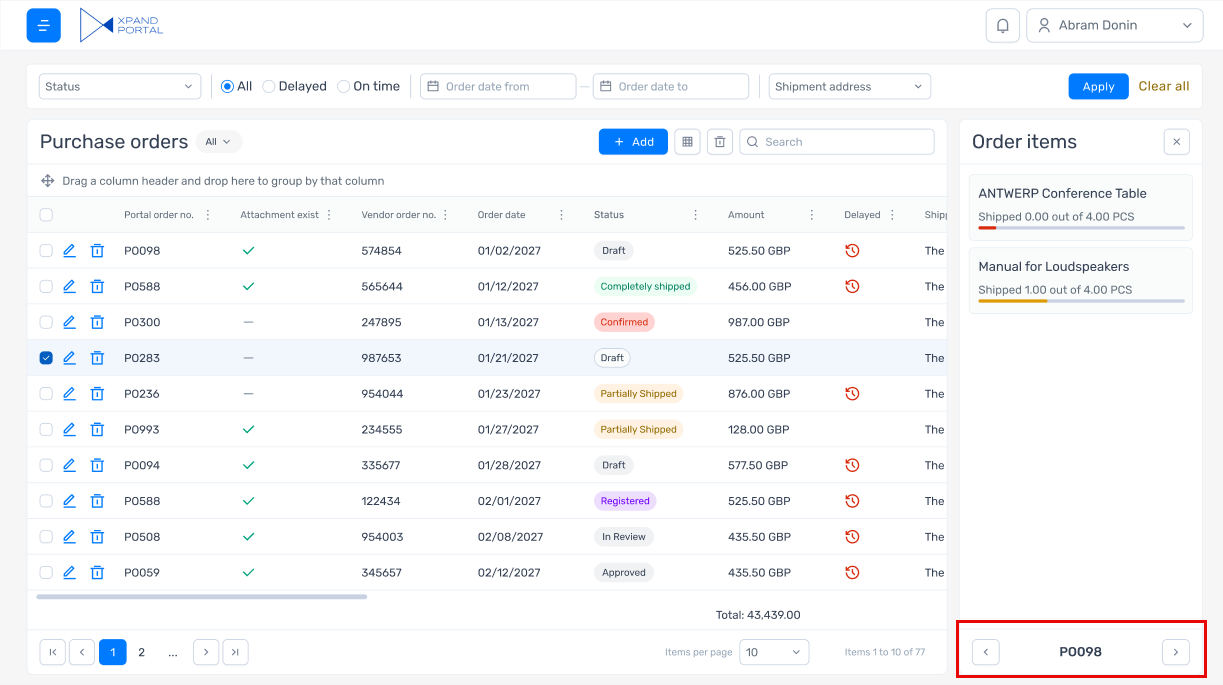
As part of the mobile and tablet IU improvements, the new Record navigation page part lets you browse records while keeping their related information in view.
Added to a grid layout block linked to a grid, such as a FactBox containing record details, it provides Previous and Next buttons to move between records. The content in the layout block updates to reflect the selected record.
This is especially useful on mobile and tablet devices, where the grid and related information may not fit side by side. You can move between records directly within the expanded view without returning to the grid each time.
Record navigation example on a mobile device:
Record navigation can also be useful for desktop use for easier navigation when viewing record details for multiple records.
Record navigation on desktop:
Breakdown data and trends on home tiles
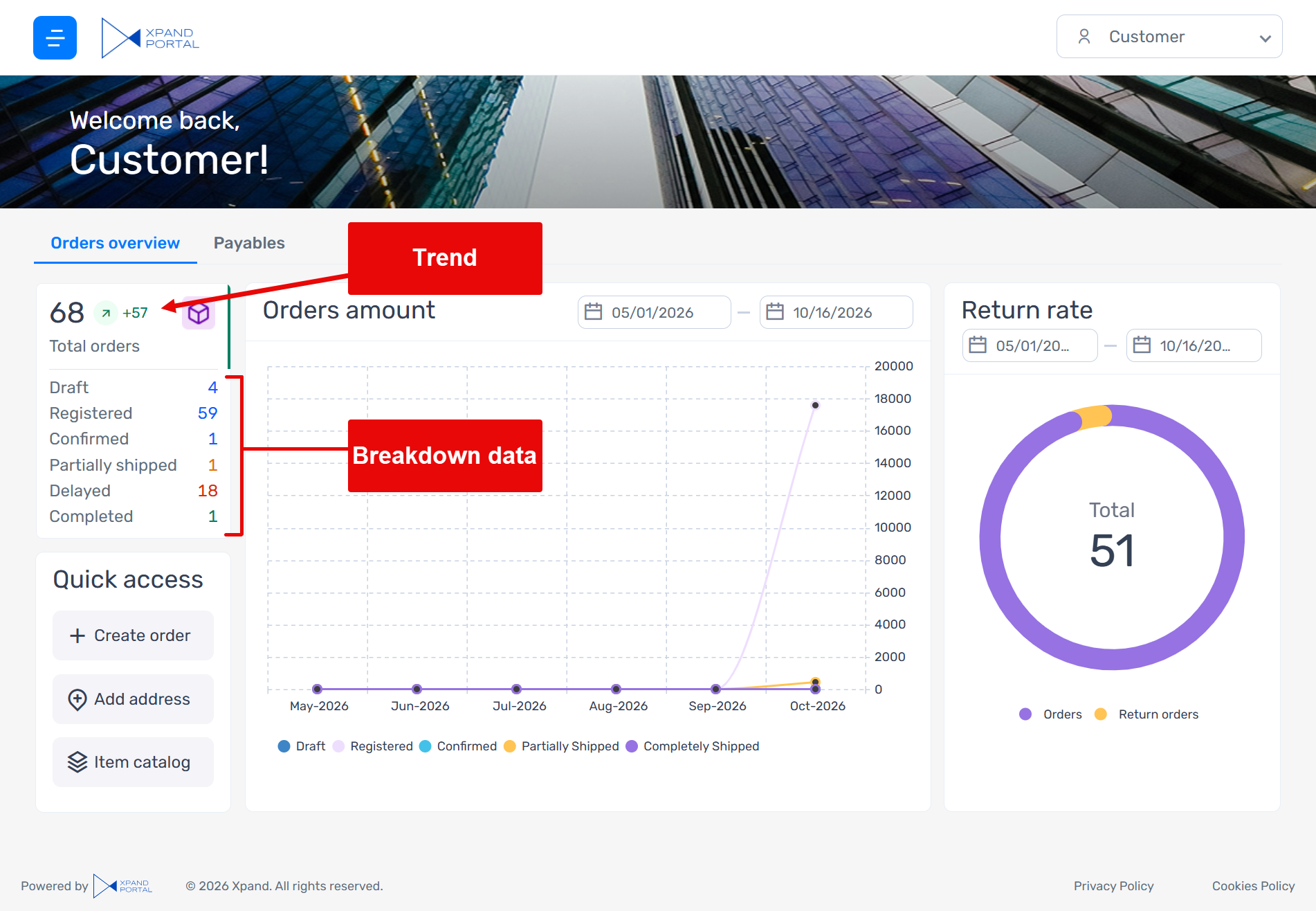
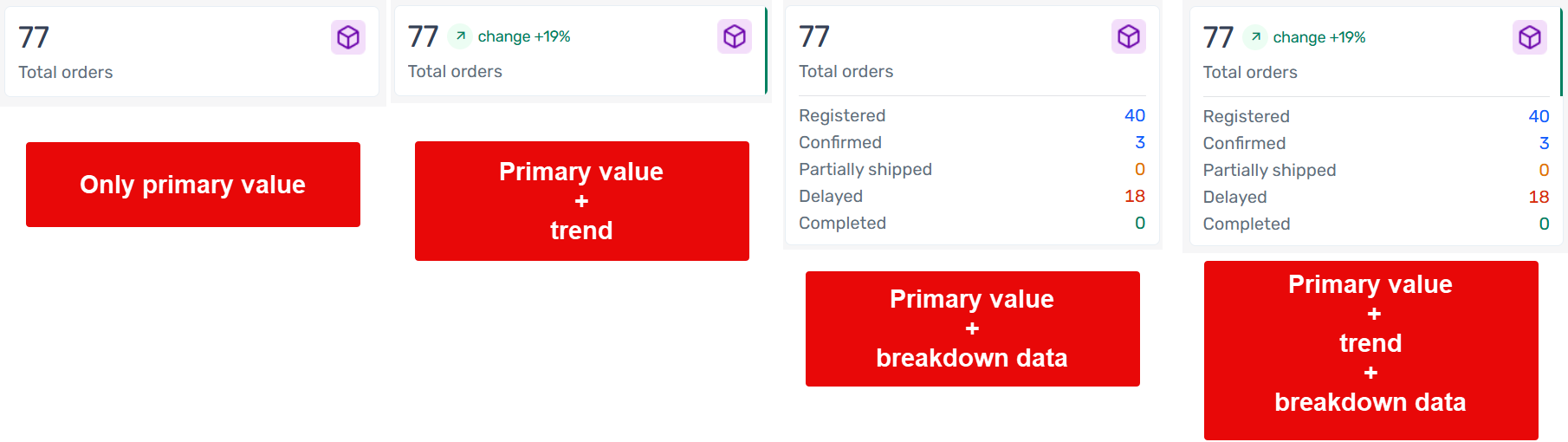
Home tiles can now show more context alongside the primary value, helping you understand what makes up the value and how it has changed over time.
See changes at a glance
Trend indicators compare the primary value (or the one that you configure) with a value in the previous period defined in the settings. The change can appear as an absolute value or a percentage, showing an increase, a decrease, or no change.
Default formatting, icons, and a colored indicator along the tile’s right edge help you quickly interpret the trend. These visual cues can be customized to suit your data and presentation preferences.
Understand the primary value
Breakdown data appears beneath the primary value to show its components. For example, a tile displaying the total number of orders can also show how many are in Draft, Open, and Released status.
Together, trends and breakdowns make home tiles more informative, helping you spot changes and understand key figures at a glance.
Slimmer progress bars and flexible color settings
Progress bars now have a slim, minimalist design, displaying progress as a thin line for a cleaner, more compact appearance.
You can also choose background and text colors for individual segments using a color picker. Previously, the available colors had to be configured by developers before they could be selected. This gives you more flexibility to adjust the appearance directly in the settings.
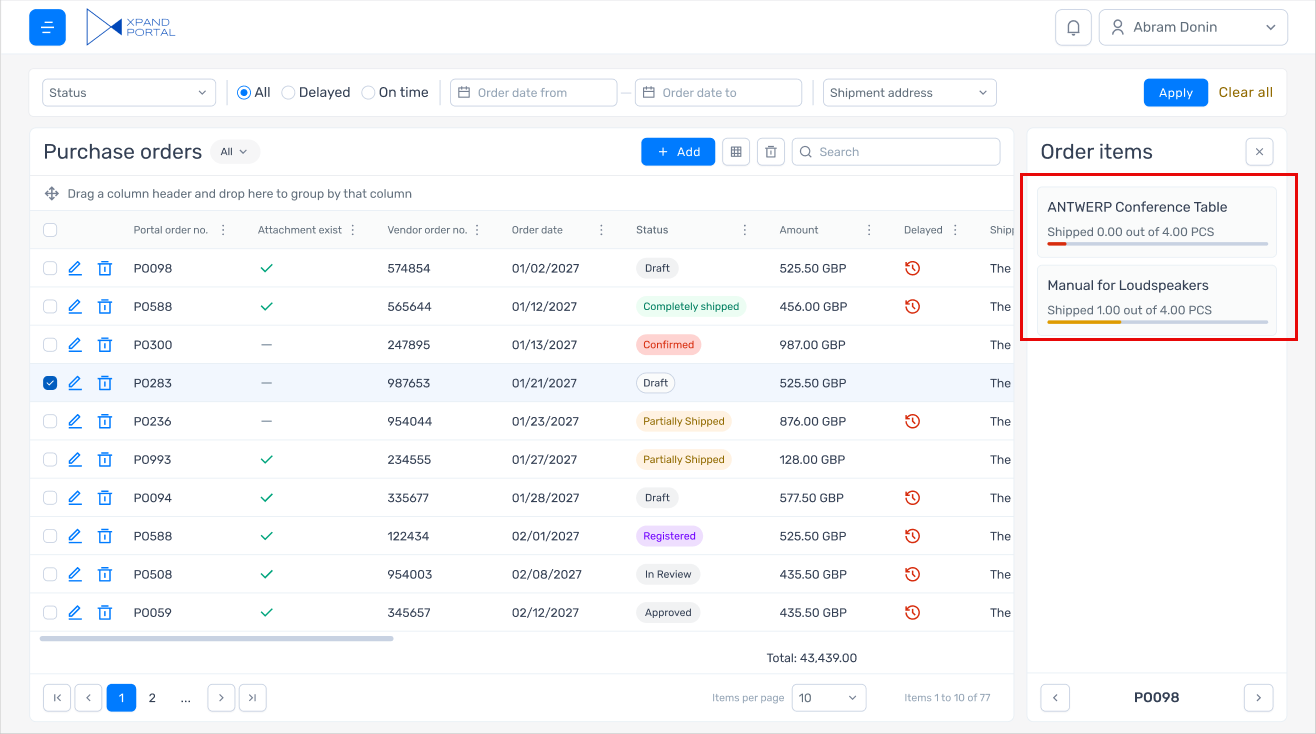
Setting captions and descriptions have also been revised for clarity and accuracy, making progress bars easier to configure.
Refreshed home tile design
Home tiles now have a wider, shorter base layout, with the title displayed beneath the primary value to give the key figure more prominence.
Tile height adjusts to the content, accommodating the primary value on its own or combined with trend information, breakdown data, or both.
Long titles are truncated to keep the layout consistent. Tile width continues to adapt to the available page width and respect the responsive behavior settings.
New chart type: Ring
This release introduces Ring, a new chart type that shows how individual categories contribute to a total.
Colored segments display the breakdown, while the total appears prominently in the center. This lets you see both the overall figure and its composition at a glance.
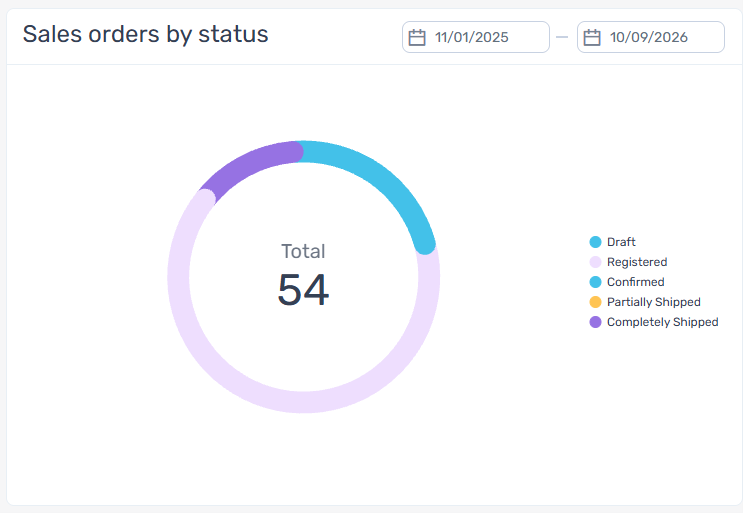
Ring expands the available chart types, giving you another way to present clear, compact summaries on your portal.
A new look for field alerts
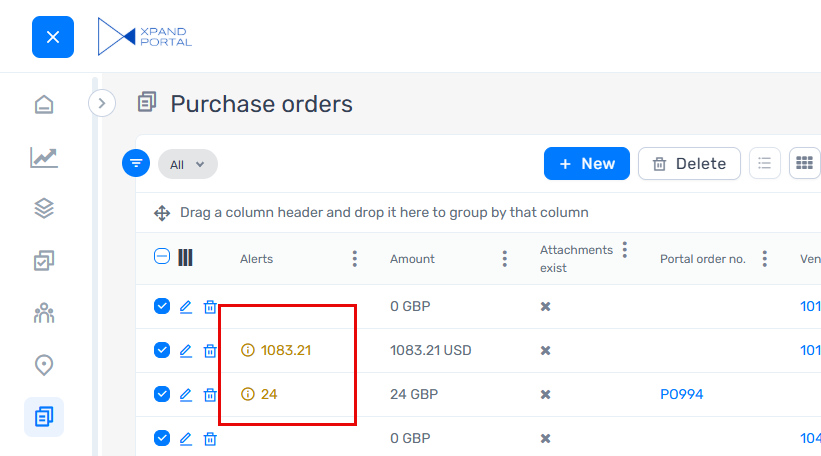
Field alerts have been redesigned to match the portal’s current visual style. This update replaces styling carried over from the previous portal design, resolving visual inconsistencies between field alerts and the rest of the interface.
Revised member access management
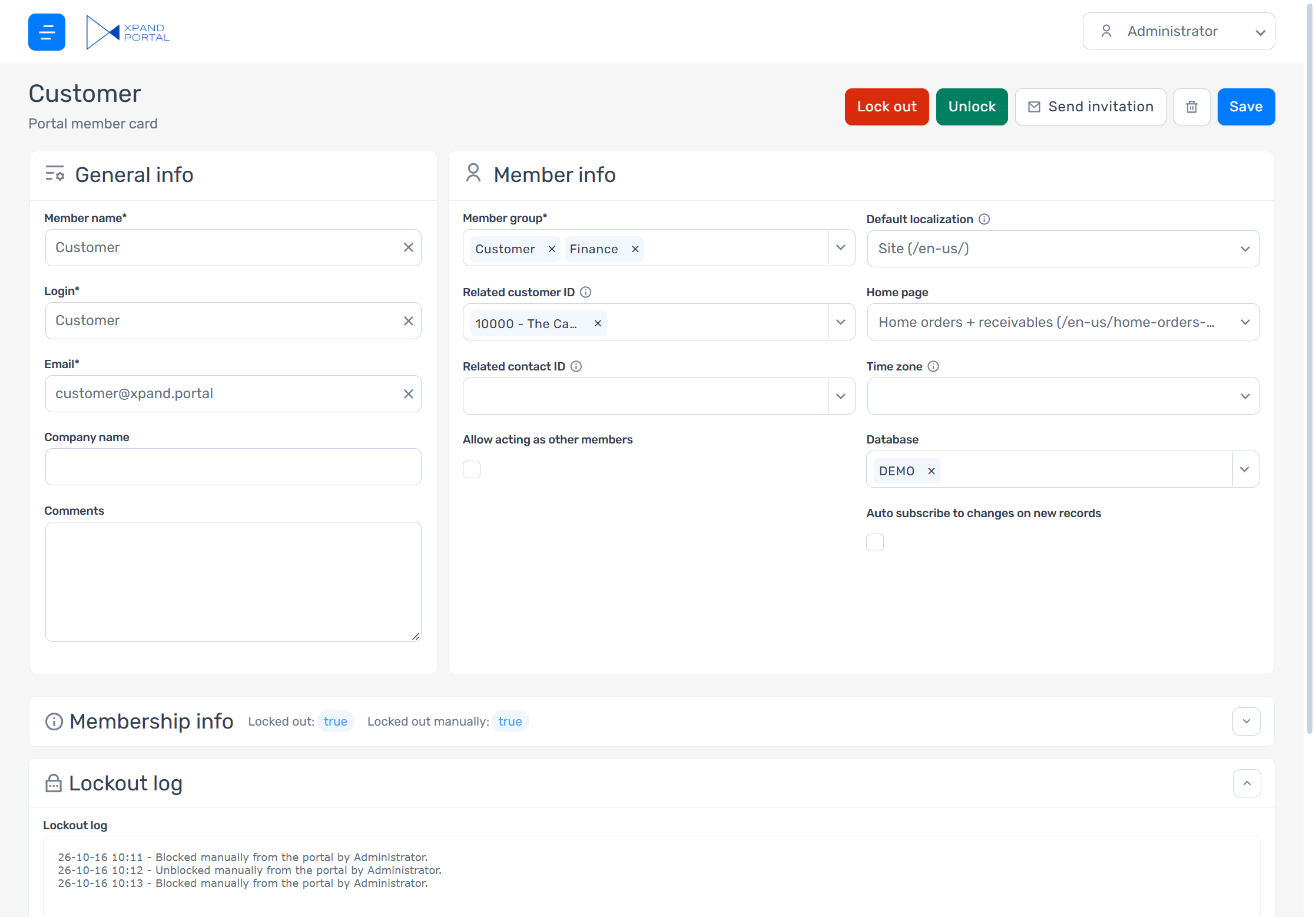
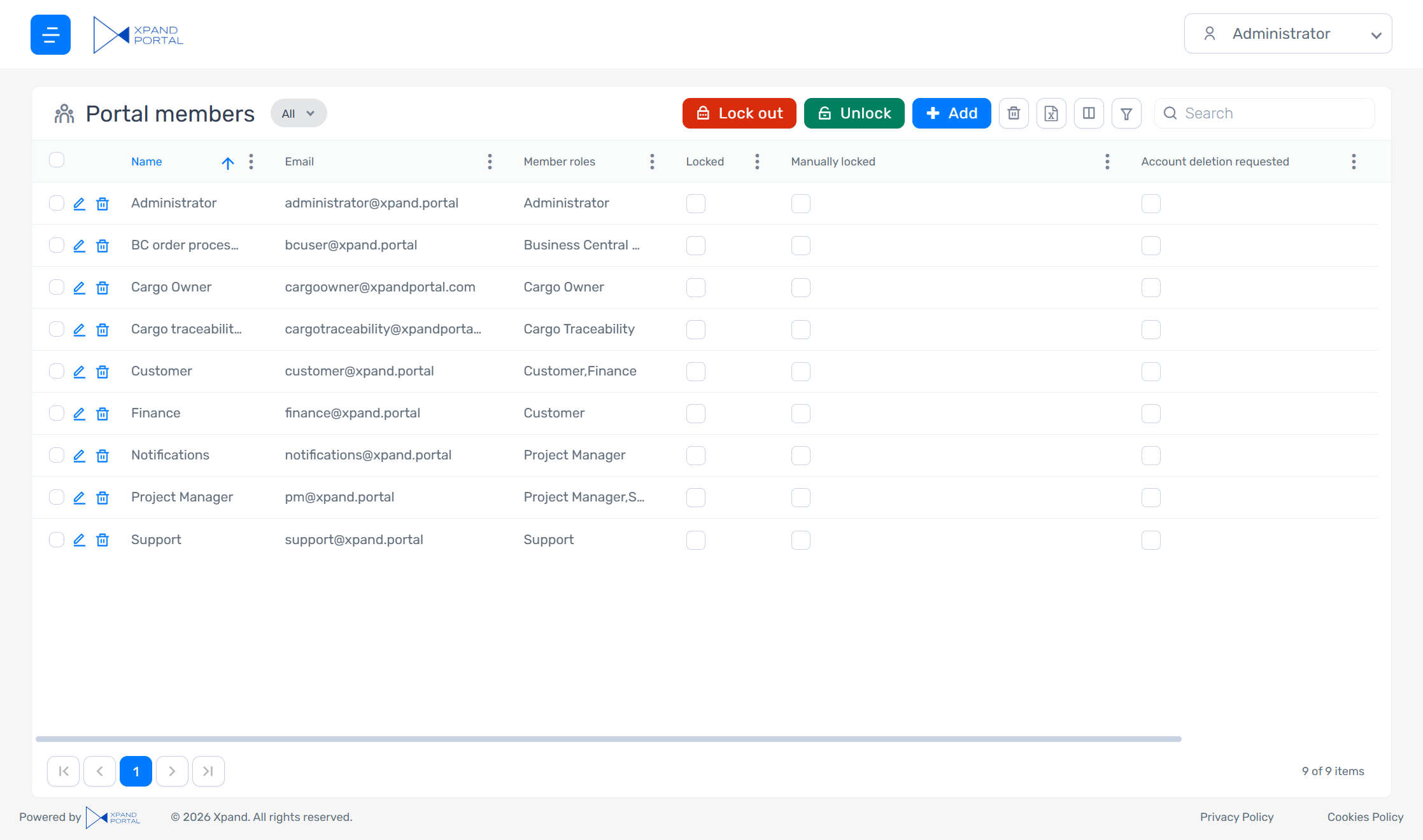
The default member management configuration included with Xpand Portal now provides lockout controls when managing member accounts from the front end. Previously, administrators had to remove a member’s permissions or delete their account to prevent portal access. The new functionality offers a dedicated way to restrict access while preserving the member’s account and assigned permissions.
Administrators can now lock out or unlock a member directly from their member cards on the portal front end. Previously, unlocking was available only from the backoffice. A lockout log records the history of locking and unlocking operations, supporting traceability.
A locked out member cannot sign in or reset their password. Sending an invitation email does not unlock them. Access must be restored manually by an administrator using the corresponding action.
Members locked out from the portal front end can only be unlocked from the front end, giving administrators explicit control over restoring access.
Actions on list view tiles
Record actions are now available directly on list view tiles on grid pages, making it easier to act on a record while browsing in tile view.
Up to two actions can appear directly on each tile, with additional actions available through the tile’s action menu. This gives users convenient access to actions such as editing a record or viewing related information.
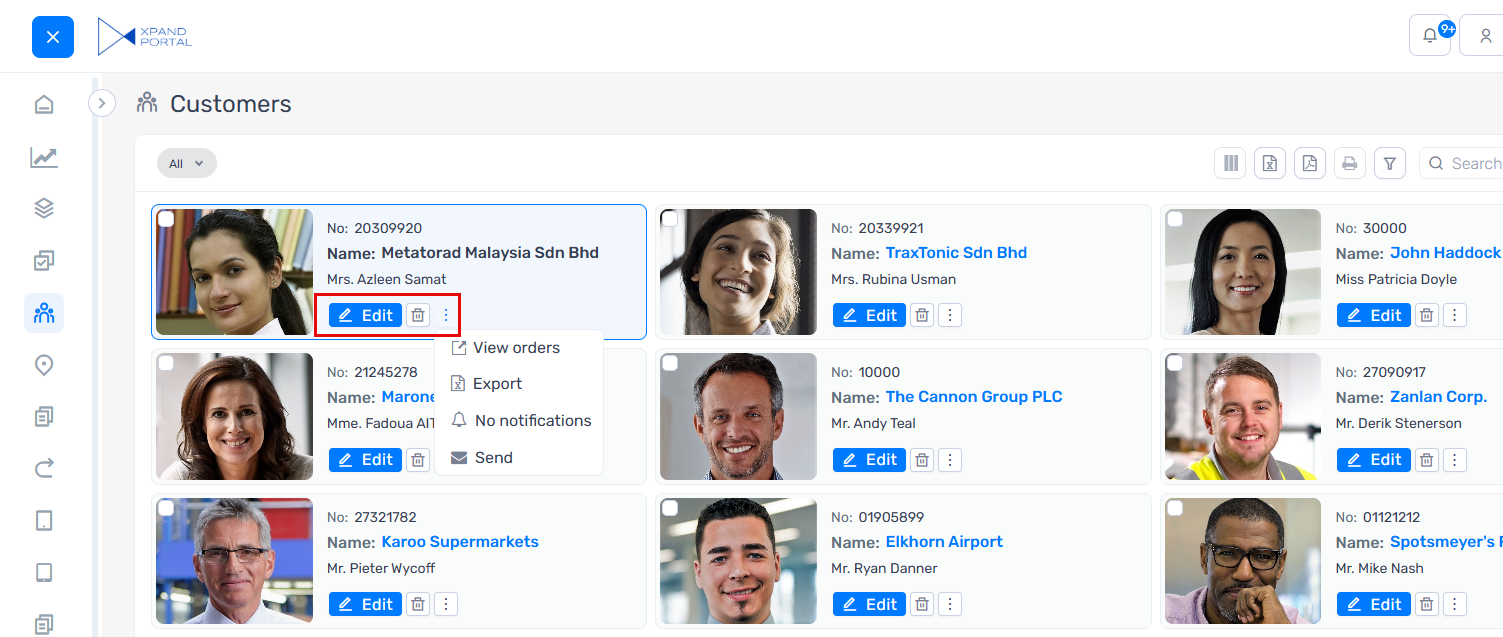
Only actions that apply to an individual record are available on tiles. Actions that operate on the entire grid or multiple records remain available at the grid level.
You can also configure individual actions to always appear in the action menu, even when there is space to display them directly on the tile. This helps keep tiles uncluttered while giving priority to the actions used most often.
Enhanced backoffice user security
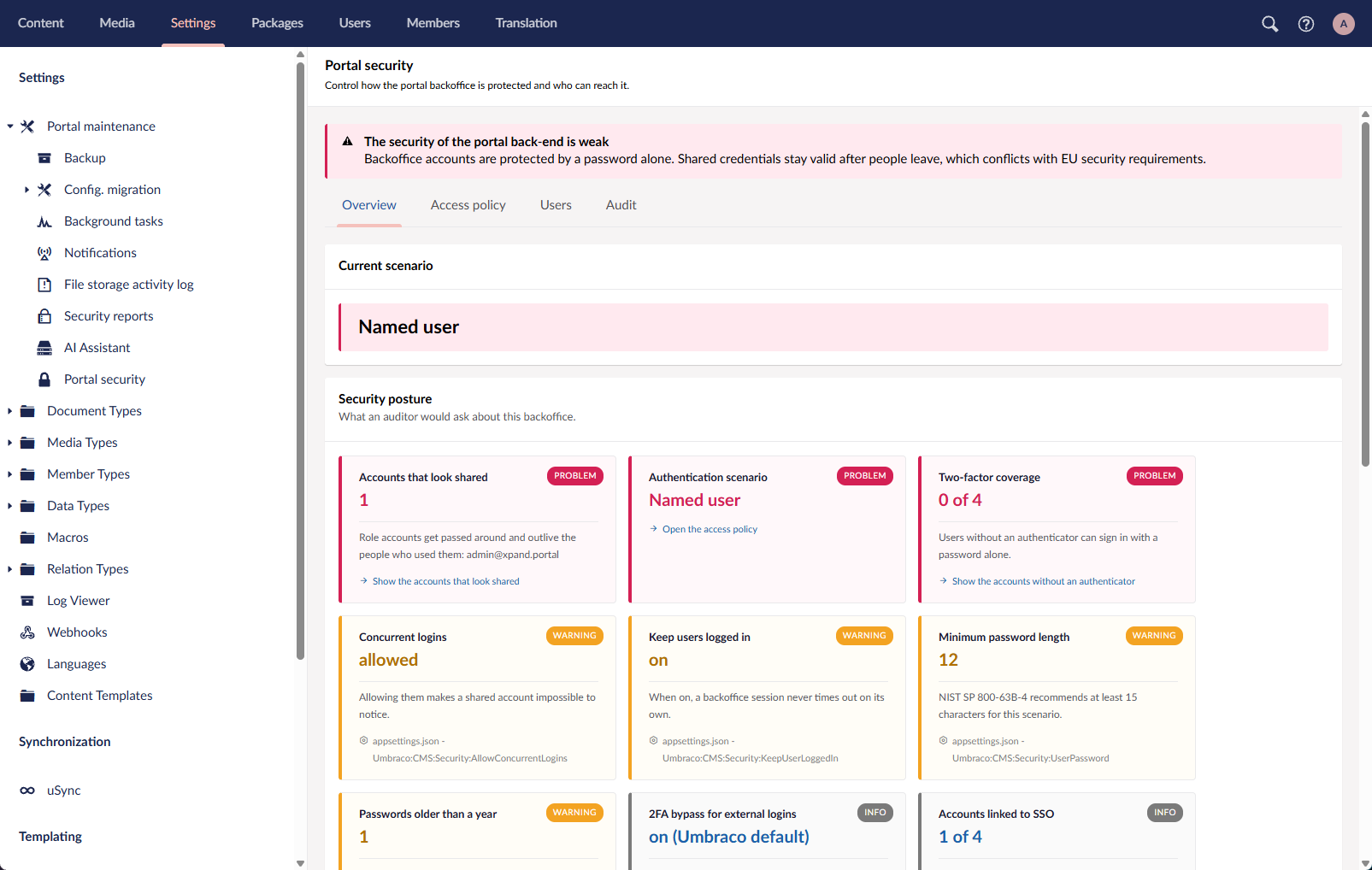
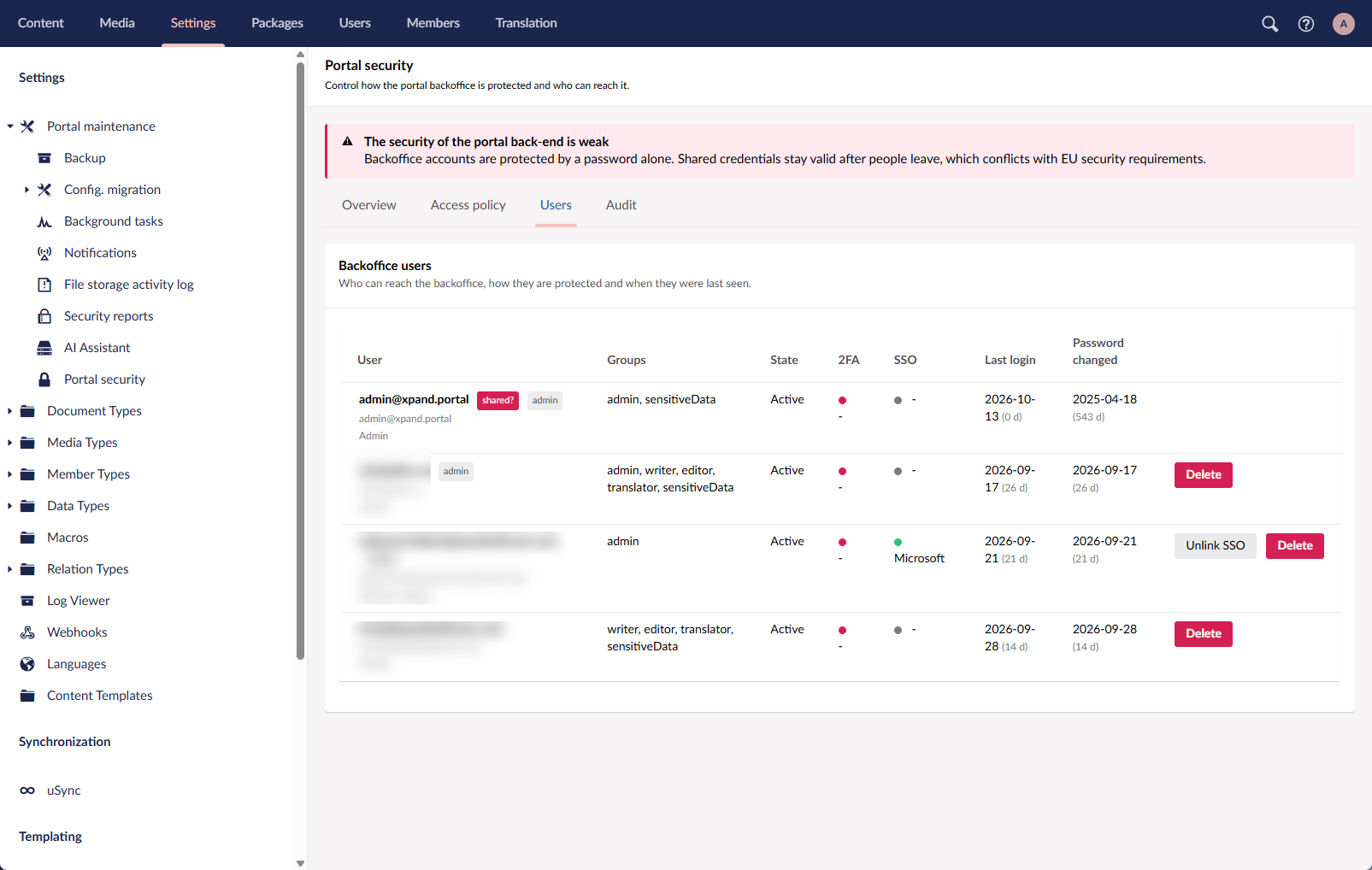
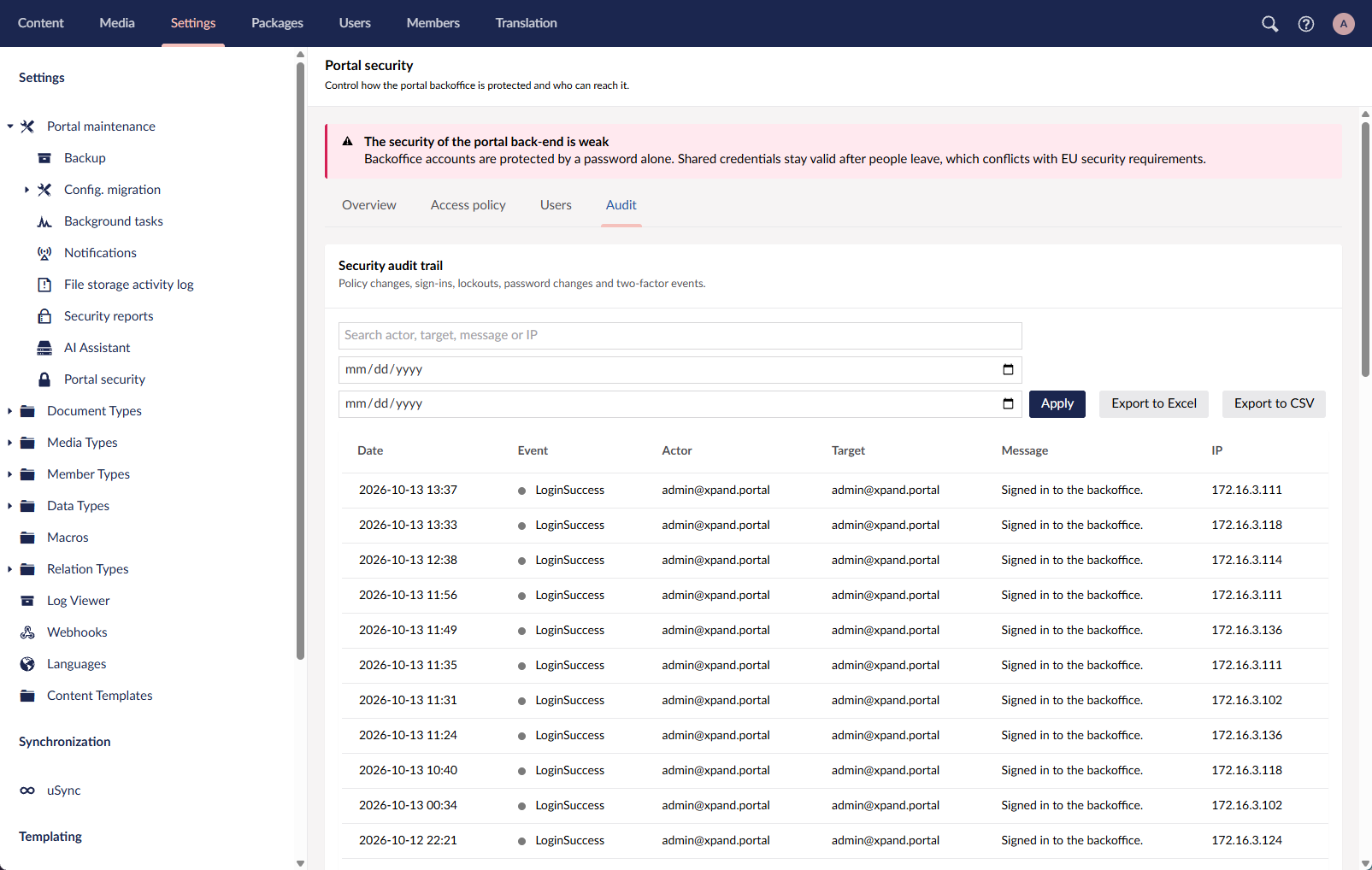
The new backoffice user security dashboard brings security monitoring, access policies, user management, and audit logs together in one place. Administrators can review potential issues and enforce a specific authentication method for all backoffice users, a capability that was previously unavailable.
Overview
Review security information, warnings, and detected issues at a glance. Summary tiles highlight areas that may need attention, with clickable links to related settings or affected accounts.
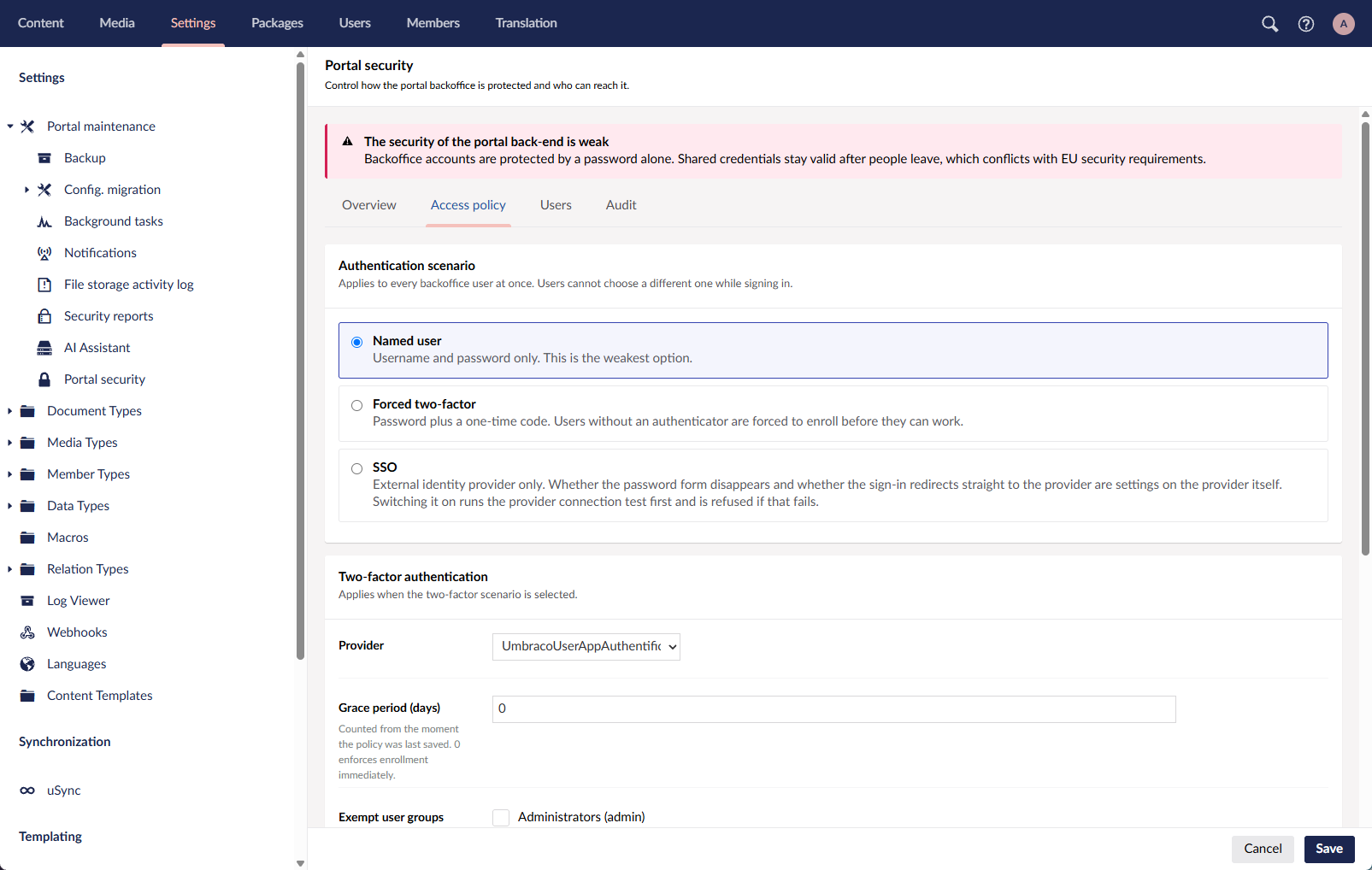
Access policy
Choose the required authentication method for backoffice access: username and password, enforced two-factor authentication (2FA), or single sign-on (SSO).
Manage related access settings, including the 2FA enrollment grace period, exempt user groups, and whether users must change their password when signing in for the first time.
Users
Review backoffice accounts and their security details, including account status, 2FA and SSO configuration, last sign-in, and password change date. Visual indicators highlight potential issues.
Accounts with login names containing terms such as “admin,” “test,” or “root” are flagged as potentially shared, helping administrators identify accounts that may need review.
From this tab, administrators can open a user card, reset 2FA, unlink SSO, or delete an account.
Audit
Track security events such as sign-ins, lockouts, password changes, authentication events, and access policy changes. Log entries show when an event occurred, who performed it, the affected account, and additional details.
Search and date filters help you find relevant events, while export options let you download the log in Excel or CSV format for further review.
Linux support
Xpand Portal now supports Linux alongside Windows, giving you greater flexibility when choosing a hosting environment. Linux support also opens up opportunities to reduce hosting and operating system licensing costs while retaining the same portal functionality.

Performance improvements
We optimized the portal’s code and configuration to improve responsiveness for every user and performance under high load:
- Faster loading
Loading times for pages, page elements, and calculated data have been reduced by approximately 50%, delivering a noticeable improvement as soon as users start working with the updated portal. - Significantly better performance with many concurrent users
The portal handles increased concurrent activity more efficiently without a corresponding increase in hardware resources.
Other improvements
- [Localization] Added the ability to republish or unpublish all content nodes for a specific language in Portal maintenance > Manage localization. Republish content after importing localization to apply the changes to the portal front end, or unpublish it to hide content in that language from the front end.
- [Comments] The comment input box can now be resized horizontally by dragging its corner to use the full width of the page part. Previously, adjacent buttons limited how far it could be resized, leaving too little typing space in certain configurations.
- [Dictionary] Added dictionary entries for previously hardcoded text across various portal elements, allowing these texts to be customized or translated.
- [Messages] Standardized headers for messages whose text is stored in dictionary items, ensuring consistent icons and titles for messages of the same type (Error, Confirmation, Information, or Warning) across the portal. Custom titles have been retained in messages and dialogs where needed.
- [Maintenance] Added a message when cache clearing takes longer than usual, advising users to keep the page open until the process is complete.
- [Notifications] Added a cleanup step to the Change-Notifications and Periodic-Notifications background tasks to remove direct subscriptions for deleted records. Cleanup runs automatically once a day or when the corresponding background task is triggered manually.
- [Security] Added the Parent record required switch to grid settings to prevent grids from displaying unfiltered or unrelated data when the parent record is unavailable. When enabled, the grid requires a parent record from its parent page before displaying data. If that record cannot be found, for example, because it was deleted or the grid was opened through a direct link, the grid shows no records, regardless of the configured filters.
- [Actions] Added the two new settings to the Inline edit grid action:
- Enabled by default - With this switch, you can turn on the inline editing mode automatically when the grid loads, without the need to use the command first.
- Hide from toolbar - With this switch, you can hide the action from the action toolbar. This setting can be useful when used together with the new Enabled by default setting for scenarios when the grid should always be in Inline Edit mode.
- [Actions] Changes made using the Complex modify action are now reflected on the page without requiring a reload.
- [Fields] Added a new Height setting in the Text editor settings of extended fields. Using this setting, you can configure the height of the text editor in pixels. If left empty, the default height of 250 pixels is used.
- [Fields] Images added to the WYSIWYG multiline editor (HTML editor) are now saved as files and referenced by links instead of being embedded as Base64 data. This reduces the size of the field content and improves performance on pages and grids displaying it. Existing Base64 images remain available for viewing and downloading.
- [Grid] Increased the default grid column width from 100 px to 150 px to provide more space for field values and captions. This applies only to new configurations; existing configurations remain unchanged.
- [Grid] Now the Reordable and Sortable grid options are enabled by default, allowing users to rearrange columns and sort records without additional configuration. This applies only to new configurations; existing configurations remain unchanged.
- [Copyright text] Added support for the [[year]] variable in the site footer’s copyright text to display the current year automatically.
- [Captions, descriptions, and messages] Revised the captions and descriptions in field alert settings improve accuracy and clarity.
- [Captions, descriptions, and messages] Updated the captions, descriptions, and icons in the Progress bar settings to improve accuracy and clarity.
- [Captions, descriptions, and messages] Updated the device size labels in the Width settings window of the front-end editor to match those used in the backoffice.
- [Captions, descriptions, and messages] Revised the captions and descriptions for several Image banner page part settings, correcting spelling errors and improving clarity and accuracy.
- [Captions, descriptions, and messages] Corrected the caption and description for the HTML block content setting in the HTML block page part settings.
- [Captions, descriptions, and messages] Added the missing caption and description for the Subtype setting in entity field settings.
- [Captions, descriptions, and messages] Renamed the action setting Split command subgroup to Add separator after command and revised its description for clarity. Added the missing caption and description for actions where this setting lacked them.
- [Captions, descriptions, and messages] Revised the captions and descriptions of appearance-related settings in grid/detail/home layout block settings to improve clarity.
- [Captions, descriptions, and messages] Renamed command styles for grid and detail page actions to describe their visual appearance more clearly. For example, Danger and Success are now Subtle red background and Subtle green background, avoiding labels that imply a specific action purpose.
- [UI] Added a separator in phone number fields to distinguish preferred country dialing codes at the top of the selection list from the remaining codes.
- [UI] Added a new command style: Extended max width. Note on the behavior:
- Without this style applied, the action width is stretched to fit the caption and icon if present, but has the max width 200 px.
- With this style applied, the action width can stretch more if space allows (can exceed 200px).
- [UI] Reduced padding in the compact horizontal layout of promoted filters to make better use of available space and leave more room for page content.
Security and maintenance
As part of this release, all Xpand Portal components listed in the XPT - Vulnerability Scan Report.xlsx file (included in the release package) have undergone a routine vulnerability check. Where necessary, components have been updated to newer versions to ensure security and stability.d
Fixed issues
- [Promoted filters] Fixed an issue where promoted filters incorrectly displayed “No data available” when a grid search was used and returned no results.
- [Promoted filters] Fixed an issue where specifying the Max. no. of visible items setting hid all promoted filter values instead of displaying the configured number and making the remaining values available through Show more.
- [Promoted filters] Fixed an issue where promoted filter captions and values remained in the previous language after switching the portal localization.
- [Public access] Fixed an issue where redirection due to public access restrictions failed when the destination page had the same node type as the restricted page.
- [Actions] Fixed an issue where tooltips for grid line actions (in the service menu) used dictionary titles instead of titles configured in the action settings. These tooltips now prioritize the configured action title. Note that actions on the commands toolbar use only titles from the action settings and display no tooltip on hover if a title is not configured.
- [Actions] Fixed an issue where the Split command subgroup action setting didn't work properly for detail page actions and was missing from the settings of some of these actions.
- [Actions] Fixed an issue where formatting tags appeared in the internal title of an action that had the Split command subgroup switch enabled.
- [Attachments] Fixed an issue where the Max upload file size (MB) setting did not enforce the configured file size limit.
- [Import] Fixed an issue where new records were incorrectly identified as modified records during import from Excel or CSV files. Import now correctly distinguishes between new and updated records.
- [DEMP] Fixed an issue where on new environments created from Demo Environment Management Portal, the Sign in action in the backoffice used the old Login caption.
- [CI/CD] Fixed an issue where the build pipeline produced an incomplete deployment package after ReadyToRun compilation was enabled. The publishing process now copies files from the correct output folder.
- [Personalized views] Fixed an issue where applied promoted filters were not saved as part of personalized views.
- [Relations] Fixed an issue where data from a related page was retrieved incorrectly.
- [Notifications] Fixed an issue where subscription conditions were saved in an incorrect format, causing errors that prevented notifications from being processed correctly.
- [Notifications] Fixed a remaining issue where data format settings were not applied correctly for date-time fields in portal notifications following the fix in version 4.5.2.0. Member settings take priority, with site settings used when no member settings are configured. Field format settings do not apply to notifications.
- [Member roles] Fixed an issue where the cache was not automatically cleared after changing a member’s roles, causing page parts to remain hidden even when the updated roles allowed them to be displayed. Page part visibility now instantly reflects the updated roles.
- [Members] Fixed an issue that prevented new members from being created through the portal front end in a new environment.
- [Fields] Fixed an issue where aggregated values were not recalculated after a field used in the aggregation was changed and autosaved.
- [Fields] Fixed an issue where date field values were displayed incorrectly on list view tiles.
- [Fields] Fixed an issue where empty required lookup fields displayed a validation error message without the red border used for other field types.
- [Fields] Fixed an issue where a separator appeared in an empty multiselection field when an index was migrated from version 3 to version 4, a new field was then added to the entity, and that field was subsequently used twice in the page configuration.
- [Integration] Fixed an issue where adding new fields in Business Central and synchronizing them with the portal created duplicate fields on the portal.
- [Integration] [API] Fixed an issue where the API Sync/Store method with a modify trigger inserted a record instead of updating the existing record, overwriting existing data rather than merging the supplied changes.
- [Tooltips] Fixed an issue where tooltip text used an incorrect color. Tooltip appearance was standardized across the portal.
- [Navigation] Fixed an issue that caused the portal to freeze when navigating between pages.
- [Captions, descriptions, and messages] Corrected grammar in error messages displayed when attempting to download attachments whose files are unavailable.
- [Captions, descriptions, and messages] Corrected a typo in "packages(s)" within Portal maintenance > Configuration packages.
- [Captions, descriptions, and messages] Corrected the spelling for the Unlink your [AccountType] account action in the backoffice.
- [Captions, descriptions, and messages] Added the missing title to the message displayed when the Inline edit action is used without selecting a grid record first.
- [Themes] Fixed an issue where theme settings could not be used to customize the color of checkboxes in the Set column visibility action's dropdown window.
- [Themes] Fixed an issue where theme settings could not be used to customize the color of action icons.
- [Themes] Fixed an issue where theme settings could not be used to customize the color of the field alert icon: a new Alert warning icon color setting was added.
- [Themes] Fixed an issue where theme settings could not be used to customize the sorting direction icon on the grid column header. Use the Header active font color setting for this in the Grid section of theme customization settings.
- [UI] Fixed an issue where grids on medium screen sizes, such as tablets, did not fill the available vertical space.
- [UI] Fixed an issue where promoted filters in a compact layout were misaligned when the Apply and Clear all buttons were present.
- [UI] Fixed an issue where an excessive gap appeared between the attachment drop zone and the attachments overview part.
- [UI] Fixed an issue where the "No records" message and icon were missing in certain grid configurations when filtering or searching returned no results.
- [UI] Fixed an issue where the HTML entity appeared as literal text in the browser tab title.
- [UI] Fixed an issue where an empty required field displayed a mixed red and blue border instead of a solid red border after an attempt to save.
- [UI] Fixed an issue where the portal notifications pane's footer was cut.
- [UI] Fixed an issue where the column selection list in the Set column visibility dropdown extended beyond its container’s borders in certain configurations.
- [UI] Fixed an issue where the footer overlapped page content instead of appearing at the bottom on long detail pages or pages containing a map.
- [UI] Fixed an issue where long titles caused a horizontal scrollbar to appear in home tiles. As part of the home tile redesign, long titles are now truncated.
- [UI] Fixed an issue where the Width settings window in the front-end editor was too narrow to display device size labels in full, even when sufficient space was available.
- [UI] Fixed an issue where the Apply button in promoted filters extended beyond the boundaries of the page part’s container.
- [UI] Removed an unnecessary line displayed beneath the Banner page part.
- [UI] Fixed an issue where collapsible page parts did not resize correctly with certain responsive behavior settings. As part of the mobile and tablet UI improvements, collapsible page parts now expand to the full screen width on extra-small devices.
- [UI] Fixed an issue where popup windows configured to open in the right-side view did not fill the available page height by default.
- [UI] Fixed an issue where unnecessary spacing appeared in message titles.
- [UI] Fixed an issue where dropdowns in grid fields flickered when opened for fields that already contained a value.
- [UI] Fixed an issue where checkboxes appeared editable when editing was unavailable. These checkboxes now appear gray to clearly indicate that they cannot be changed.
- [UI] Fixed an issue where the delete icon did not clear the entered password in the Change password window.
- [UI] Fixed an issue where the delete and view password icons disappeared from the Change password window after validation was triggered.
- [UI] Fixed an issue where the horizontal scrollbar was missing on empty grids even when the columns exceeded the available width.
- [UI] Fixed an issue where the bottoms of letters in the member’s name were cut off in the profile menu button.
- [UI] Fixed an issue where the background behind the search icon did not match the rest of the search box.
- [UI] Fixed an issue where the default icon for the Create inline record action was misaligned and partially cut off.
- [UI] Fixed an issue where fields in the Conditions section of the notifications subscription card were displayed in a single column instead of being arranged across the available width.
- [UI] Fixed an issue where the borders of the attachment drop zone and attachment overview area were cut off when the Ignore paddings for content area style was applied for the parent layout block.
- [UI] Fixed an issue where the Clear all action in promoted filters overlapped the page part title.
- [UI] Fixed an issue where layout block headers and grid headers had different heights, causing them to appear misaligned when displayed side by side.
- [UI] Fixed an issue where long field values extended beyond the page part’s border instead of being truncated when the page was in Edit mode and the field was not editable for the user’s role.
- [UI] Fixed an issue where the chart title dropdown was misaligned with the period filter when multiple charts were configured for selection.
- [UI] Fixed an issue where the search box expanded unexpectedly on desktop devices when the search icon was selected.
- [UI] Fixed an issue where filter fields and separators were misaligned in the compact horizontal layout of promoted filters.
- [UI] Fixed an issue where the clear value icon overlapped the field border on the notification subscription card.
- [UI] Fixed an issue where a popup window was displayed incorrectly after repeated attempts to open it in quick succession.
- [UI] Fixed an issue where the profile menu was too short to display its contents, causing an unnecessary vertical scrollbar to appear.