Localize content configuration
When you add a language to your portal, site content configuration-related captions, such as site node names, titles, subtitles, field captions, email and notification templates, etc., are localized using the built-in localization functionality for site content.
|
Captions, messages, tooltips, and other text constants used across front-end and backoffice elements that are not part of content configuration are localized in the portal dictionary. Also, content configuration as well as dictionary items (front-end-related and custom entries) can be localized in a single CSV file when you export front-end localization. |
 Note
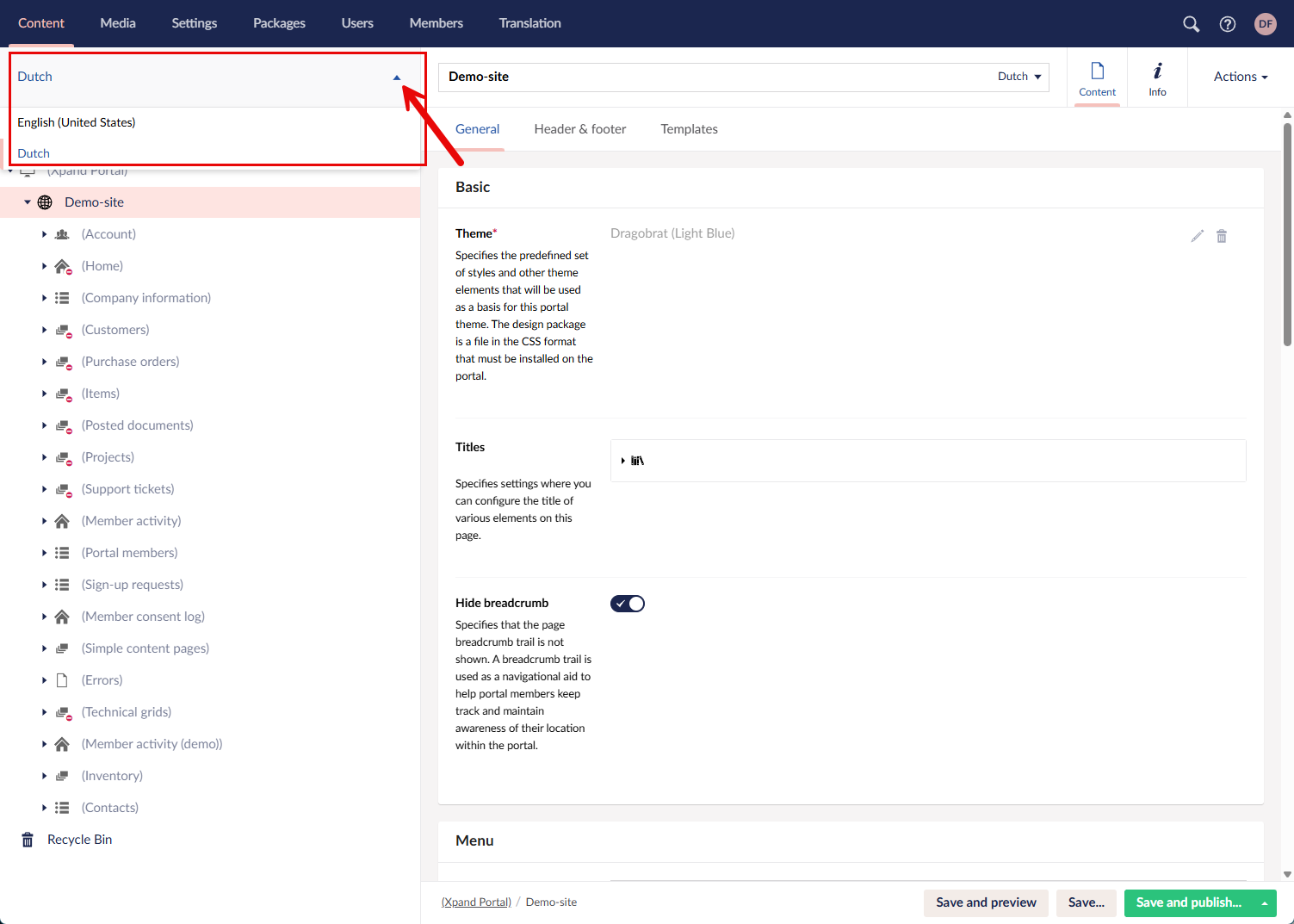
NoteWhen you have more than one language on your portal, the content for each language is configured separately. You can switch between languages in the top left corner of the Content area.
|
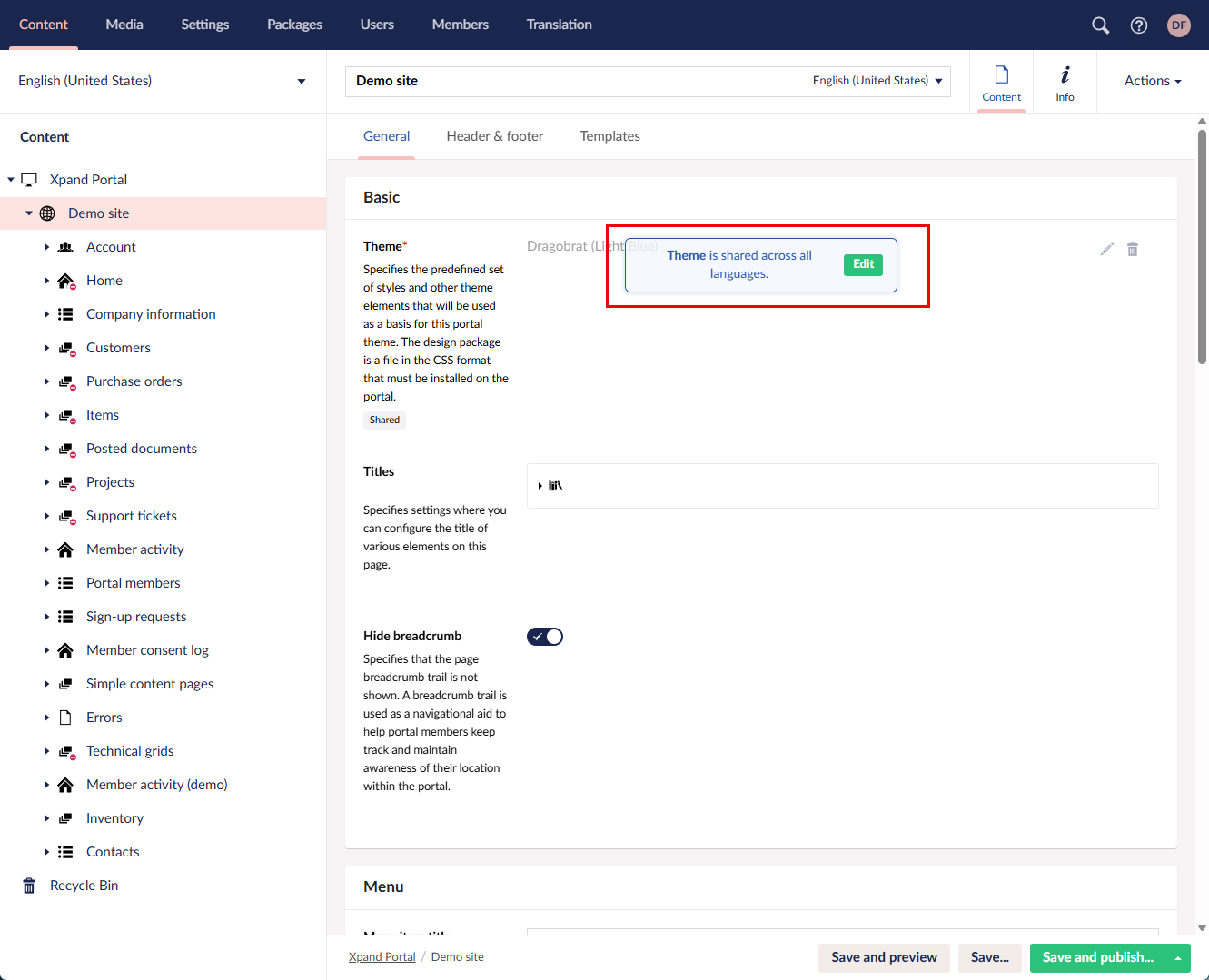
Site nodes as well as certain page settings are shared between localizations. This means that if you delete a page or page element in one localization, it will also be deleted in other localizations for the same portal site. If you change a shared setting, it will be changed in other languages as well. Hover over a setting to see if it is shared.
|
After a new language is added, the site content for that language is unpublished. Shared site content (all site nodes for pages and page elements as well as individual settings within page settings) is already available for the added language. The content configuration that is not shared must be manually created for the added language (for example, page options, fields, etc.) and localized captions/titles/names filled in.
Typical elements that must be localized within content configuration:
- Internal names of site nodes
- Titles and subtitles for pages and page elements
- Captions for page fields and other elements
- Title and body of email and notification templates
Localize site configuration
To localize site content configuration:
- In the backoffice, go to Content.
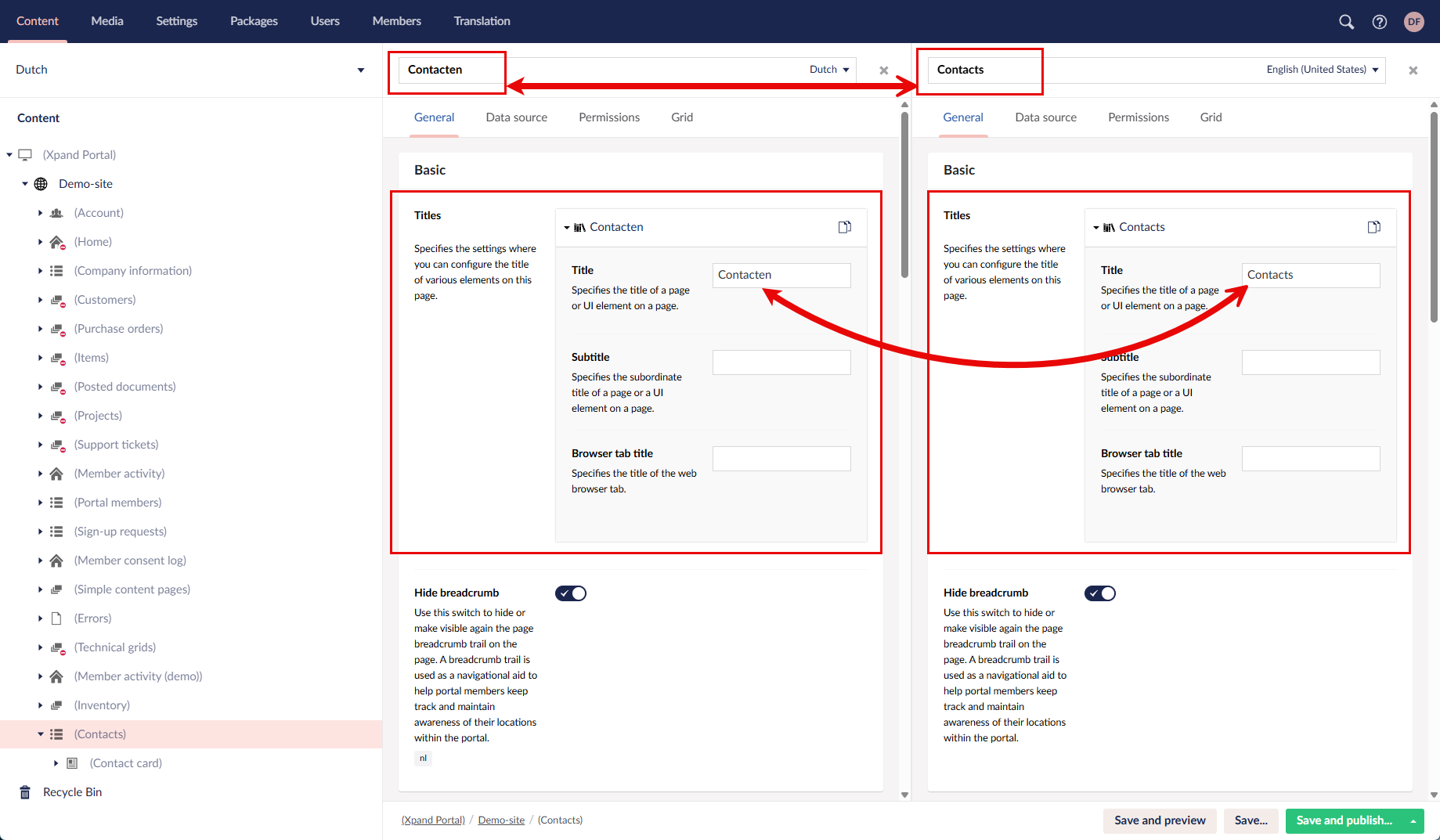
- In the top left corner, switch to the language that you are configuring a localized version for. Alternatively, switch to the split view by selecting a language in the name box, and then selecting Open in split view (this action is visible only when you hover over an unselected language in the drop-down menu).
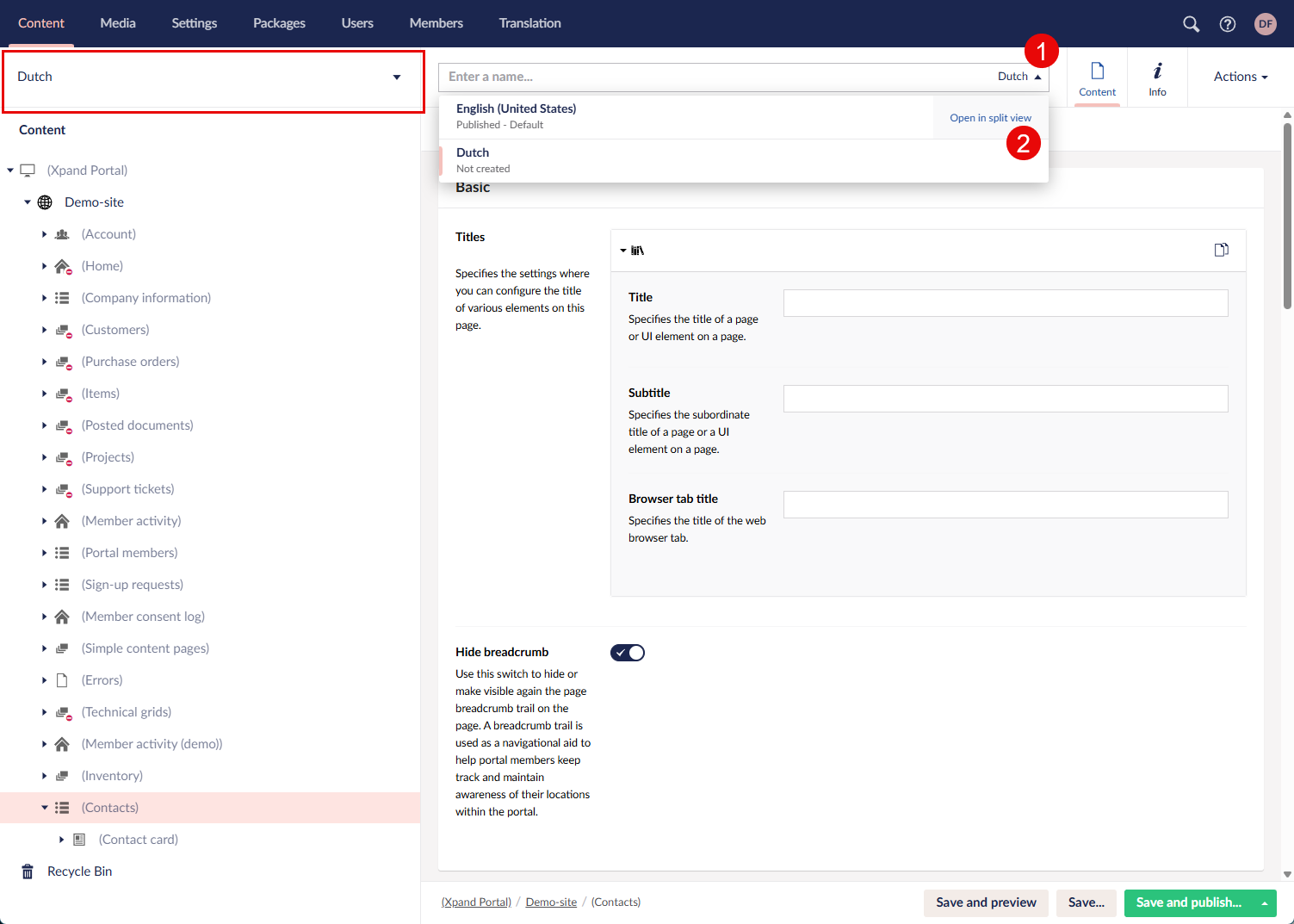
- Open the settings for a page or page element, and locate a non-shared setting that must be localized, such as title, subtitle, caption, etc., and fill in a localized version. For example:
 Important
You must add/configure non-shared content inside page or page element settings because it is not created automatically when a new language is added, such as page fields. This also applies to non-shared settings that do not use localized captions, such as grid options—for a new language the default settings are used.
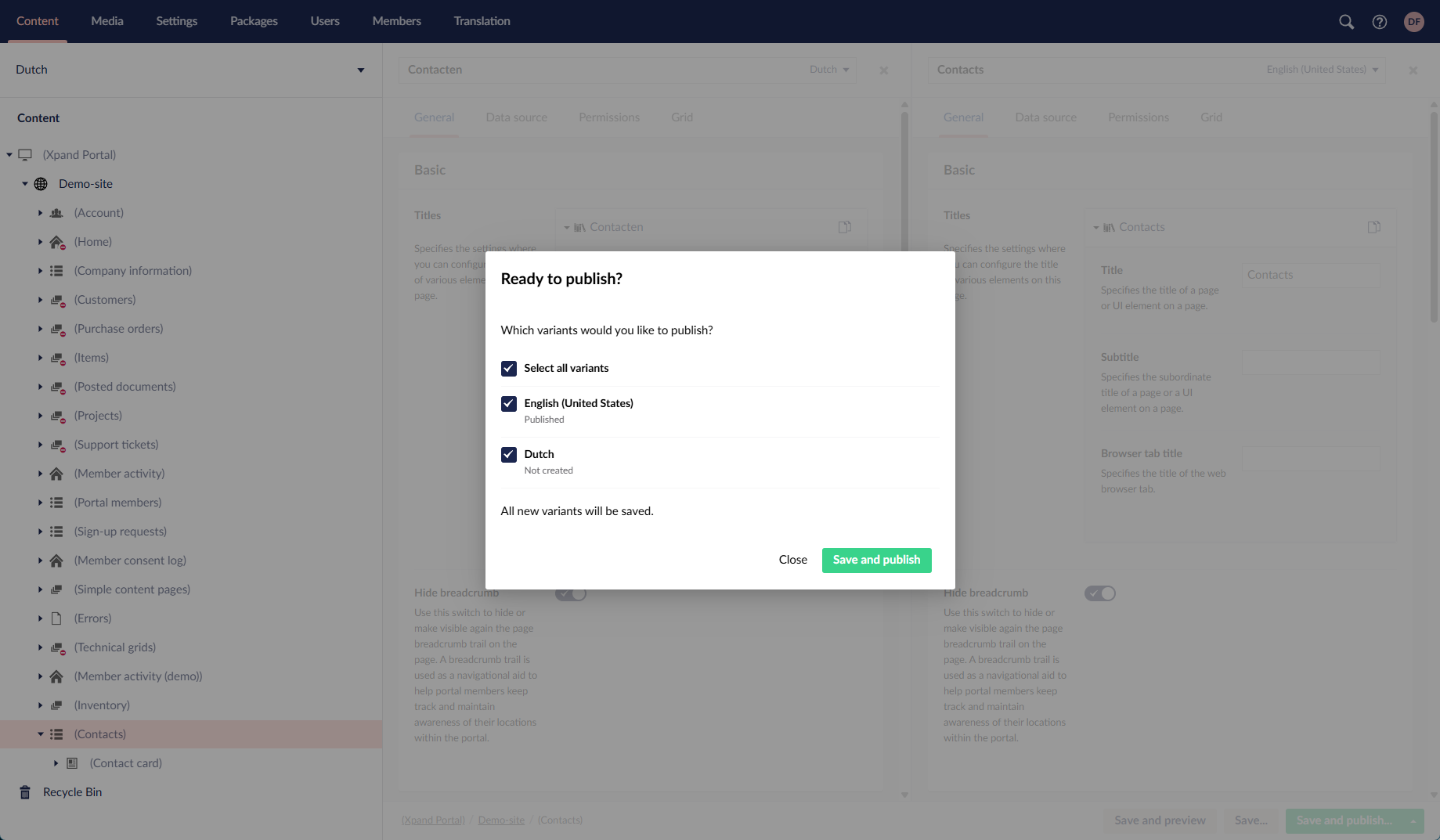
- Once you are done configuring and localizing a page or page element, select Save to save or Save and publish to save and immediately publish the changes. When you have multiple languages, during saving (or saving + publishing), you need to select the language(s) to save (or save and publish) the changes for. If you are not in the split view, only the currently selected language is available for selection.