General flexible documents setup
To use the Qvaba Flexible Documents app, you first need to complete its general setup. In the Flexible Documents Setup, you can configure key options and define where generated documents will be stored.
To perform the general setup for Qvaba Flexible Documents:
- In Business Central with the Qvaba Flexible Documents app installed, choose the
 icon, enter Flexible Documents Setup, and then choose the related link.
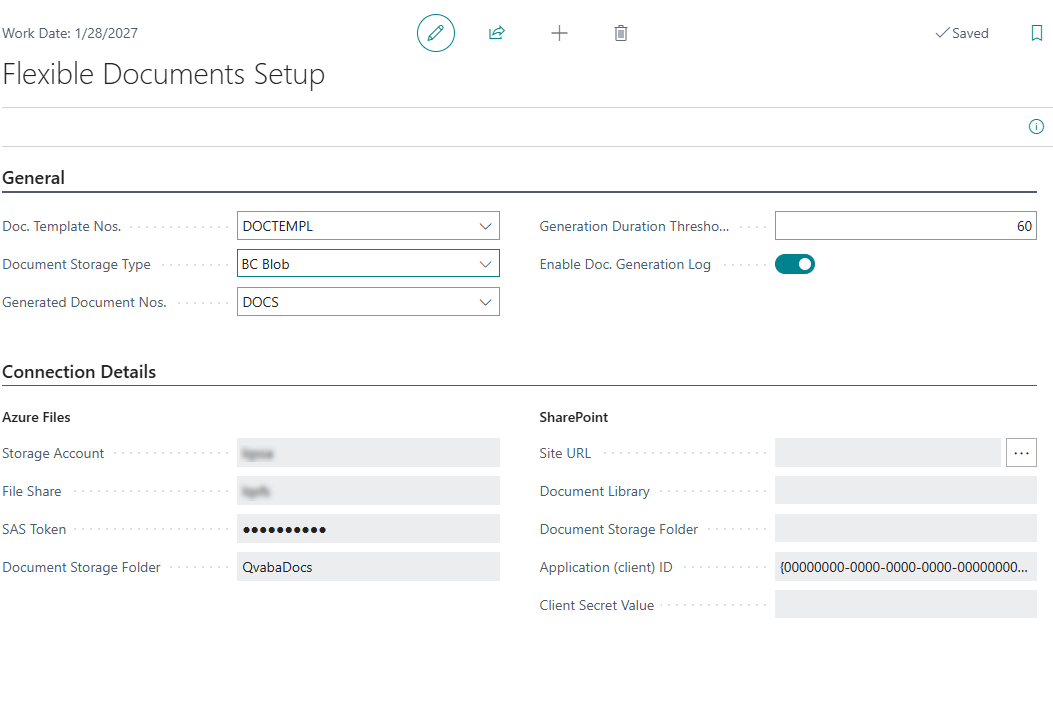
- In the Flexible Documents Setup window, on the General FastTab, configure the general app options:
- Doc. Template Nos. - Specifies the code of the number series that will be used to assign new numbers to document templates.
- Document Storage Type - Specifies the type of location where the created documents will be stored.
- BC Blob - With this option, generated documents are stored directly in the Business Central database using its internal blob (binary large object) storage.
- Azure Files Share - Documents are stored in an Azure Files storage account, which acts like a shared file system in the cloud. If you choose this option, configure the connection details for the Azure Files account.
- SharePoint - Generated documents are saved to a SharePoint document library. If you choose this option, configure the connection details SharePoint site.
- Generated Document Nos. - Specifies the code for the number series that will be used to assign numbers to new generated documents.
- Generation Duration Threshold (sec) - Specifies the maximum duration in seconds that document generation is expected to take. If this threshold is exceeded, a warning will be shown on the next generation attempt, recommending a review of the template setup.
- Enable Doc. Generation Log - Specifies that each document generation is recorded in a log for auditing and troubleshooting purposes.
- If you are going to the external storage for generated documents, on the Connection Details FastTab, configure the connection details:
- Azure Files - Configure connection to an Azure files share storage. These settings are editable only if you set the Document Storage Type field to Azure File Share.
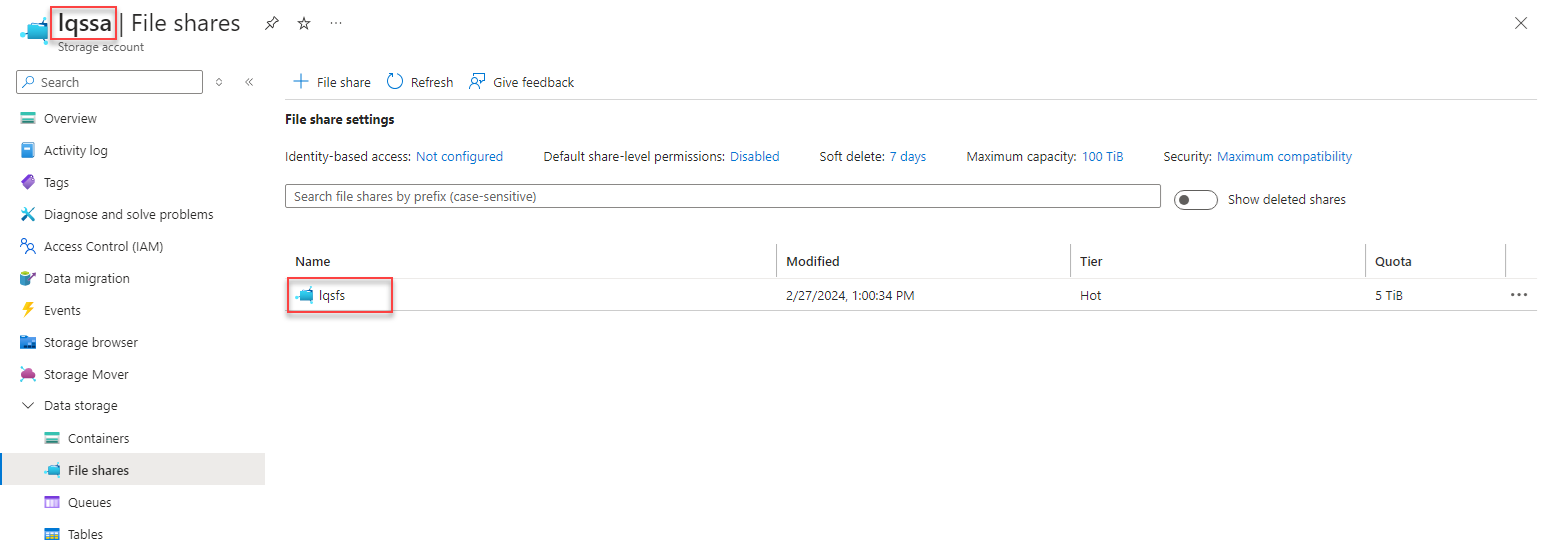
- Storage Account - Specifies the name of the Azure Files storage account where the generated documents are stored.
- File Share - Specifies the name of the Azure Files file share where the generated documents are stored.
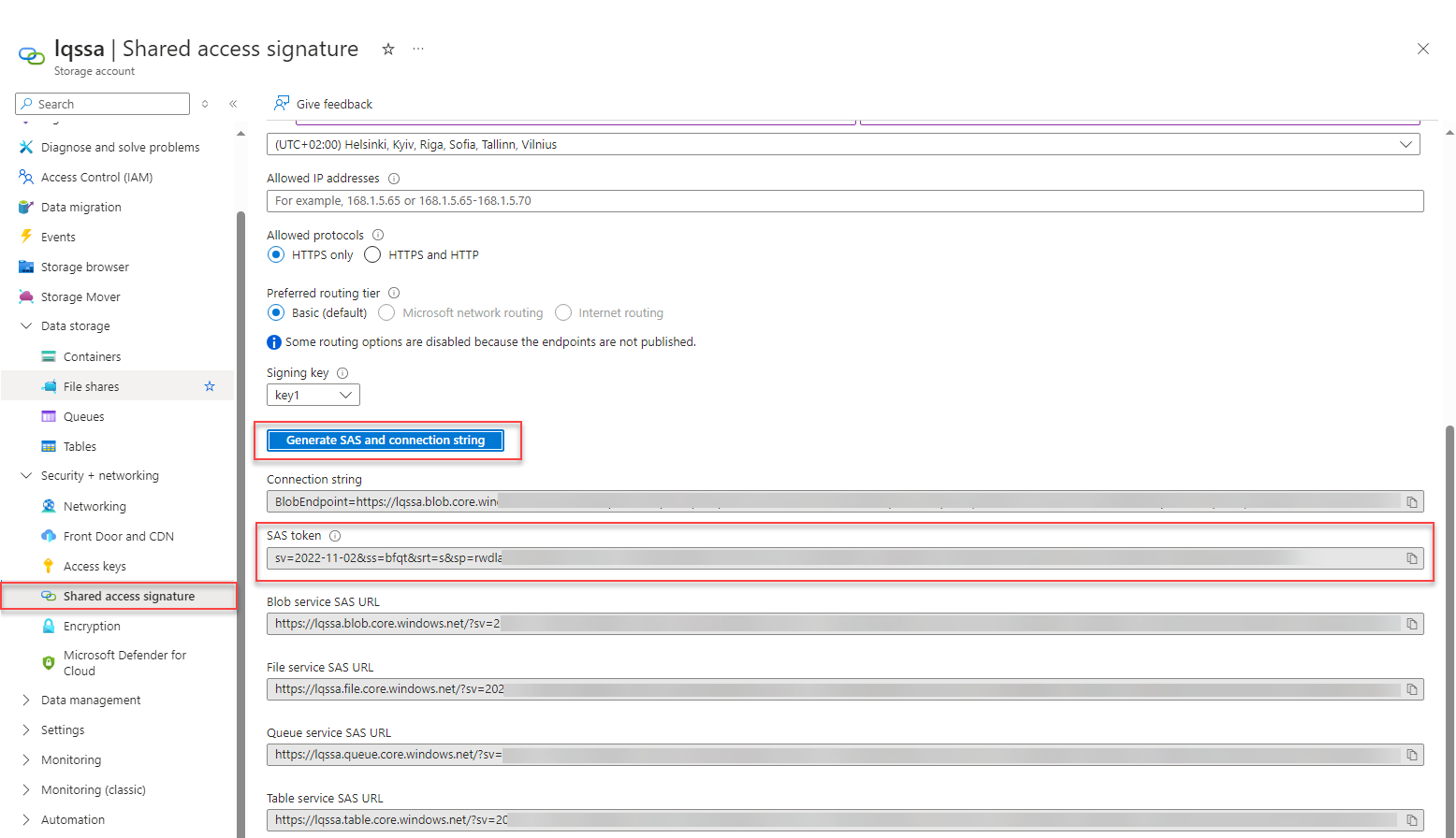
- SAS Token - Specifies the Shared Access Signature (SAS) token that is used to provide secure access to the Azure Files storage account.
- Document Storage Folder - Specifies the shared folder where the created documents are stored. Type the full path to the folder and specify the folder name.
- SharePoint - Configure connection to a SharePoint storage. These settings is editable only if you set the Document Storage Type field to SharePoint.
- Site URL - Specifies the SharePoint site URL where your generated documents are stored. Choose the AssistEdit button next to the field to verify access to the specified location. This field is editable only if you set the Document Storage Type field to SharePoint.
- Document Library - Specifies the name of the document library in the SharePoint site where the generated documents are stored.
- Document Storage Folder - Specifies the folder in the document library in the SharePoint site where the generated documents are stored.
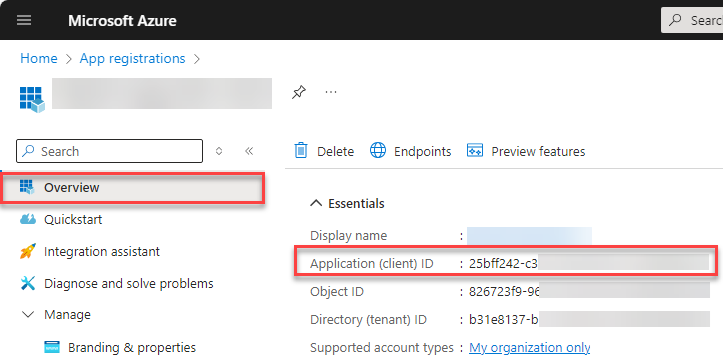
- Application (client) ID - Specifies the application (client) ID of the registered application in Azure Active Directory that will be used to access the SharePoint site with the document library for storing generated documents.
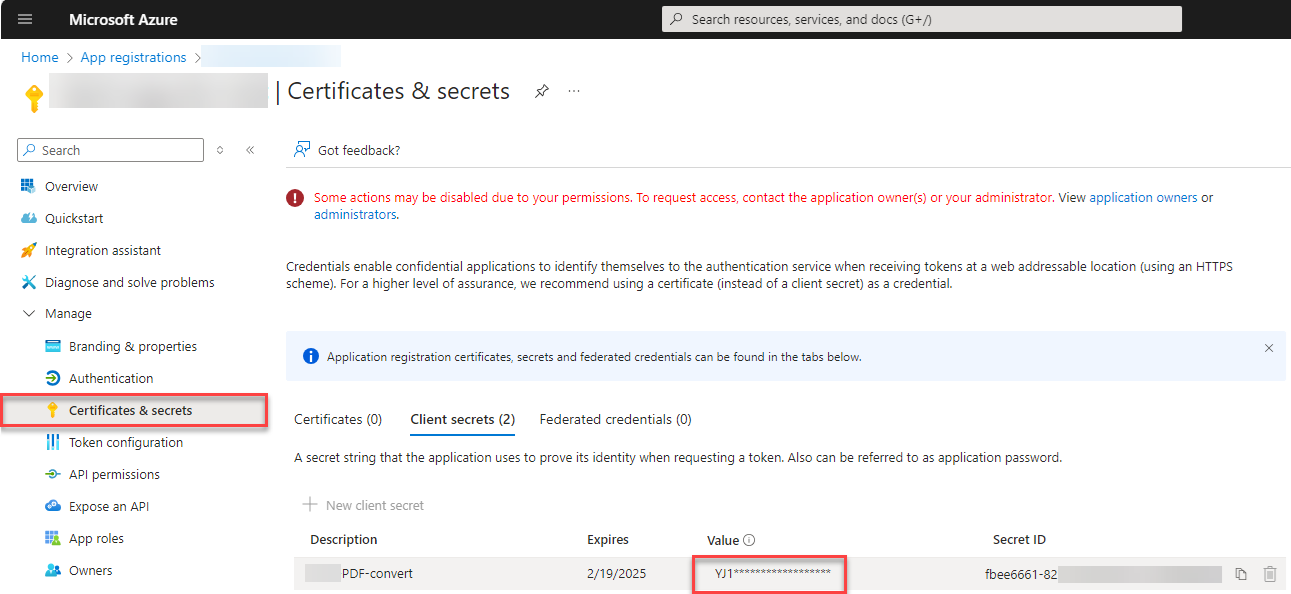
- Client Secret Value - Specifies the client secret value of the registered application in Azure Active Directory that will be used to access the SharePoint site with the document library for storing generated documents.
- Azure Files - Configure connection to an Azure files share storage. These settings are editable only if you set the Document Storage Type field to Azure File Share.