Validating document templates
On the document template card, you can validate the template configuration to ensure that there are no issues in the template setup or in the document layout. This feature can only be used with document templates that already have a document layout created.
Template validation helps detect configuration issues and provides the ability to automatically fix some of the issues where possible. Issues that cannot be resolved automatically may need to be reviewed manually by correcting the template setup.
Examples of issues that can be detected during template validation:
- Source data is configured but not used in the document layout. Resolving such issues may improve performance.
- The layout has merge fields the source of data of which is not found in the document template or configured incorrectly. Resolving such issues will ensure the Business Central data is retrieved properly on generated documents.
- The source data setup on the document template has incorrect or partially correct setup. Resolving such issues will ensure the Business Central data is retrieved properly on generated documents and there are no performance issues.
- The tables and/or fields specified in the document template setup are not found. Resolving such issues will ensure the Business Central data is retrieved properly on generated documents.
- Relations between tables or between the main template and its related templates are set up incorrectly. Resolving such issues will ensure the Business Central data is retrieved properly.
To validate a document template:
- In Business Central with the Qvaba Flexible Documents app installed, choose the
 icon, enter Document Template List, and then choose the related link.
 - In the Document Template List window, open a template that you want to validate. The document template must have a layout configured.
- In the Document Template Card window, choose Validate Template.
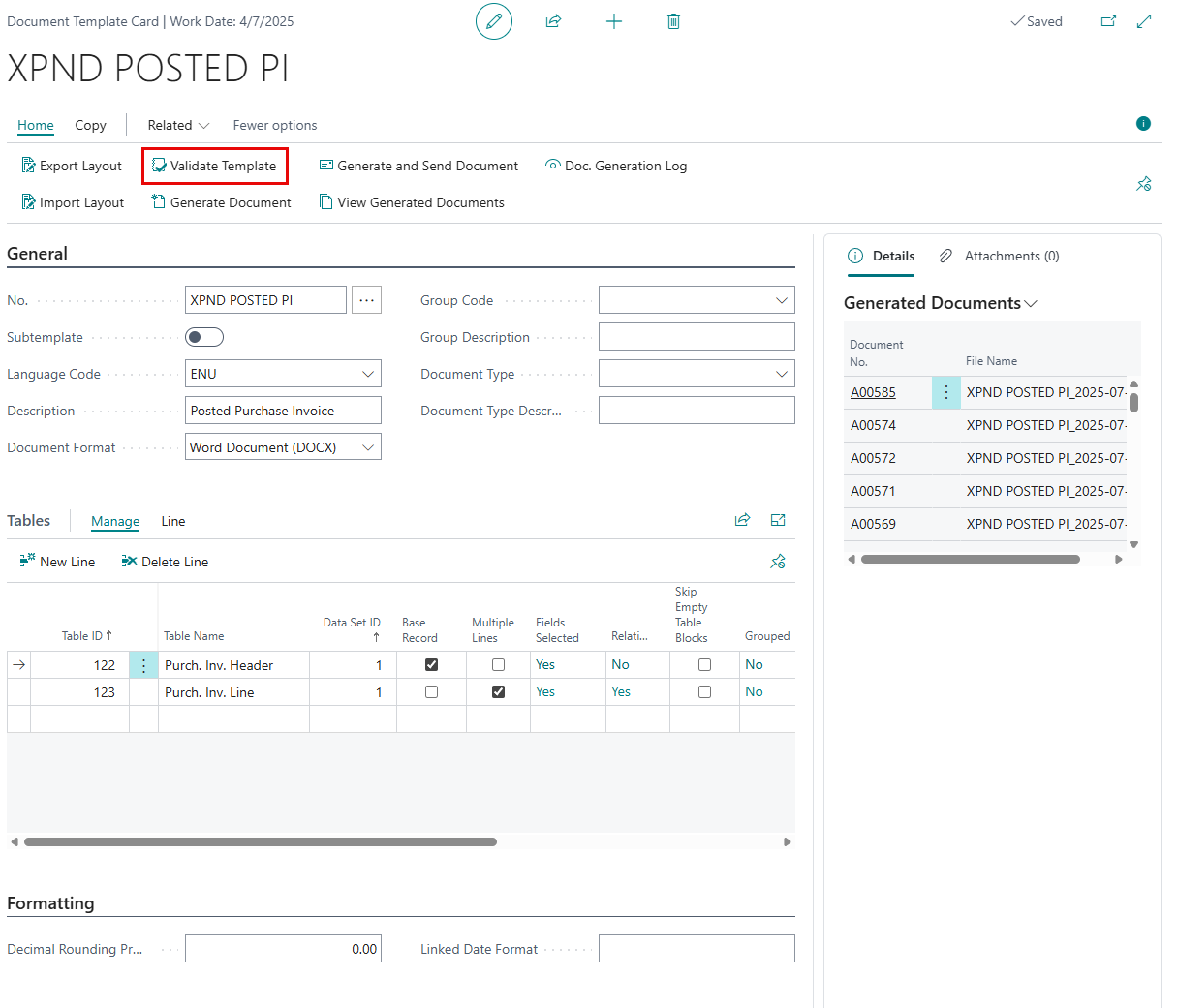
If configuration issues are detected, the following window is opened (this window is shown only if issues are found).
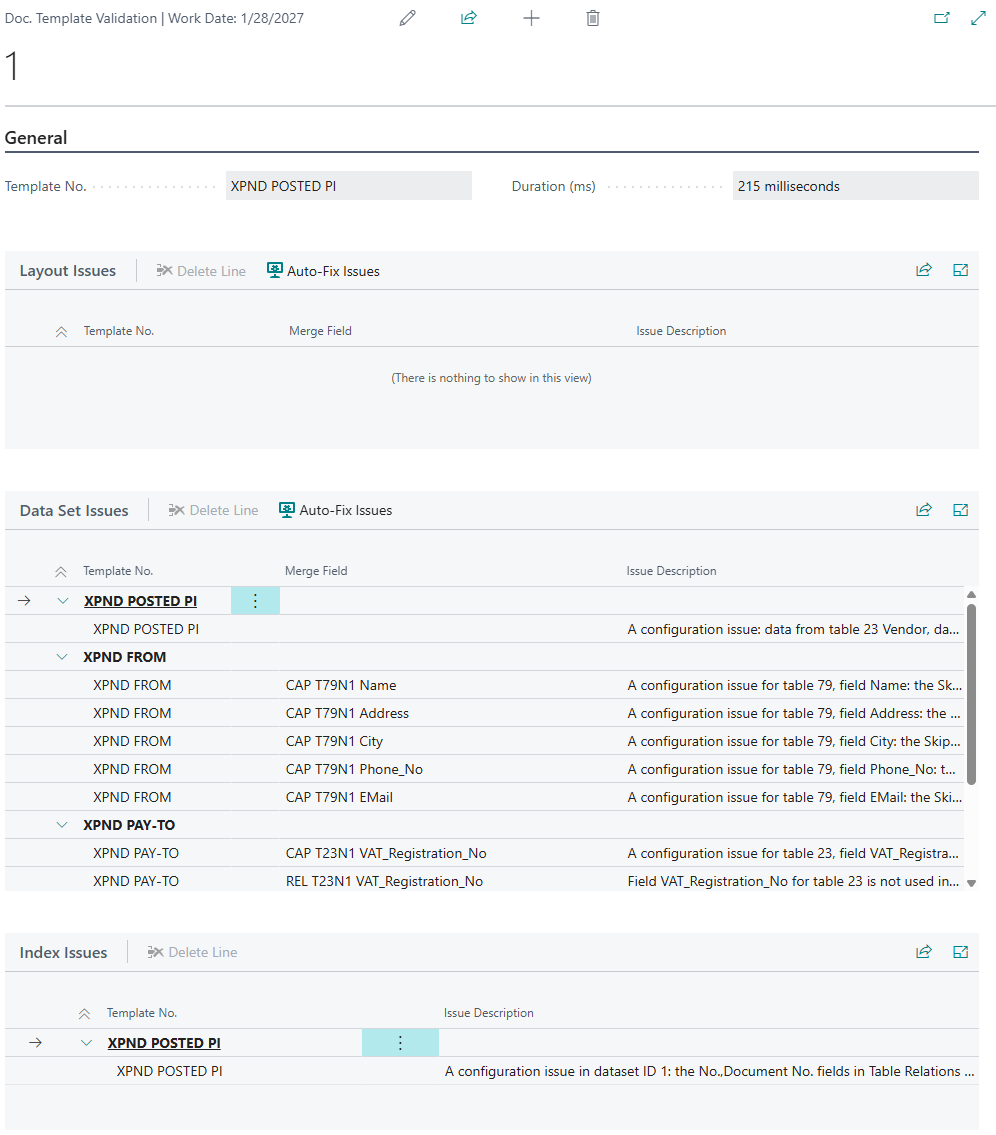
There are three categories of issues:
- Layout issues - Configuration issues in the document template layout.
- Data set issues - Configuration issues in the document template (on the Tables FastTab). Each issue is related to a specific data set, which will be mentioned in the issue description where necessary.
- Index issues - Configuration issues with relations between tables or between the main template and related templates (subtemplates).
- Review the description of each found issue in the Issue Description field.
- (optionally) You can use the Auto-Fix Issues action to automatically resolve issues where possible. Issues that could not be resolved automatically will need to be reviewed manually by correcting the template configuration (either on the template card or in the document layout or both depending on the issue).