Subtemplates
You may link multiple templates. This enables you to add other templates as a part of the main template. For example, you can set up a template as a document header, which is common for several templates, link it to those templates where you want to insert it, and then add to the template layout.
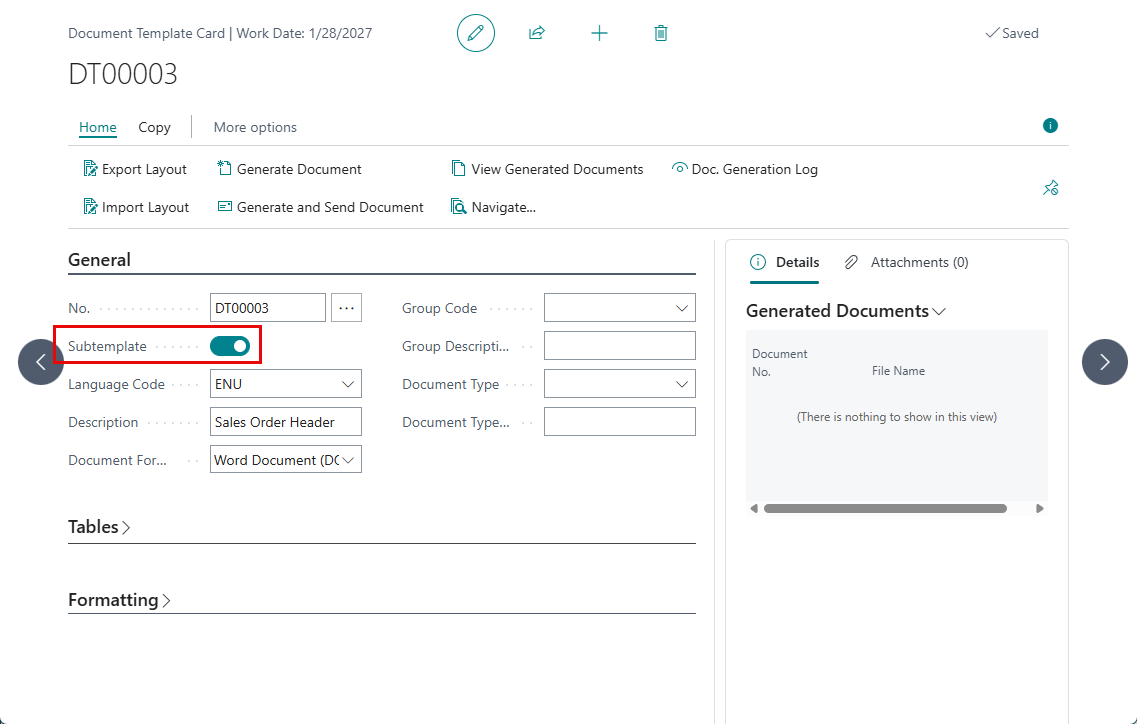
To be able to link a document template, it must be set up as subtemplate: the Subtemplate check box on the document template card is selected.
The linked subtemplates are available for selection as subtemplate codes in the Insert Merge Field on the Mailings tab of Microsoft Office Word when creating or editing the document layout.
Link document templates
To link document templates:
- In Business Central with the Qvaba Flexible Documents app installed, choose the
 icon, enter Document Template List, and then choose the related link.
 - In the Document Template List window, the number of a document template to which you want to link other template(s).
- In the Document Template Card window, choose Related > Document Template > Related Templates.
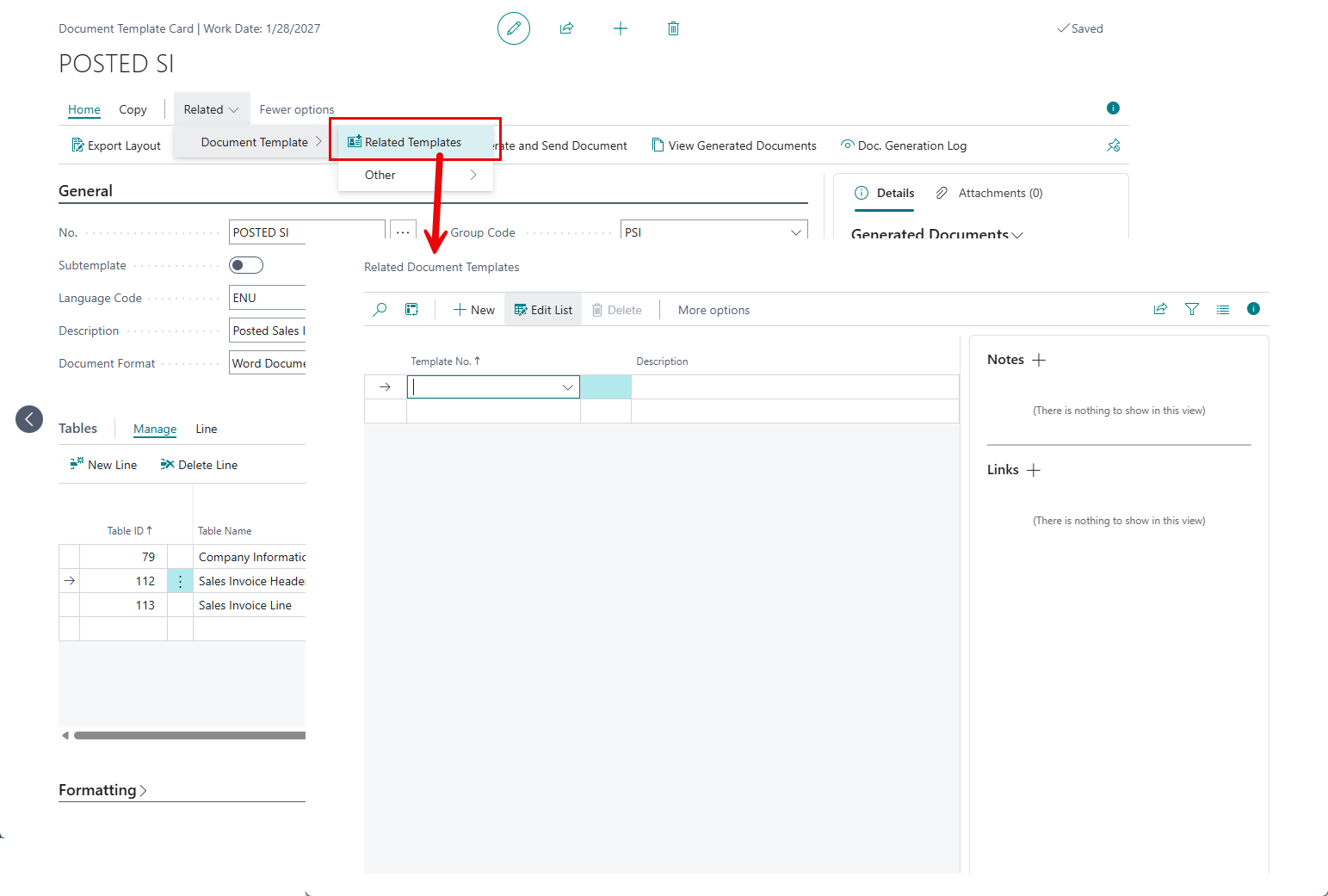
- In the Related Document Templates window, create a line for each document template that you want to link to the given template by filling in the fields as described in the following table.
- Template No. - Specifies the number of the document subtemplate that you link to the current template. Choose the fields and select a template from the list. Only subtemplates (document templates with the Subtemplate check box selected) are available for selection.
- Description - Specifies the description of the document template. This field is filled in automatically after you fill in the Template Name field in case you specified a description when you created the document template.
- In the Related Document Templates window, select the created line and choose Related > Related Document Template > Relations if you want to filter the data that will be taken from the linked template.
 Note
NoteIn case you do not set up relations for the related templates, all data from the related template will be inserted. Setting up relations may be useful if the data from the related template has multiple records, such as document lines, and you want to take specific records from that subtemplate.
- In the Document Template - Table Relations window, to create a line with relations to filter out specific data from the related template, fill in the fields as described in the following table.
- Table ID - Specifies the ID of a table in the related subtemplate the data from which you will need in the given document template. You will only be able to select a table that has been added to the subtemplate.
- Data Set ID - Specifies the ID of a data set from the related table specified in the Table ID field. This field is filled in automatically and depends on the data set that you chose when you filled in the Table ID field. A data set is a set of data from a table in a document template. Whenever you reuse a table in a document template, each new data set ID increases sequentially.
- Field Name - Specifies the name of a field from the linked subtemplate from the specified table by which you want to create a condition for filtering data that will be taken from the subtemplate to the given document template.
- Related-to Table Name - Specifies the name of a table in the primary template through which the relation will work.
- Related-to Field Name - Specifies the name of a field in the table in the primary template through which the relation will work.
- Logical Operator - Specifies the logical operator which you want to use to compare the data in the fields specified in the Field Name field and in the Related-to Table Name field. Alternatively, you can compare the value in the Field Name field (from a table in the subtemplate) with a constant value to specify a condition for taking data. In the case, you not need to specify a field from the primary template. Choose the field and select one of the following operators:
- = - Select this operator when the condition for retrieving data from a subtemplate is that the value in the Field Name field (from a subtemplate) and in the Related-to Table Field Name field (from the primary template) must be the same.
- <> - Select this operator when the condition for retrieving data from a subtemplate is that the value in the Field Name field (from a subtemplate) must not be the same as the value specified in the Constant Value field.
- < - Select this operator when the condition for retrieving data from a subtemplate is that the value in the Field Name field (from a subtemplate) must be less than the value specified in the Constant Value field.
- >- Select this operator when the condition for retrieving data from a subtemplate is that the value in the Field Name field (from a subtemplate) must be bigger than the value specified in the Constant Value field.
- Constant Value - Specifies a constant value with which you can compare the value in the Field Name field (from a subtemplate) to identify the data to retrieve from the subtemplate to the primary template.
- Create more lines to add additional conditions for filtering data to retrieve from the subtemplate if necessary., and then close the Document Template - Table Relations window.
- If necessary, repeat steps from 4 through 7 to link other templates.
Viewing in which document templates a subtemplate is used
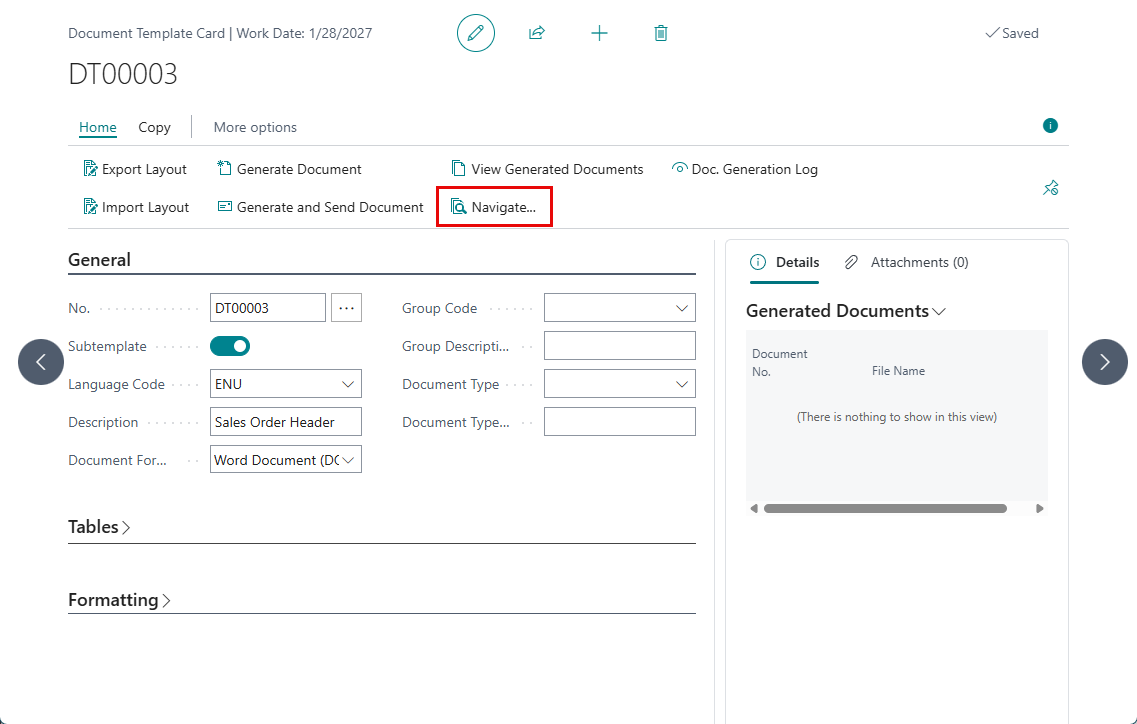
If the document template card is a subtemplate (the Subtemplate check box, on the General FastTab in the Document Template Card window is selected), you can view in which document template this document subtemplate is used by choosing Navigate on the Home tab.