Configure a calendar page
A Calendar page is a page that displays a calendar with items (bars) that represent events, based on records in the source entity. The duration of a calendar event is defined by data in the date-time fields of the related record. A calendar event may show detailed information from a record according to the calendar settings; you decide what information will be shown in calendar events.
The calendar view can be arranged to show the daily view, only show days in the week, show the month, or show the year.
If necessary, you can link the calendar to a grid and/or detail page so that you could open a page with detailed information about the related record the event is based on.
In the backoffice, a Calendar pages can be identified by the  icon.
icon.
There are four types of calendar pages:
- Stand-alone calendar – This calendar is a stand-alone page. Events in such a calendar are based on records from a single related entity. A related detail page is normally created as a child page.
- Calendar embedded in a grid page – This calendar is embedded into a grid page. Calendar days are grid columns. Events in such a calendar can be based on records from two entities: one entity is the grid, into which the calendar is embedded, and another entity is used to retrieve starting and ending date-time of events for the related parent entity. For example, you can set up a grid with a list of contacts (parent entity for the embedded calendar) and embed a calendar to show planned meetings (another entity from which meeting date and time is retrieved for each contact if available). To be able to view an embedded calendar page on the grid page, you must also add a Calendar action to the grid.
- Calendar embedded in a grid page within a layout block – This calendar is embedded into a grid page, but displayed in a layout block. The layout block of such a calendar must be a child page to the grid page where you want to have the calendar displayed. This type of calendar configuration also requires a parent entity and a related entity, data from which will be filtered by the same field between two entities. For this calendar, the Calendar action is not required.
- Calendar embedded into a detail page – This calendar is embedded into a detail (card) page. Events in this calendar are based on records from a singe entity (like in a stand-alone calendar). The calendar is added with the help of an extended field set field with the Extended Calendar Editor data type. This calendar type may be useful when you want to edit event start date-time and end date-time by selecting a time frame on the calendar.
To create a stand-alone Calendar page
- In the backoffice, go to Content.
- Select the
 icon next to the site node (or select and hold (or right-click) the node, and then select Create), and then select Calendar page.
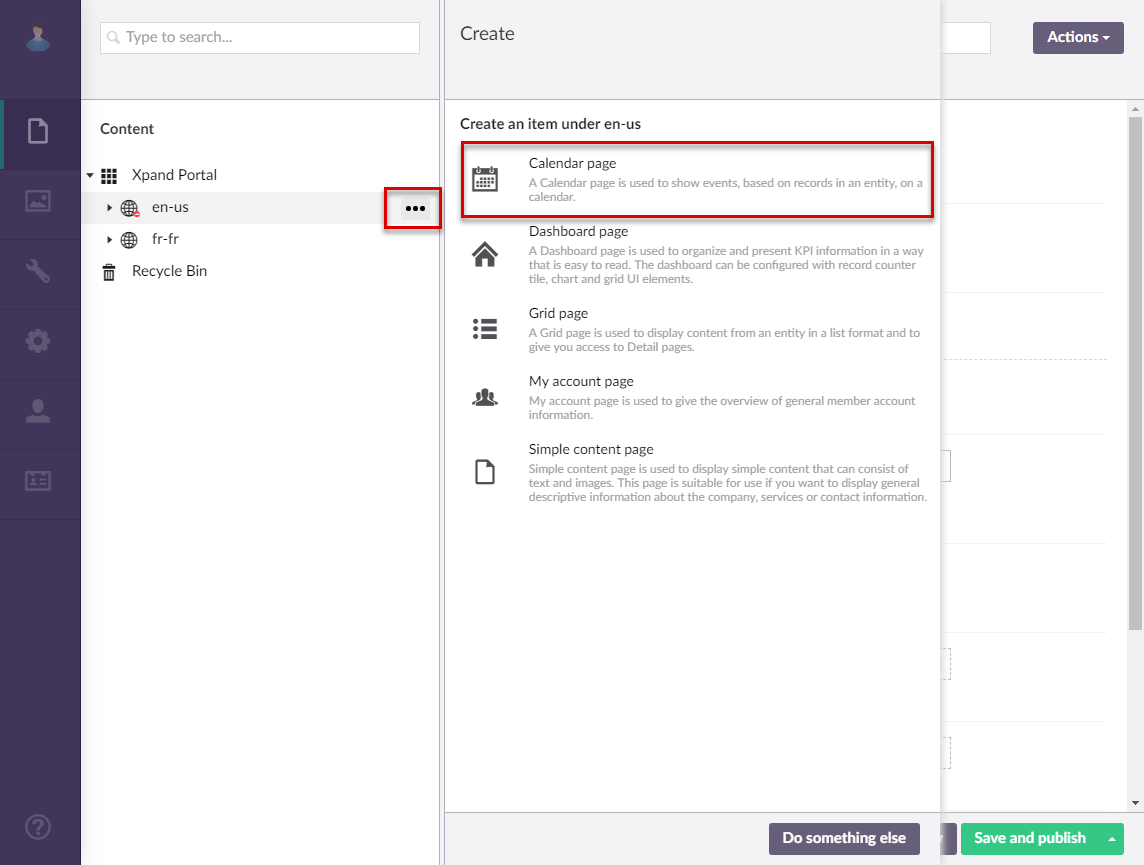
- If you have at least one content template of the Calendar page type, the created template(s) will be available for selection to use as a basis for the new page. Otherwise, this step is not shown. You can select Blank in case you don't want to use a template.
- On the header, enter the page name that will be used to identify it in the backoffice.
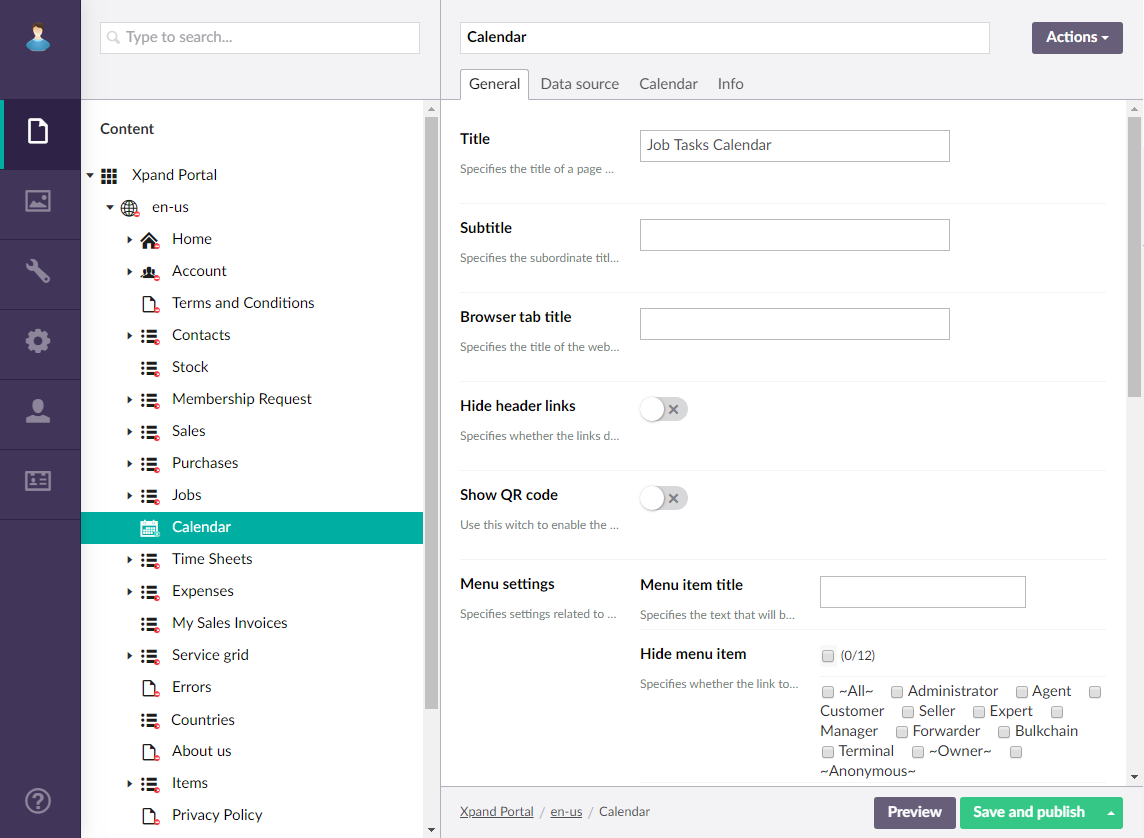
- On the General tab, fill in general settings for the new page:
- Titles - Specifies the settings where you can configure the title of various elements on this page.
- Title - Specifies the title that will be displayed in the header of the created page.
- Subtitle - Specifies the subtitle that will be displayed in the header of the created page.
- Browser tab title - Specifies the title of the web browser tab that will be displayed when the page is opened and the member points to the browser tab.
- Hide breadcrumb - Specifies that the page breadcrumb trail is not shown. A breadcrumb trail is used as a navigational aid to help portal members keep track and maintain awareness of their location within the portal.
- Menu item title -Specifies the title of the menu item, which will be displayed in the navigation pane for this page.
- Menu item icon - Specifies the icon of the menu item for this page. Select the square and browse to the icon in the portal media library.
- Menu item color - Specifies the color of the menu for this page.
- Divider after menu item - Specifies whether a split line will be displayed after this menu item. A divider can be added only on the first menu level.
- Hide menu item for - Specifies whether the link to the page will be displayed in the main menu for the selected member groups.
- Responsive behavior - Specifies the settings that define how this page part or UI element responds to different viewport widths by adjusting its width and visibility at each responsive breakpoint.
- Content-from page - Specifies the page the content of which will be displayed instead of the content of this page when this page is opened via a direct link. The URL in the address bar will remain that of the original page.
- Redirect-to page - Specifies the page that will be displayed instead of this page when this page is opened via a direct link. The URL in the address bar will be that of the target page.
- Module assignment & protection - Specifies settings that allow you to assign this content element (site, page, page element, etc.) to an internal module as well as to protect this element from certain operations (copying, changing, deletion). Select the Configure button to configure module assignment & protection or the Change button to edit existing configuration if it has already been configured.
- Titles - Specifies the settings where you can configure the title of various elements on this page.
- On the Data source tab, specify the source of data for this grid page. If the source of data is external, portal integration must be set up and configured with the corresponding external system.
- Entity - Specifies the table data from which data will be retrieved for this grid page. This table may represent any entity to suit your business needs. The list of available entities depends on the system your portal is integrated with.
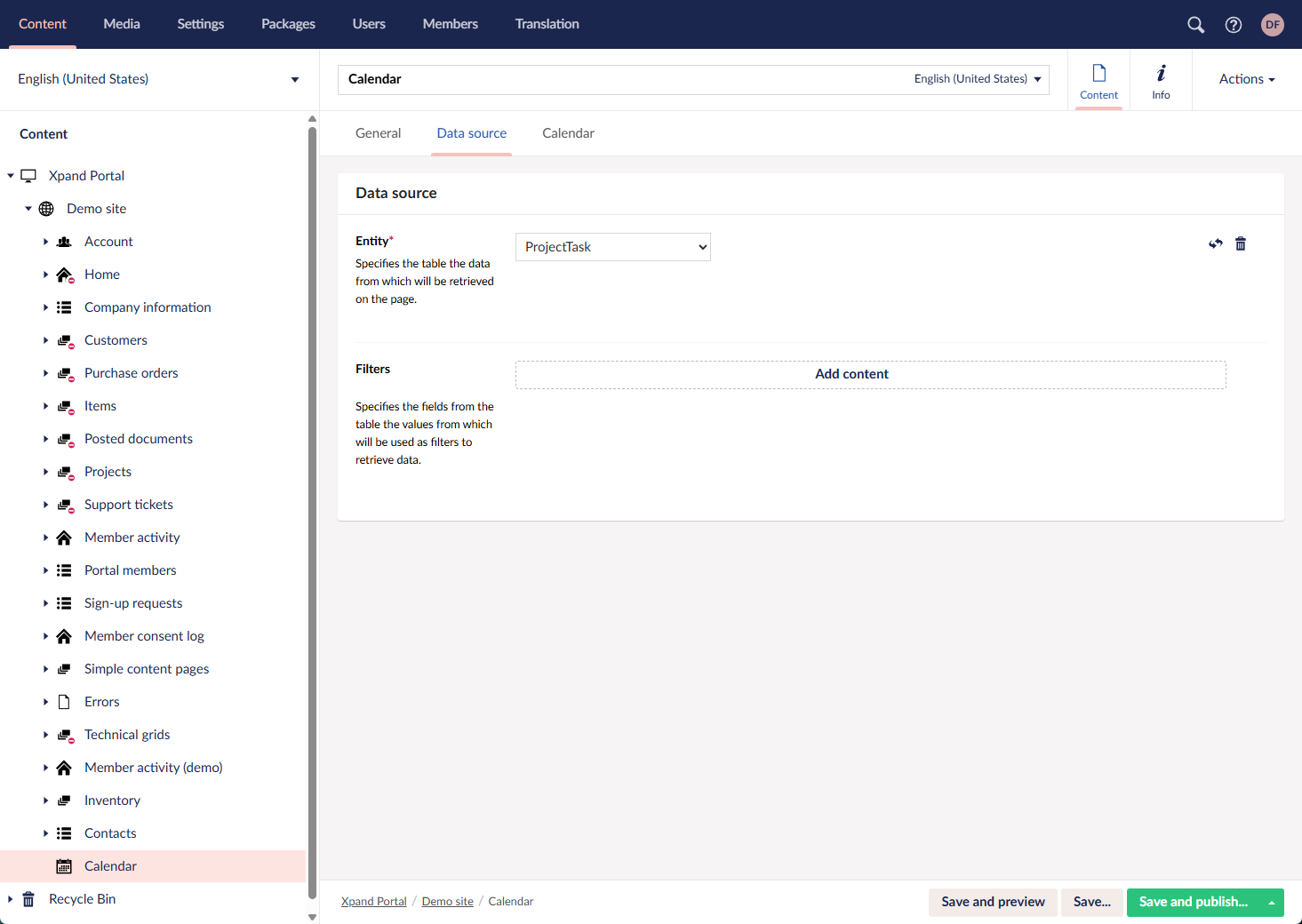
- Filter - Specifies the filter(s) which can be used to narrow down the records that will be retrieved from the specified entity by specified criteria. You can add filters individually, in groups, or in combination of individual filters and groups. Grouped clauses operate as a single unit separate from the rest of the query, similar to putting parentheses around a mathematical equation or logic expression. The AND or OR operator specified for the filter group applies to the whole group. Global filters (filters that are set up for the entire site) can be added automatically when you select or change the data source entity in case the entity has a global filter assigned to it. Global filters have the GLOBAL tag. Global filters can also be automatically added or cleared from portal pages or page parts in the global filter settings. Setting filters is optional and depends on what kind of data you want to be displayed on the page.
- To add an individual filter, select Add content, select
 Filters, configure the filter settings below, and then select Create:
- Title - Specifies the title of the filter.
- Logic – Specifies the logic of the filter:
- AND – Use this type to find records in the data source that meet the criteria in both the current and previous clause.
- OR – Use this type to find records in the data source that meet the criteria in either the current or previous clause.
- Field – Specifies the field from the source entity the value of which will be used to filter records on the page.
- Operator – Specifies a symbol that denotes a logical operation.
- Value – Specifies the value of the field that will be used to filter records on the page. You can specify constant value or use a method to retrieve data. Select Add content and configure the type of value and its settings:
- Constant value – Specifies a constant value that will be used as a filter condition during lookup. If the value of the specified field is equal (or more, or less, etc., depending on the operator) to this value, the filter condition will be met.
- Date-time value – Specifies a date-time value that will be used as a filter to retrieve data.
- Value-from member field name – Specifies a field from the portal member settings, the value from which will be used as a filter.
- Value from parent entity field – Specifies a field from a parent entity on the portal, the value from which will be used as a filter during lookup.
- Value from entity - Specifies the entity and field from this entity the value from which will be used as the filtering condition for records in the entity table.
- Address field – Specifies the name of a query string parameter (the part of a uniform resource locator (URL) that assigns values to specified parameters), which will be used as a condition for the field value in this filter.
- Field – Specifies a field from the current entity (an entity, to which the field that you are configuring lookup settings for belongs) the value from which will be used as a filter during lookup. This may be useful if you want to see value for the lookup entity that are related to the current entity.
- Disable current filter – Use this switch to temporarily disable the filter for this page.
- To add a filter group, select Add content, select
 Filters group, configure the filter group settings below, and then select Create:
- Title - Specifies the title of the filter.
- Logic– Specifies the logic of the filter group:
- AND – Use this type to find records in the data source that meet the criteria in both the current and previous clause.
- OR – Use this type to find records in the data source that meet the criteria in either the current or previous clause.
- Filters in group – Specifies filters that will belong to this filter group. The Logic setting above will be applied to the whole group of filters. Select Add content to add a new filter to the group, and configure its settings in a similar way you configure settings for individual filters.
- Disable current filter - Specifies whether the current filter is disabled on this page.
- Disable empty filter - Use this switch to disable filters that are empty and cannot be applied.
- To add an individual filter, select Add content, select
- Entity - Specifies the table data from which data will be retrieved for this grid page. This table may represent any entity to suit your business needs. The list of available entities depends on the system your portal is integrated with.
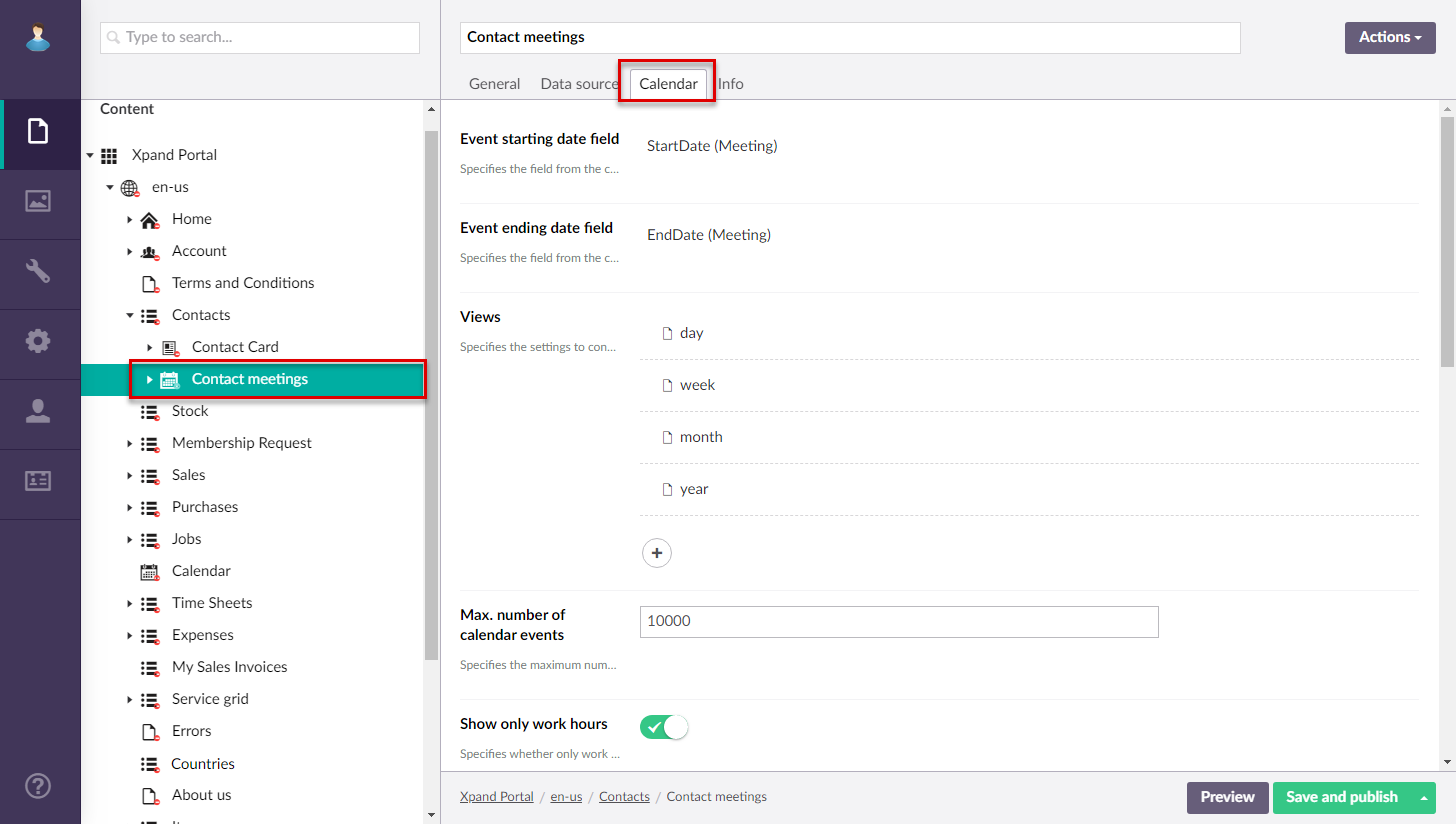
- On the Calendar tab, configure the calendar settings:
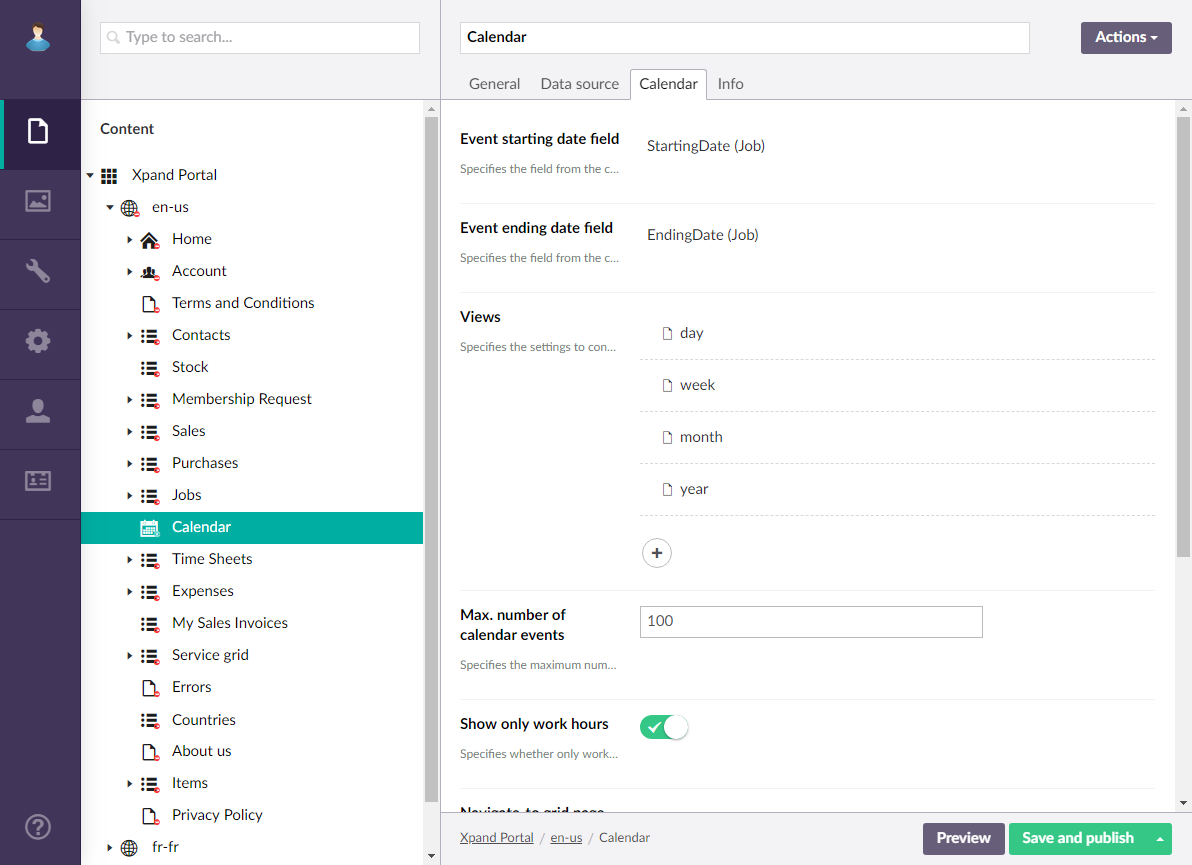
- Event starting date field – Specifies a date-time field from the data source entity that will be used to identify the starting date or starting date and time of an event. Availability of fields for selection depends on the entity, specified in the Data source tab. Note that the format of the date in the value that will be retrieved from the specified field should correspond to the portal date configuration: e.g. dd-MM-yyyy. If the field value contains both date and time, the expected format is as follows: dd-MM-yyyy HH:mm:ss (where the date format con be different depending on your configuration). Thus, make sure that value in the specified in the data source conforms to the expected format for the calendar to work correctly.
- Event ending date field – Specifies a date-time field from the data source entity that will be used to identify the ending date or starting date and time of an event. Note that the ending date is not included in the event duration.Thus, the ending date must be the next day after the date when the event is supposed to end. Availability of fields for selection depends on the entity, specified in the Data source tab. The expected date and time format in the value of the selected field is the same as for the Event starting date field setting.
- Views – Specifies settings for each view that can be available on the calendar. Select Add view to add a view to the calendar and configure how events will be displayed in that view. Add a view for each time period that you want to be available on the calendar. For each view you configure the following:
- Title – Specifies the title of the calendar view that will be displayed on the calendar view selection pane. You can leave this title empty to use the default title.
- View – Specifies the period for which events are displayed:
- Day - Each cell represents an hour in a day and you see events for a single day.
- Week - Each cell represents an hour in a day and you see events for a week.
- Month - Each cell represents a day and you can see events for a whole month spread across several lines.
- Month Column - Each line represents an event and days of the month are shown as columns; the number of lines depends on the number of events.
- Year - Each line represents an event and months are shown as columns; the number of lines depends on the number of events.
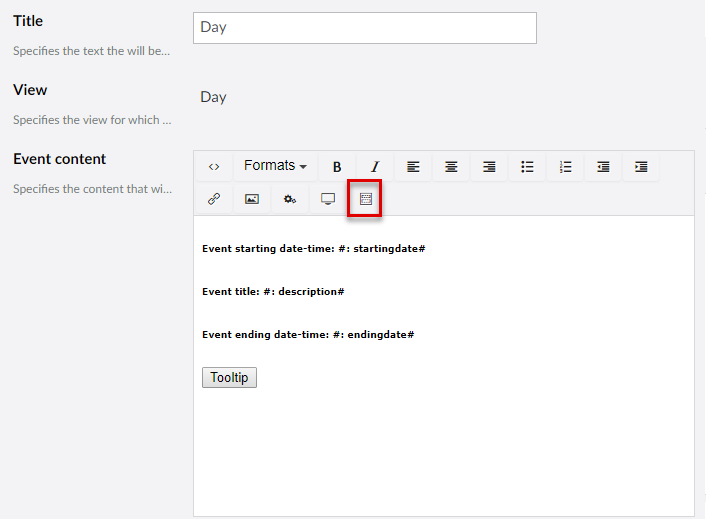
- Event content – Specifies the content of each event in this calendar view. You can add plain text, a variable, or/and a link to the related detail page. For example, to add a field variable (the value from a source entity field retrieved) for the Start Date field (field name is StartingDate), add the following code to the event content: #: startingdate# This code means that value from the field with the StartingDate name will be shown in the event bar. Ensure you use lowercase for the field name in the field variable.
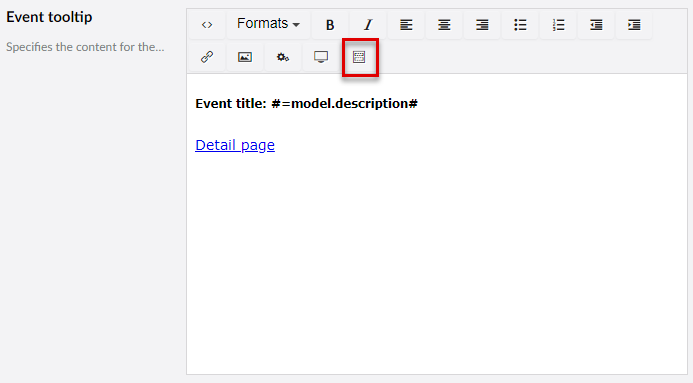
- Event tooltip – Specifies the content of the tooltip for each event in this calendar view. The tooltip is displayed when you hover over an event. You can add plain text, a variable, or a link to the related detail page. For example, in the Event title: #=model.description# , where description is the name (written in lowercase letters) of a field that corresponds to the event title.
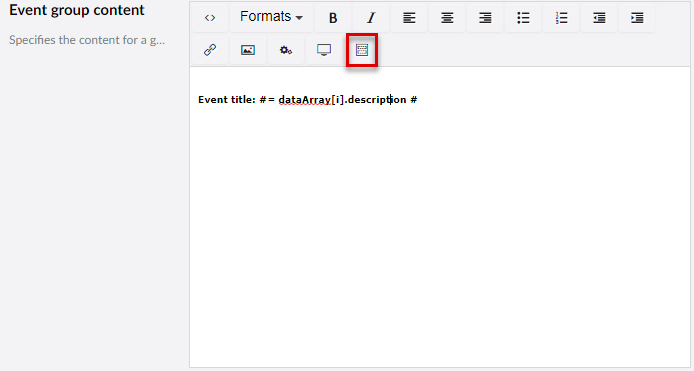
- Event group content – Specifies the content of the event group that will be displayed in the calendar cell in case the maximum number of events in a cell has been reached. This content will be displayed as a unified content instead of the content of each individual cell. You can use the Insert template action to add predefined code pattern, which you can then adjust to suit your needs. In the event tooltip template, in the variable, you need to replace the field name with the one that corresponds to a field in your source entity after the =dataArray[i]. part. For example, in the Event title: #= dataArray[i].description # code, you need to replace description with the name (written in lowercase letters) of a field that corresponds to the event title.
- Show view – Specifies whether this view will be shown on the Calendar page and for which member groups.
- Max. number of cell events – Specifies the maximum number of events that can be displayed in a calendar cell. If this number is exceeded, the event group content will be displayed instead of the content of each individual event.
- Max number of calendar events – Specifies the maximum number of events that can be displayed in the calendar.
- Show only work hours – Specifies whether the calendar will display only work hours. If you enable this, ensure that the Work hours start time and Work hours end time settings are configured as well.
- Navigate-to grid page – Specifies the grid page to which the member will be navigated when selecting the Read more link int he bottom right corner of the Calendar page. The link becomes available if you specify a grid page in this setting. The link to a grid page can also be added to the event content (use a predefined template for the event group content).
- Navigate-to detail page – Specifies the grid page to which the member will be navigated when selecting the corresponding link in a calendar event content. The link must be added to the event content (you can use a predefined template for that).
- First Day of week – Specifies the starting day of the calendar week.
- Work hours start time – Specifies time when the working hours start. Specify only the starting hour in the following format: HH. E.g. 09.
- Work hours end time – Specifies time when the working hours end. Specify only the ending hour in the following format: HH. E.g. 18.
- Color palette – Specifies the colors that will be applied to the calendar page. Each line will have a different color, taken from this setting. If you do not specify the color palette, or the number of lines with events exceeds the number of added colors, the same default color will be used.
- Color - Specifies the color that will be applied to the calendar events.
- Color - Specifies the color that will be applied to the calendar events.
- Select Save and publish.
Now, the created Calendar page can be opened on the front end.
To create a calendar embedded into a grid page
|
Screenshots with examples in this section are based on an earlier version of Xpand Portal (earlier than 4.0.0.0). The backoffice and caledar page will look different in newer versions of Xpand Portal. |
- In the backoffice, go to Content.
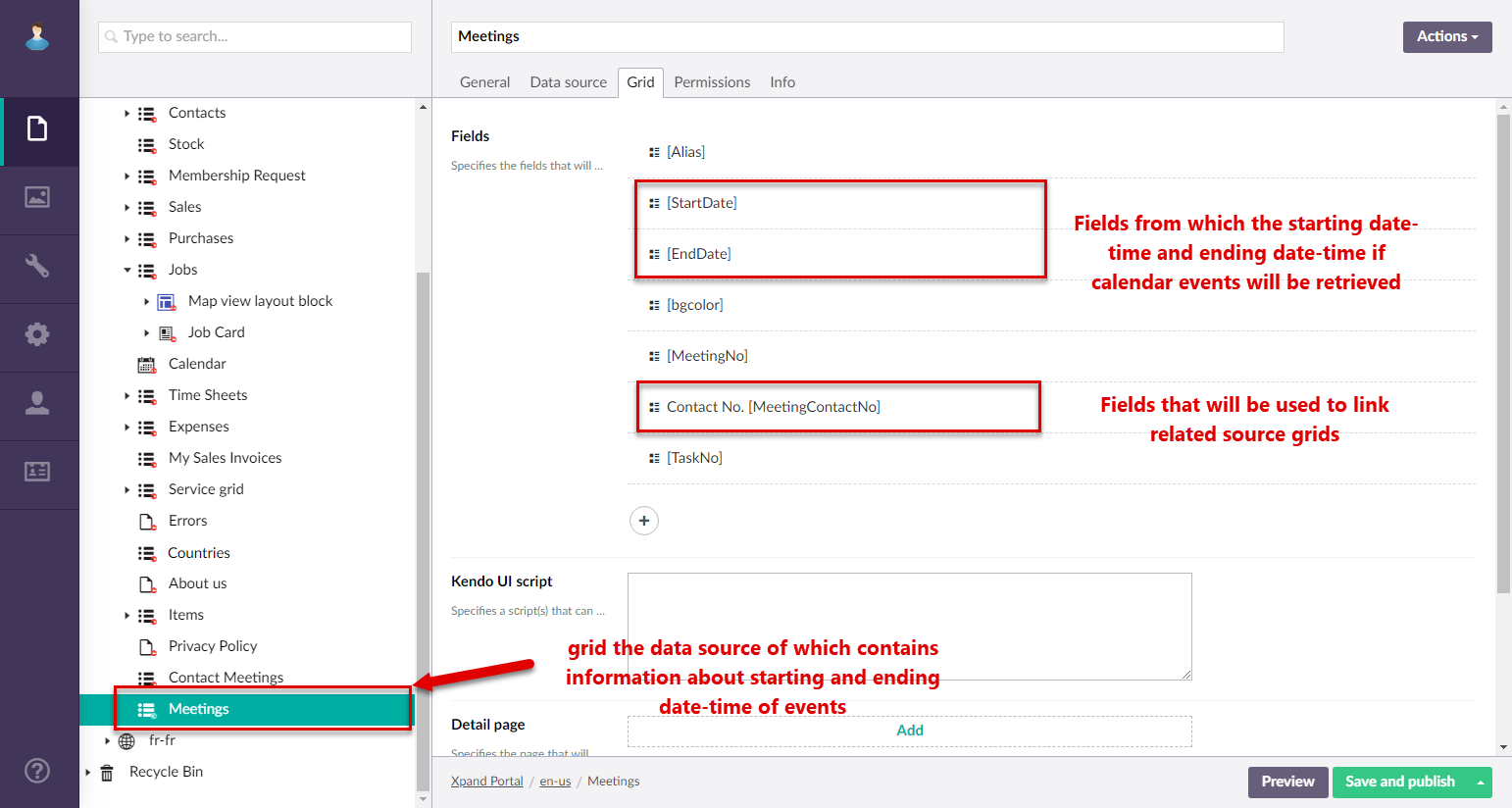
- Create a grid page, or use an existing one, the data source of which will be used to retrieve the starting and ending date of events in the embedded calendar. Ensure that this grid page configuration has the following:
- A portal entity, specified as data source, with the necessary fields:
- A field that will be used to link this grid and the grid page into which the calendar will be embedded. For example, a field with the number or name of the entity, common for both grids.
- A field the value of which will be used to retrieve the starting date or date and time of an event.
- A field the value of which will be used to retrieve the ending date or date and time of an event.
- The mandatory fields mentioned above are displayed on the grid.
- A portal entity, specified as data source, with the necessary fields:
- Create a grid page, or use an existing one, the data source of which will be used to filter events retrieved from another linked portal entity. A calendar page will be embedded into this page. Ensure that this grid page configuration has the following:
- A field that will be used to link this grid and the grid page from calendar event information is retrieved.
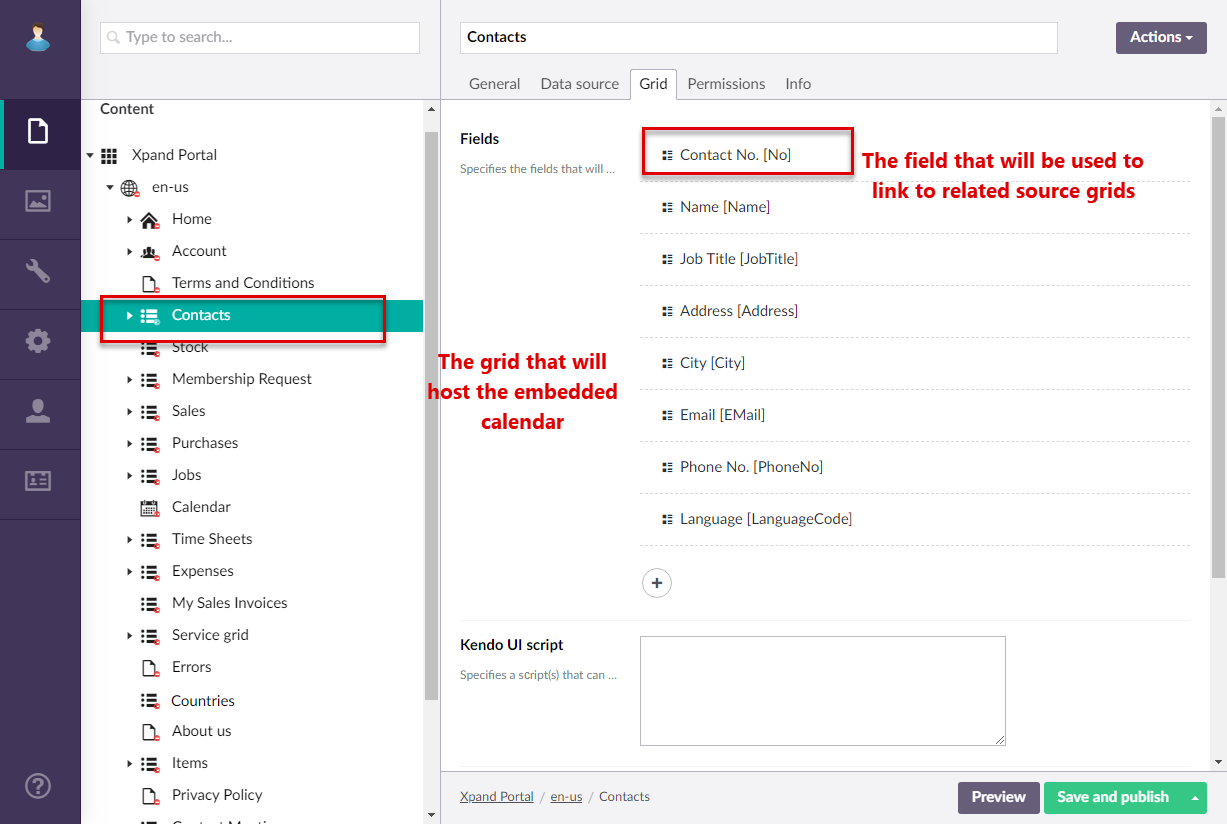
- The linking field mentioned above must be displayed on the grid.
- A field that will be used to link this grid and the grid page from calendar event information is retrieved.
- Select the icon next to the site grid page that will host an embedded calendar, and then select Calendar page.
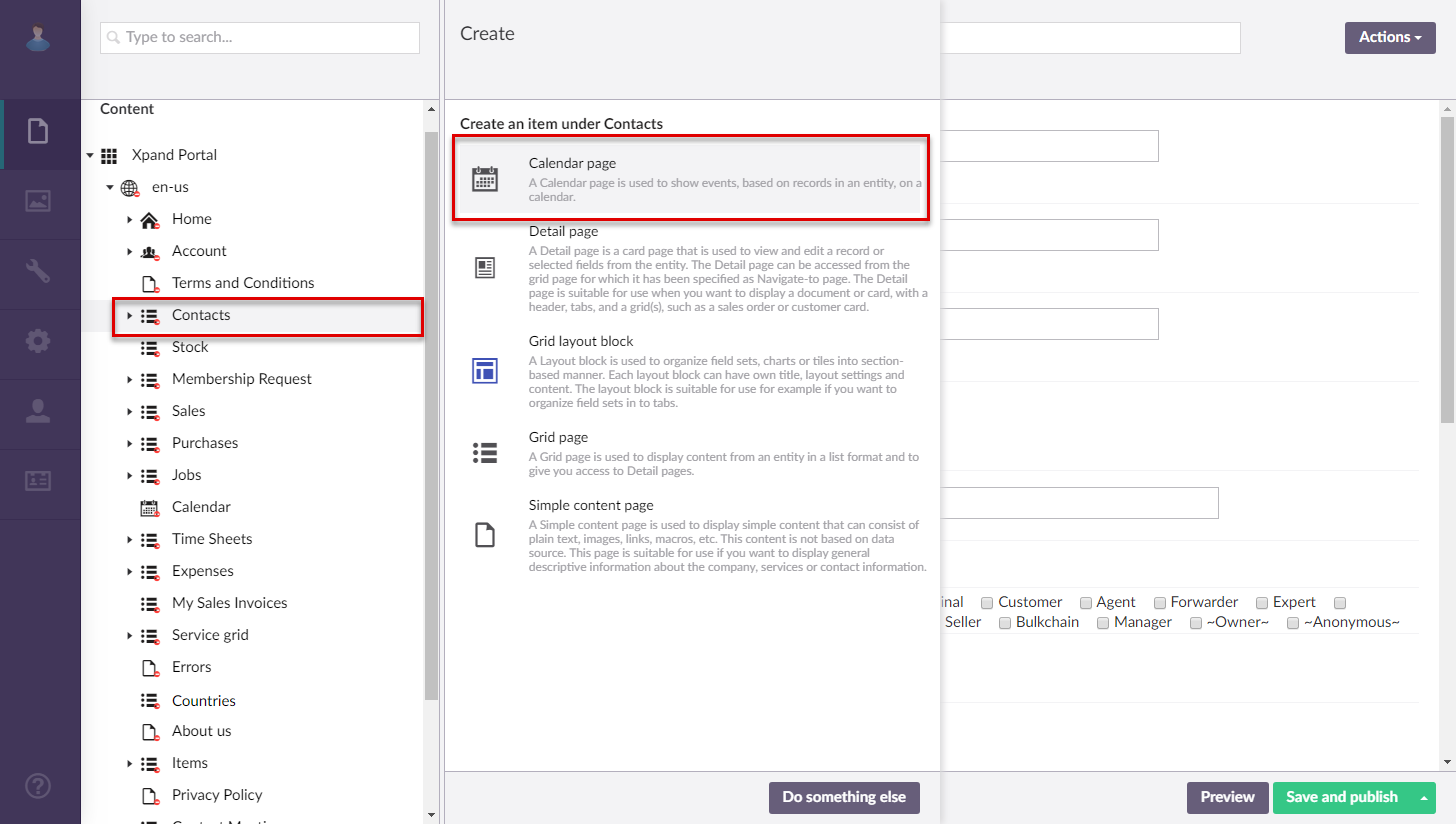
- On the header, enter the page name that will be used to identify it in the backoffice.
- Fill in other settings on the General tab in the same way as when creating creating a stand-alone calendar page described above.
- Under Menu, you may want to select the Hide menu item for checkbox for all or some member roles. This may be useful if you want this calendar page to be accessible only in the form of embedded calendar. If you do not hide the menu item, the calendar will also be available through the menu as a stand-alone calendar.
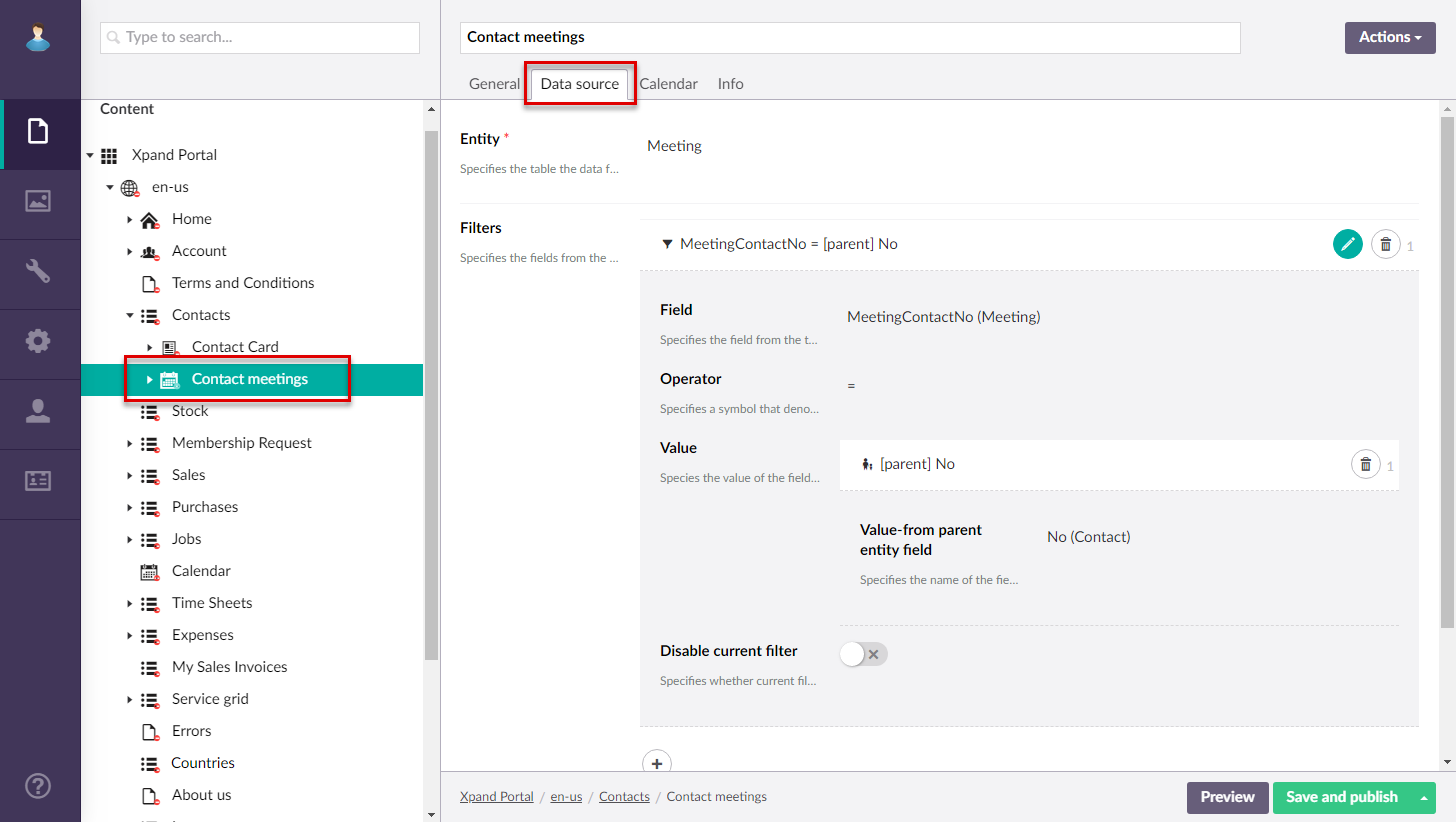
- On the Data source tab, in the Entity field, select the entity from the grid that contains starting and ending date-time of calendar events (created/configured in step 2 of this procedure).
- Under Filters, add a filter to combine two related grids (the one with starting and ending date-time of calendar events and another with the entity by which calendar events will be sorted) by filling in fields as follows:
- Field – Select the field from the source entity of the grid that contains starting and ending date-time of calendar events that has a corresponding field in the parent entity of this calendar page.
- Operator – Set this operator to =.
- Value – Select Value-from parent entity field, and then select the field that corresponds to the field specified in the Field setting above.
- On the Calendar tab, configure the settings in the same way as when creating creating a stand-alone calendar page described above.
- Select Save and publish to save the changes and publish them on the front end. Optionally, you can select Save and preview to preview how the page will look like on the front end.
- Open the page settings for the parent grid where you want to have the calendar embedded, and go to the Permissions tab.
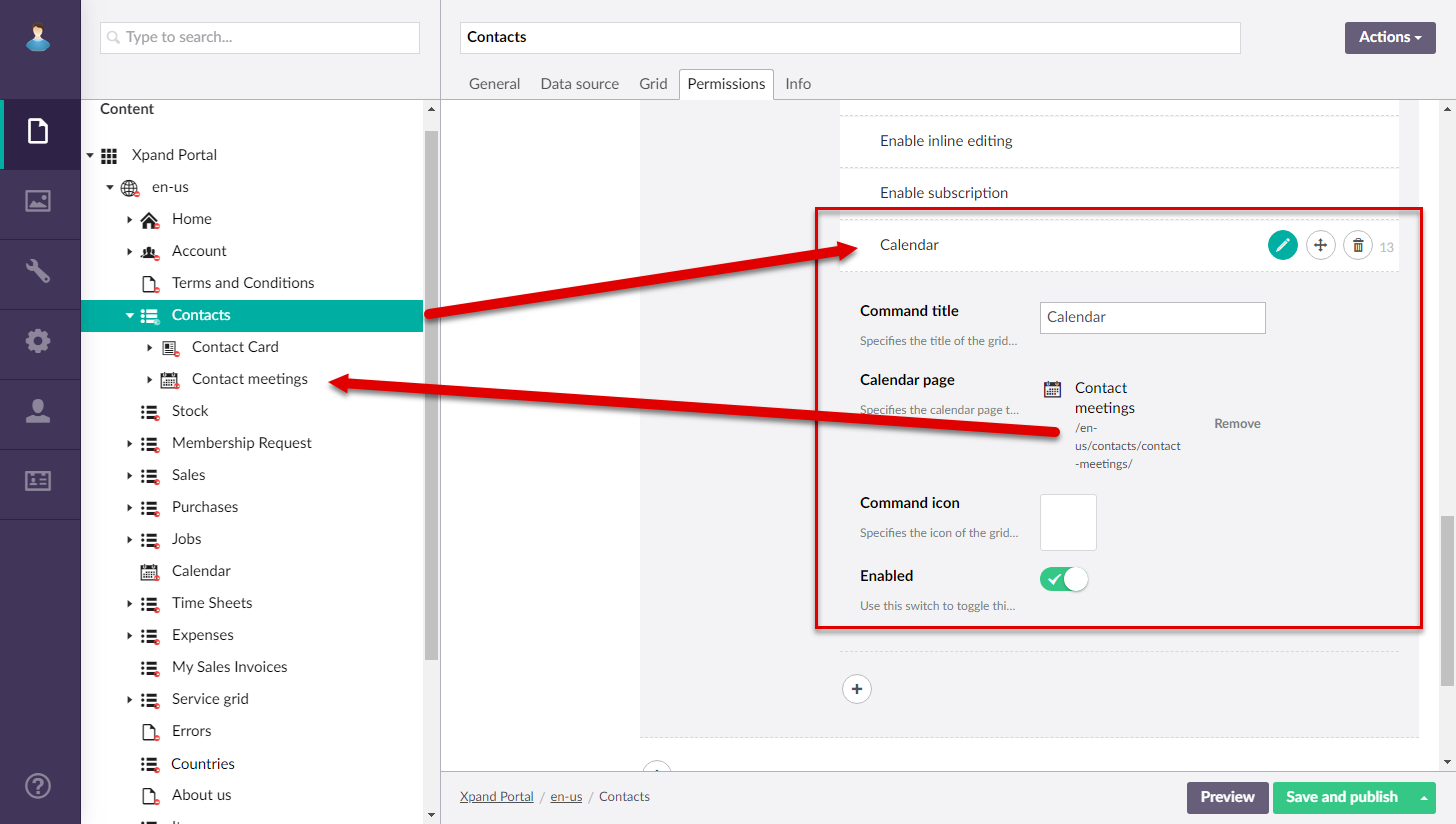
- Add a Calendar action. Ensure that in the Calendar action settings, in the Calendar page field, you specify the page of the embedded calendar that has just been created.
- Select Save and publish to save the changes and publish them on the front end. Optionally, you can select Save and preview to preview how the page will look like on the front end.
Now you can view the embedded calendar by opening the grid page where you added the Calendar action.
To create a calendar embedded into a grid or detial page within a layout block
You can embed a calendar into a grid or detail page within a layout block. This procedure is for a calendar embedded into a grid page. Embedding a calendar into a detail page is configured in a similar way.
|
Screenshots with examples in this section are based on an earlier version of Xpand Portal (earlier than 4.0.0.0). The backoffice and caledar page will look different in newer versions of Xpand Portal. |
To embed a calendar into a grid page in a layout block:
- In the backoffice, go to Content.
- Create a grid page, or use an existing one, the data source of which will be used to retrieve the starting and ending date of events in the embedded calendar. Ensure that this grid page configuration has the following:
- A portal entity, specified as data source, with the necessary fields:
- A field that will be used to link this grid and the grid page into which the calendar will be embedded. For example, a field with the number or name of the entity, common for both grids.
- A field the value of which will be used to retrieve the starting date or date and time of an event.
- A field the value of which will be used to retrieve the ending date or date and time of an event.
- The mandatory fields mentioned above are displayed on the grid.
- A portal entity, specified as data source, with the necessary fields:
- Ensure that on the General tab, you specify the width of the grid in Responsive behavior settings. This is necessary to ensure that the grid fits the page next to the layout block with the calendar.
- Create a grid page, or use an existing one, the data source of which will be used to filter events retrieved from another linked portal entity. A calendar page will be embedded into this page. Ensure that this grid page configuration has the following:
- A field that will be used to link this grid and the grid page from calendar event information is retrieved.
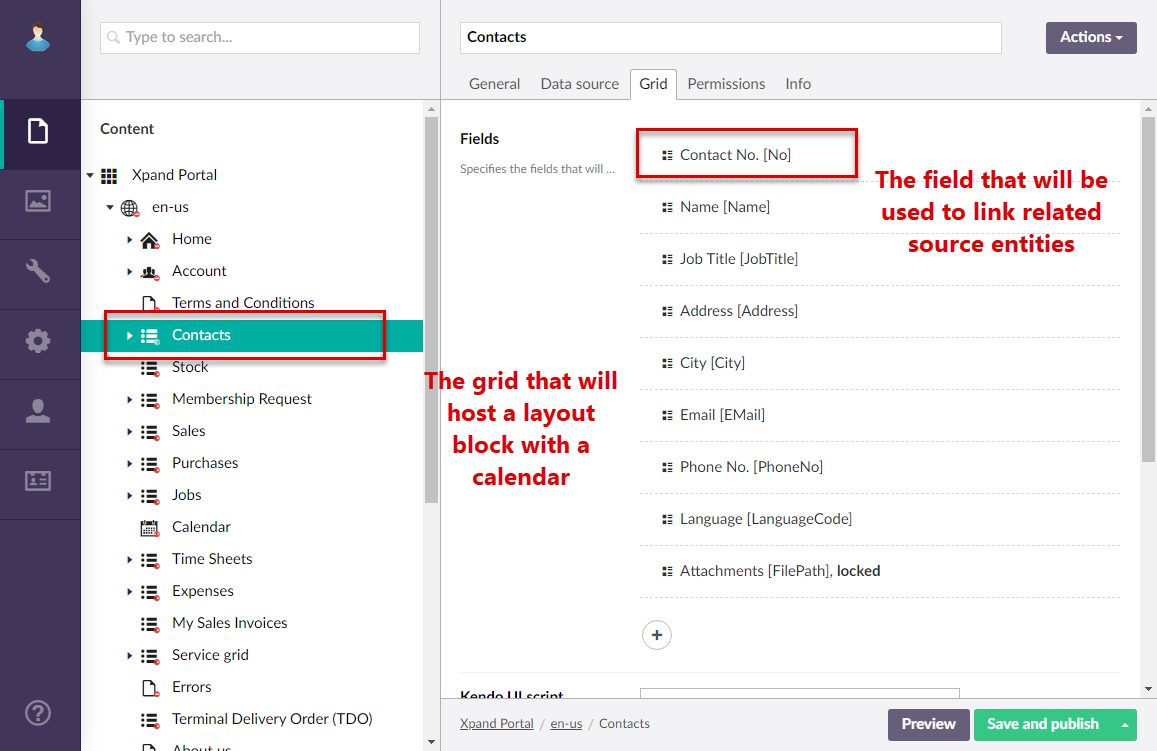
- The linking field mentioned above must be displayed on the grid.
- A field that will be used to link this grid and the grid page from calendar event information is retrieved.
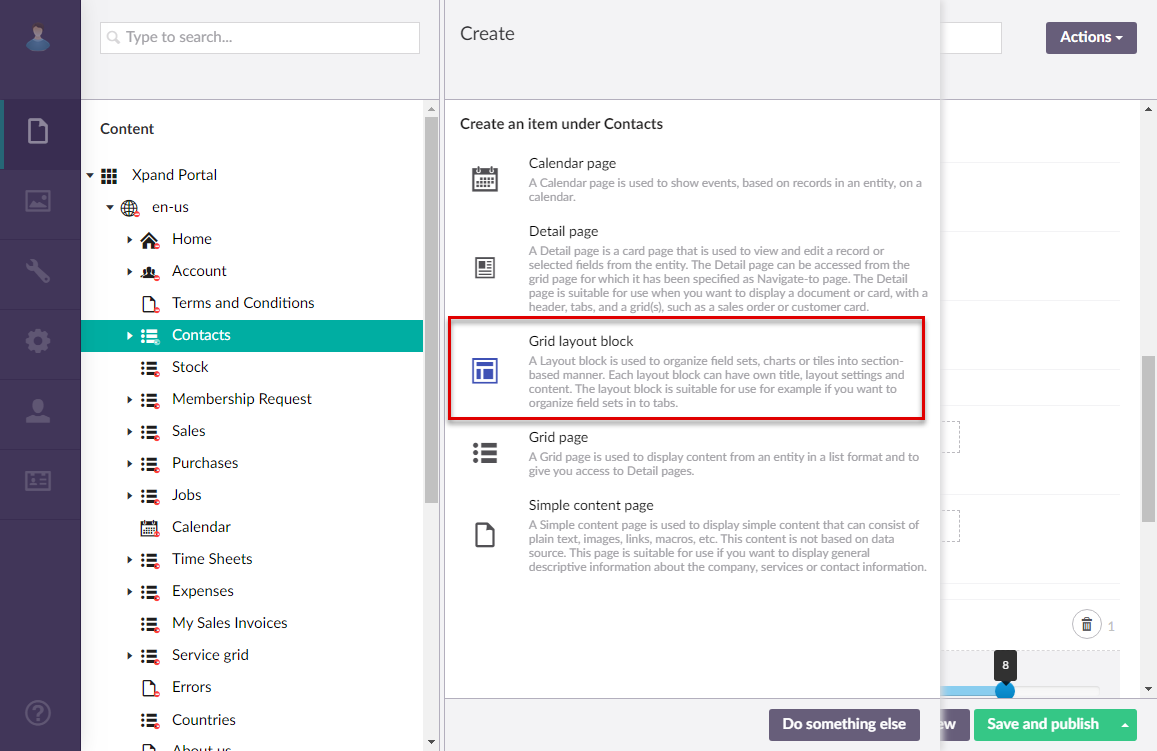
- Select the icon next to the site grid page that will host an embedded calendar in a layout block, and then select
 Grid layout block.
- On the header, enter the page name that will be used to identify it in the backoffice.
- On the General tab, specify the title of the layout block and other settings if necessary.
- Ensure that you specify the width of the layout block in Responsive behavior. This is necessary to ensure that the layout block fits the page next to the grid. Otherwise, it will be displayed below or above the grid depending on the layout settings.
- Select Save and publish to save the changes and publish them on the front end. Optionally, you can select Save and preview to preview how the page will look like on the front end.
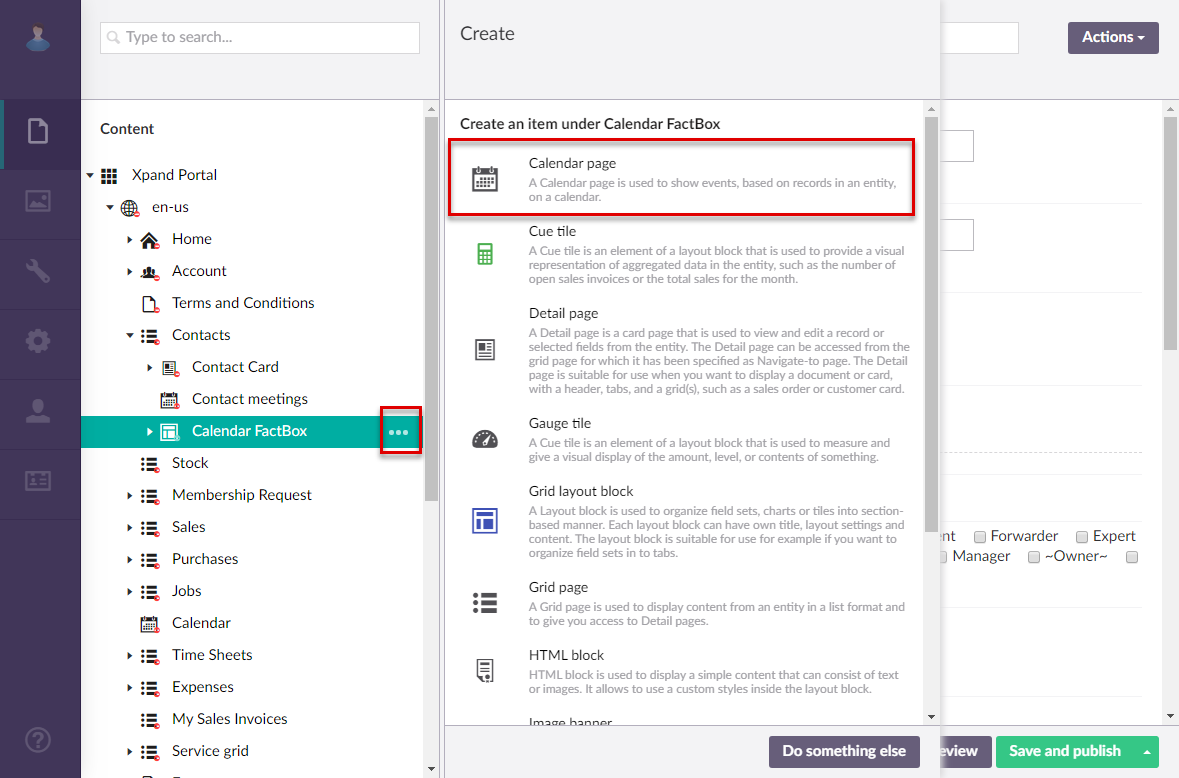
- Select the icon next to the created layout block, and then select Calendar page.
- On the header, enter the page name that will be used to identify it in the backoffice.
- On the General tab, fill in general settings in the same way as when creating creating a stand-alone calendar page described above.
- Under Menu, you may want to select the Hide menu item for checkbox for all or some member roles. This may be useful if you want this calendar page to be accessible only in the form of embedded calendar. If you do not hide the menu item, the calendar will also be available through the menu as a stand-alone calendar.
- On the Data source tab, in the Entity field, select the entity from the grid that contains starting and ending date-time of calendar events (created/configured in step 2 of this procedure).
- Under Filters, add a filter to combine two related grids (the one with starting and ending date-time of calendar events and another with the entity by which calendar events will be sorted) by filling in fields as follows:
- Field – Select the field from the source entity of the grid that contains starting and ending date-time of calendar events that has a corresponding field in the parent entity of this calendar page.
- Operator – Set this operator to =.
- Value – Select Value-from parent entity field, and then select the field that corresponds to the field specified in the Field setting above.
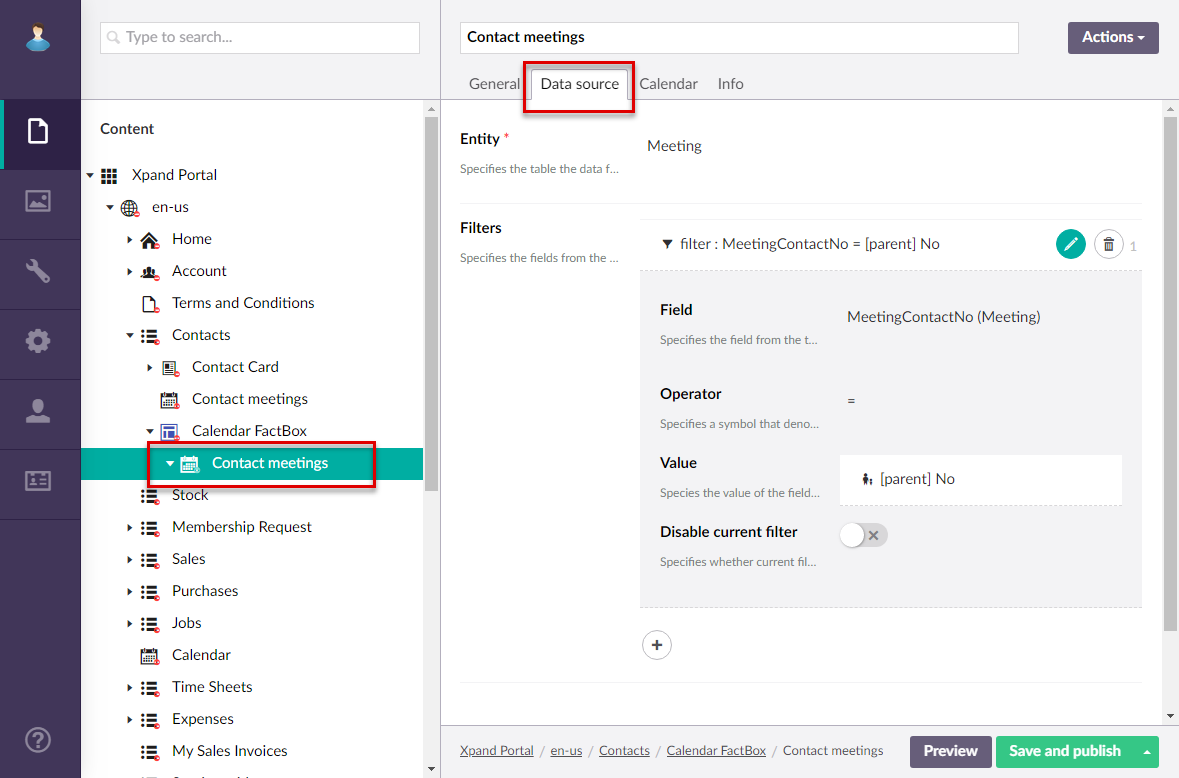
- On the Calendar tab, in the same way as when creating creating a stand-alone calendar page described above.
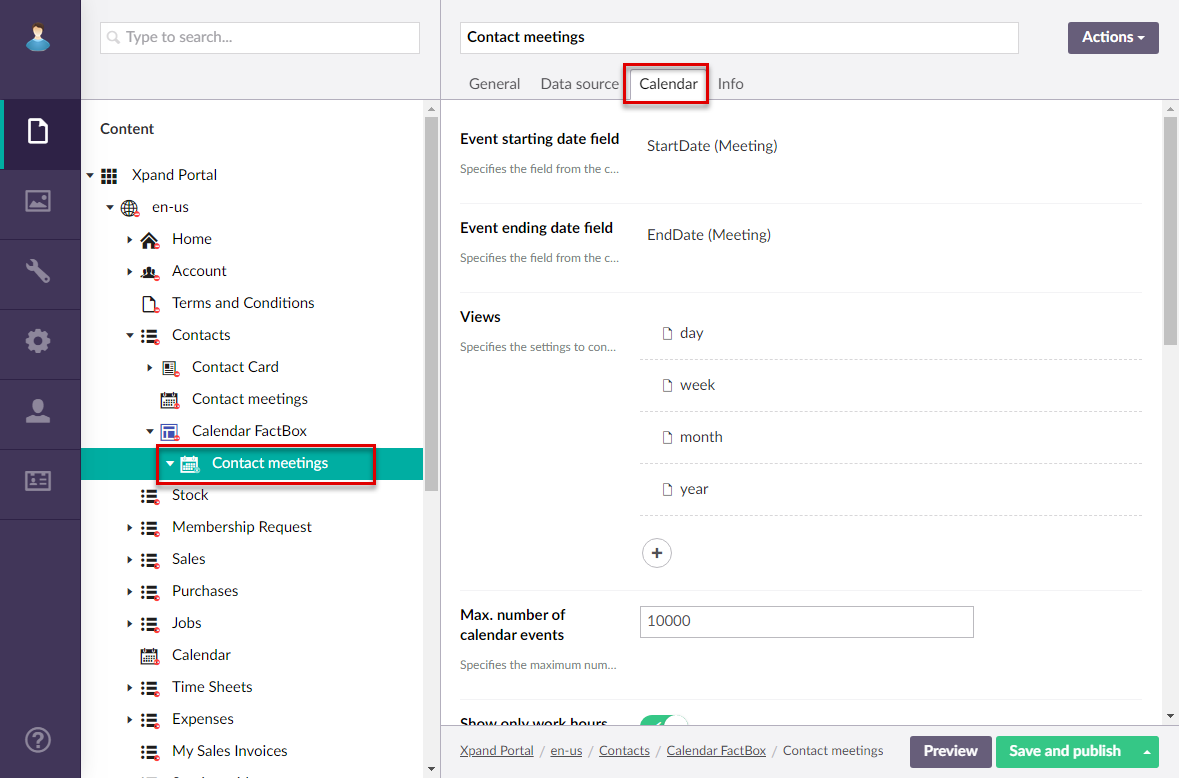
- Select Save and publish to save the changes and publish them on the front end. Optionally, you can select Save and preview to preview how the page will look like on the front end.
Now you can view the embedded calendar by opening the grid page where you added the Calendar action.
To create a calendar embedded into a detail page
|
Screenshots with examples in this section are based on an earlier version of Xpand Portal (earlier than 4.0.0.0). The backoffice and caledar page will look different in newer versions of Xpand Portal. |
- In the backoffice, go to Content.
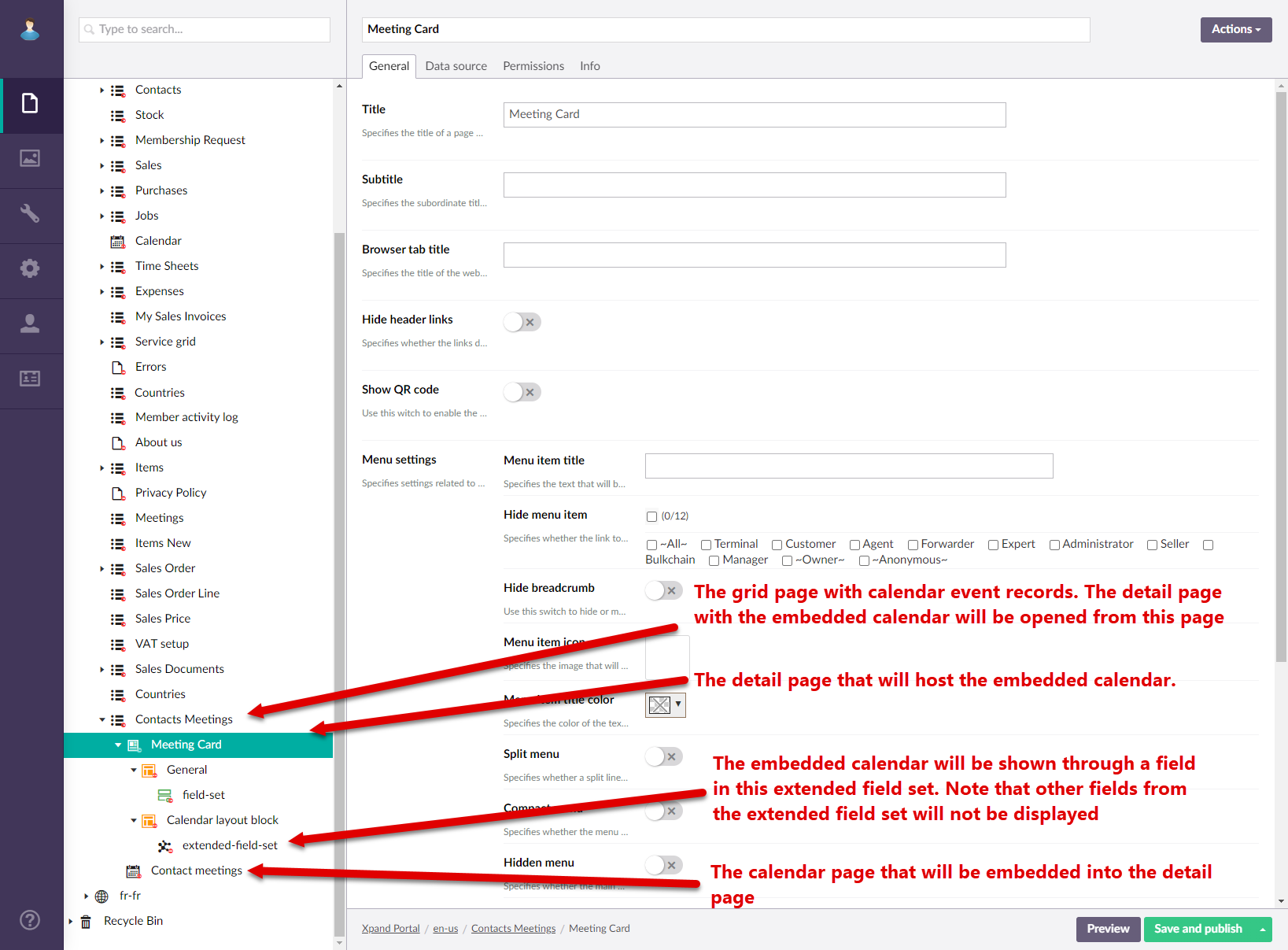
- Create a grid page or use an existing one that will contain calendar event records. These calendar event records will be edited through a detail (card) page with an embedded calendar. Ensure the data source of this grid page is the same entity as the entity that will be used for the calendar embedded into a child detail page.
- Create a detail page, including necessary child elements, or use an existing one that will host the embedded calendar. Ensure that this detail page configuration has the following:
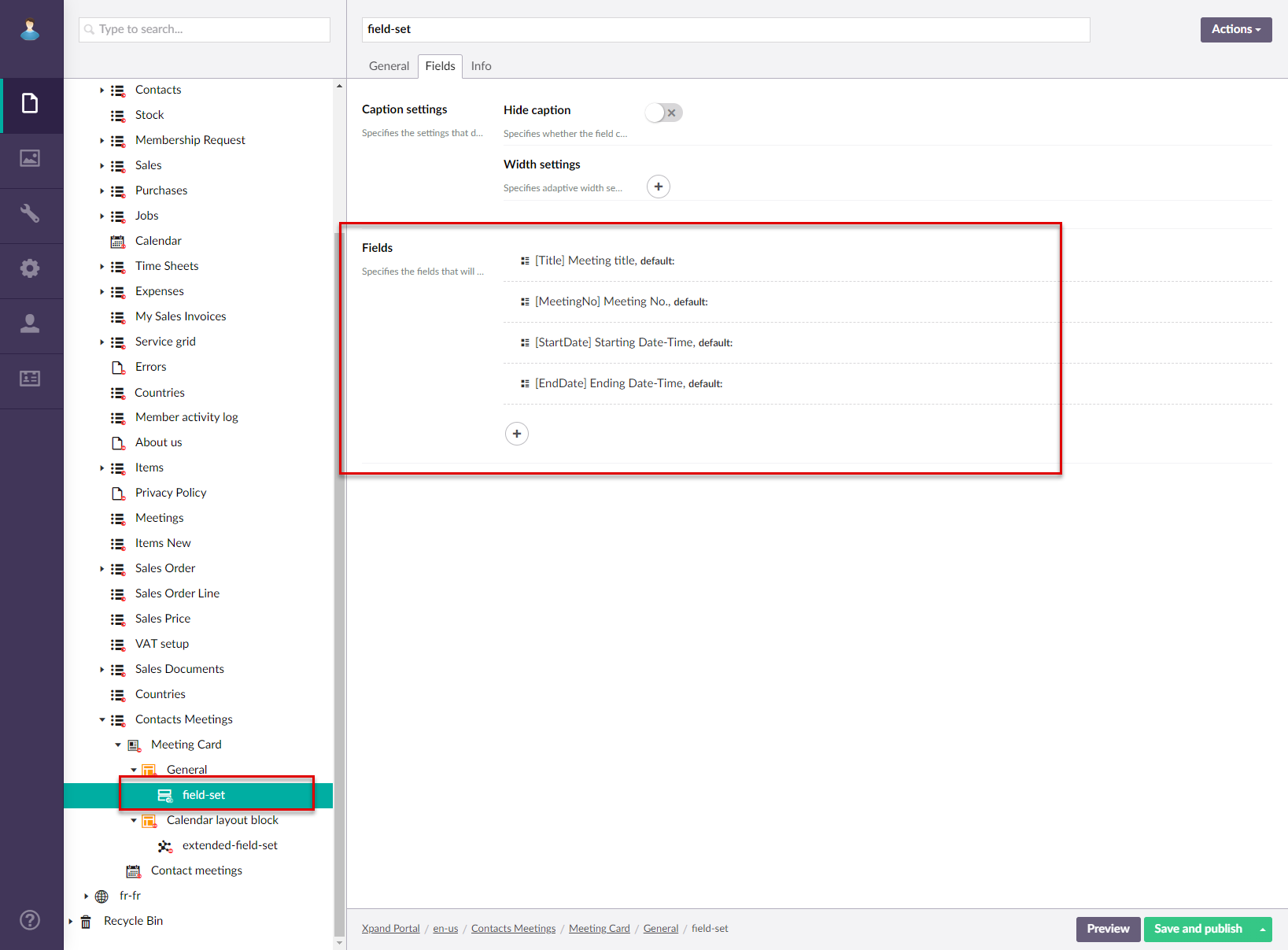
- A layout block with a standard field set that will show some fields from the calendar page entity. Remember to adjust the width of the layout block to leave room for another layout block with the calendar.
- A layout block with an extended field set. One of the fields on this extended field set, with the Extended Calendar Editor data type, will be used to host an embedded calendar. Remember to adjust the width of the layout block to leave room for another layout block with fields.
- Create a stand-alone calendar page that will be embedded into the detail page. Ensure that the calendar page uses the same data source as the detail page. For this scenario, when a calendar page is embedded into a detail page, this stand-alone calendar page can be located anywhere in the portal structure (in this example, it was created as a child page to the related grid page). See above how to create a stand-alone calendar page.
- Open the setting for standard field set of the detail page where the calendar page will be embedded. Add several event record fields that will be shown next to the calendar. Ensure you add editable date-time fields for the event starting and ending date-time.
- Open the settings for the extended field set of the detail page where the calendar page will be embedded.
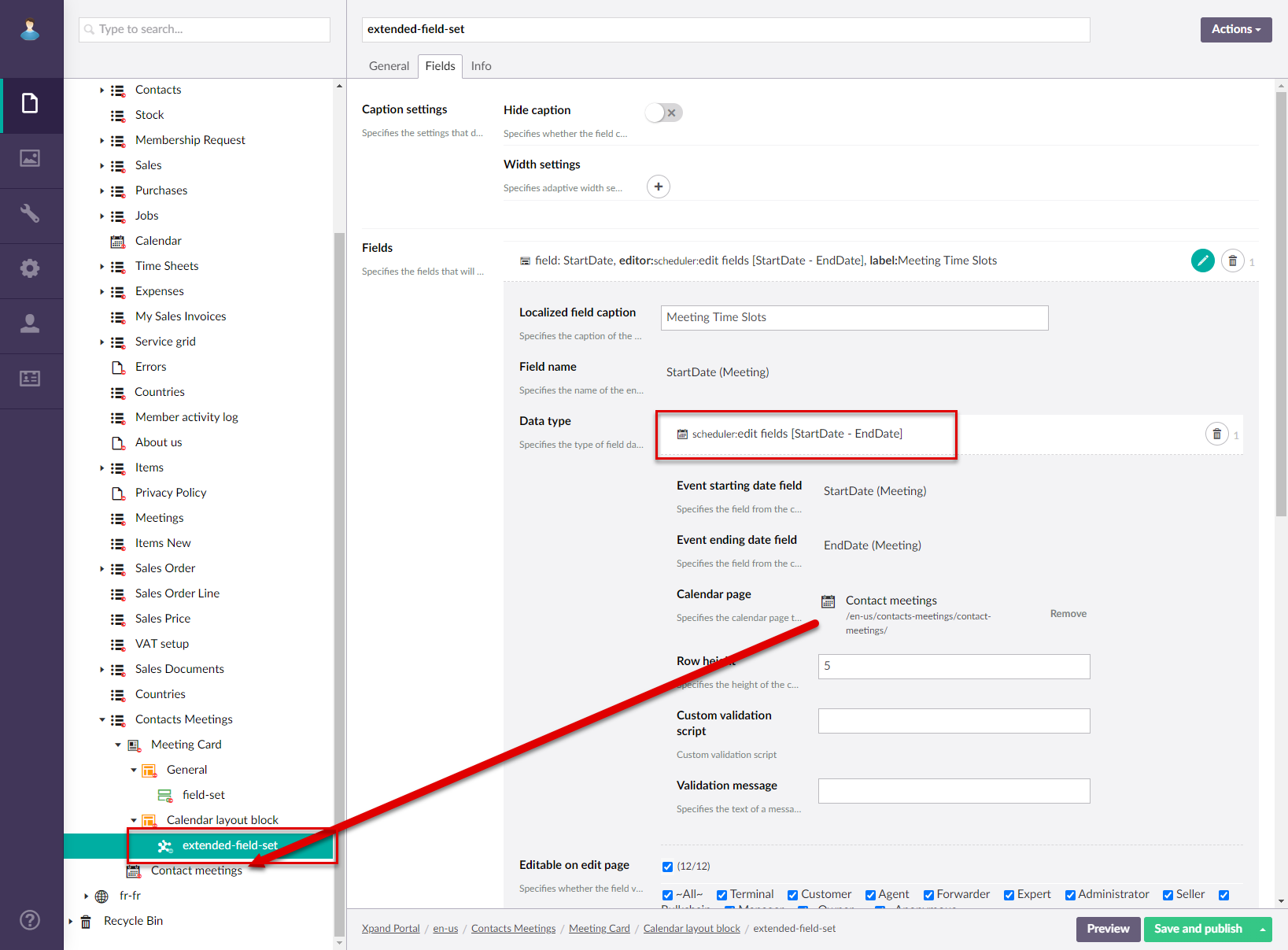
- On the Fields tab, under Fields. select Add fields to add a new field.
- In the Caption field, type a caption of the embedded calendar that will be displayed above the embedded calendar.
- In the Name field. select one of the fields that stores either the starting or ending date-time of events.
 Note
NoteFor the calendar embedded into a detail page, you need to embed the calendar into one of the fields that stores either the starting or ending date-time of events. You don't need to add another field to the extended field set in this scenario.
- Set the data type to Extended calendar editor and fill in the settings as described below:
- Event starting date field - Specifies the field from the calendar source entity that stores the starting date-time of calendar events.
- Event ending date field - Specifies the field from the calendar source entity that stores the ending date-time of calendar events.
- Calendar page - Specifies the calendar page that will be embedded into the detail page. Select the Add button, and then navigate-to a stand-alone calendar page that will be embedded. Use the calendar page that you created earlier in this procedure.
- Row height - Specifies the decimal value that defines the height of row in the embedded calendar. The bigger this number the more information calendar events will be able ti displayed. However, with with big row height, less rows will be visible at a time, and the member will have to scroll down the calendar. Recommended value: from 10 till 50.
- Time slot range - Specifies the interval between slots in minutes.
- Custom validation script - Specifies script that will be executed to validate the field value. Using a custom validation script is optional.
- Validation message - Specifies the text of the error message that will be displayed in case the custom validation script fails.
- Select Save and publish to save the changes and publish them on the front end. Optionally, you can select Save and preview to preview how the page will look like on the front end.
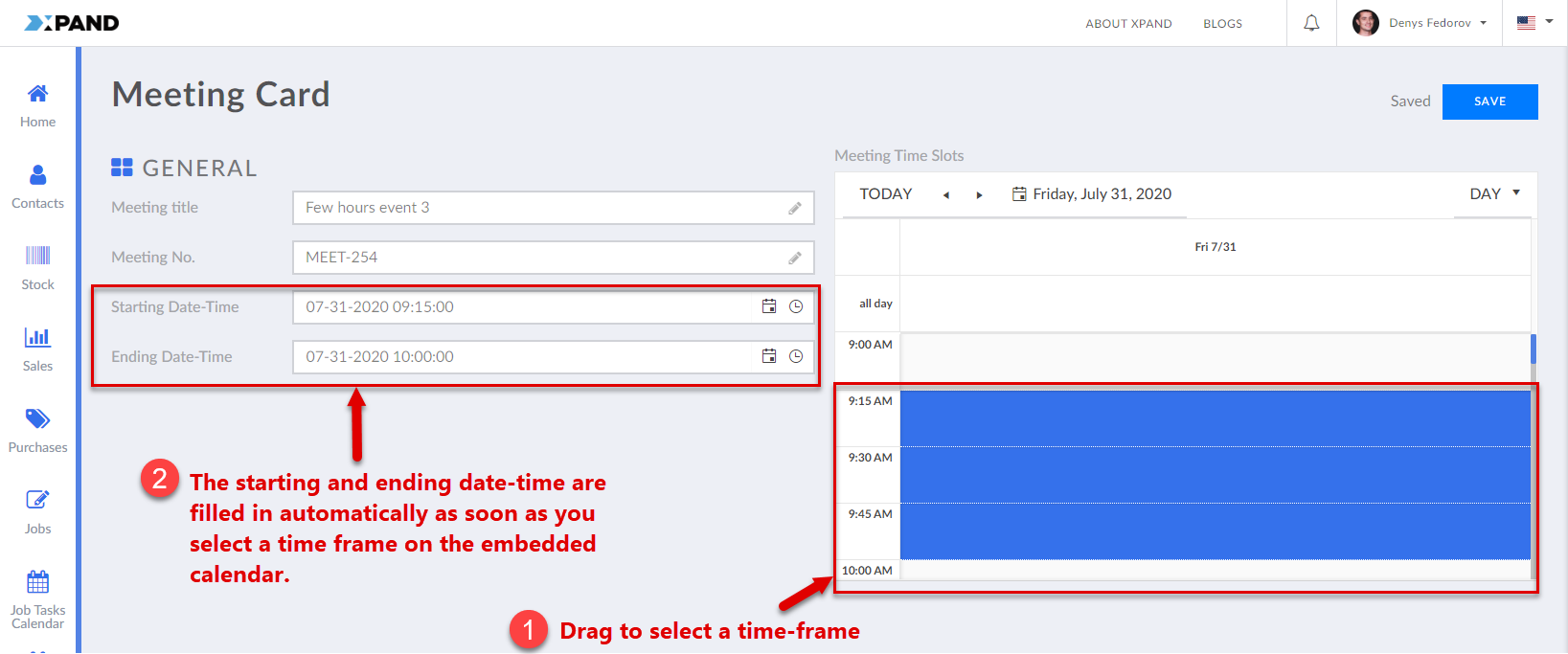
Now you can view the embedded calendar by opening a detail page with the embedded calendar. When you-re creating a new calendar record using the Create command (with this command you edit fields on the detail page), you can fill in the fields with the starting and ending date-time by simply selecting the corresponding time frame on the embedded calendar.
|
If you don't want the embedded calendar page to show existing calendar events when you open the detail page (because you are creating a new event), you can add a filter on the Data Source tab of the stand-alone calendar page that was embedded into the detail page to filter out all records. Although, this depends on your preferences and business needs. |
 Tip
Tip