Setting up document template selection
To have document templates automatically suggested when you generate documents from templates on the pages where the Generate Document and Generate and Send Document actions are available, document template selection must be set up. If document template selection is not set up, you will still be able to generate documents from templates, however, in this case you will have to manually choose a document template to create a document from.
Financial Document Template Selection Setup
This set up defines which document template(s) will be suggested for selection when you generate documents from templates on the following financial documents.
- Sales order
- Sales invoice
- Sales credit memo
- Posted sales invoice
- Posted sales credit memo
- Purchase order
- Purchase invoice
- Purchase credit memo
- Posted purchase invoice
- Posted purchase credit memo
Additionally, for these financial documents, as well as the customer card, pre-configured document templates are available in the out-of-the-box solution for you to use or get inspired from when designing your own templates.
To configure financial document template selection setup:
- In Business Central with the Qvaba Flexible Documents app installed, choose the
 icon, enter Fin. Doc. Template Selection Setup, and then choose the related link.
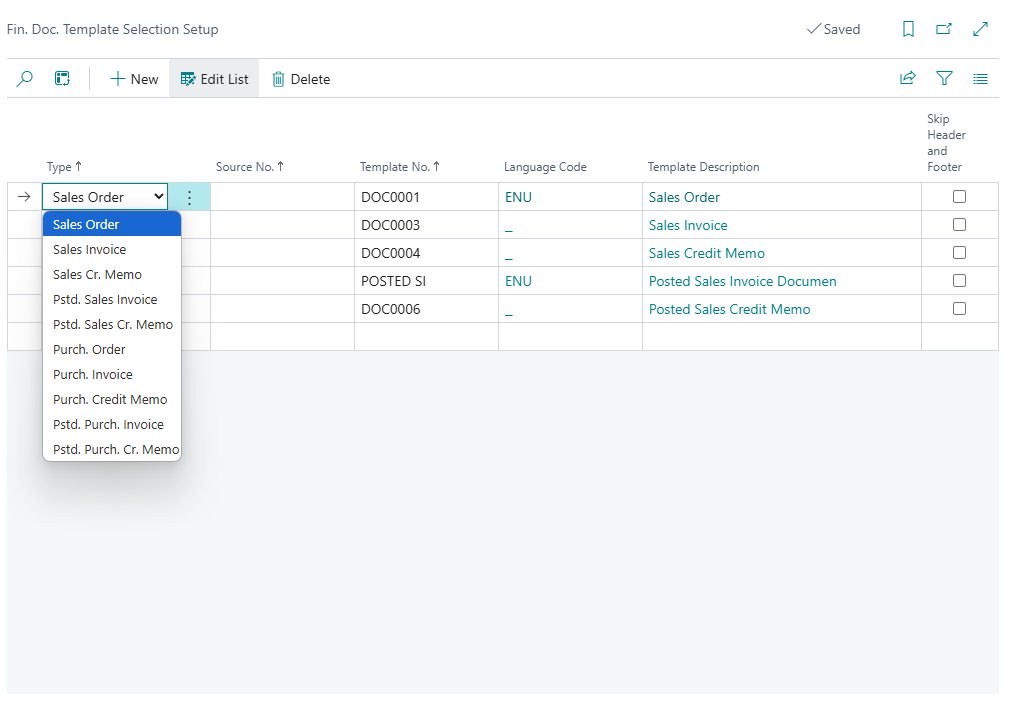
- In the Fin. Doc. Template Selection Setup window, choose New to create a new line.
- Fill in the fields as described below:
- Type - Specifies the type of financial document for which the document template on this line will be suggested for selection when generating documents from the page of that financial document.
- Source No. - Specifies the number of a customer or vendor (depending on the financial document type) for which this document template will be suggested for selection when generating documents from the page of the financial document selected on this line.
- Template No. - Specifies the number of a document template that will be will be suggested for selection when generating documents from the page of the financial document selected on this line.
- Language Code - Specifies the language code of the document template. The language code of the template and the selected entity must coincide for a template to be available for selection on this setup.
- Template Description - Specifies a description of the document template that will be will be suggested for selection when generating documents from the page of the financial document selected on this line. This field is filled in automatically.
- Skip Header and Footer - Specifies that the header and footer of the Word or PDF document created from the document template on this line will not be shown.
- Repeat steps 2 and 3 to set up document template selection for other financial documents.
Document Template Selection Setup
This is a general set up that can be used for all other Business Central areas where you want document templates to be automatically suggested for selection when you generate documents from templates. However, the Generate Document and Generate and Send Document actions, which are used for generating documents from templates, in the out-of-the-box solution are only added to the Customer Card page, in addition to the pages of the financial documents mentioned above. Therefore, if you want to be able to generate documents from templates on other BC pages, you need to extend integration of Qvaba Flexible Documents with BC first, and then you can use Document Template Selection Setup to set up template selection for those areas where you add the corresponding actions.
To configure the general document template selection setup:
- In Business Central with the Qvaba Flexible Documents app installed, choose the icon, enter Document Template Selection Setup, and then choose the related link.
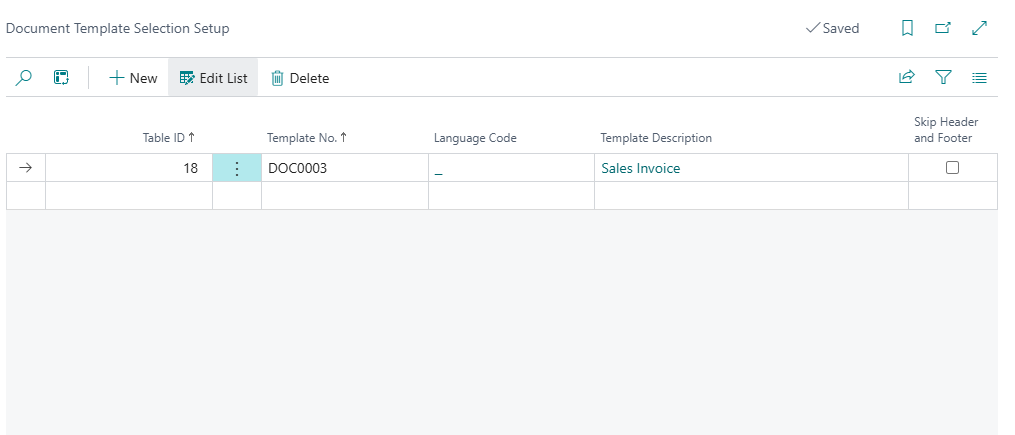
- In the Document Template Selection Setup window, choose New to create a new line.
- Fill in the fields as described below:
- Table ID - Specifies the ID of a table that defines an entity for which the document template on this line will be automatically suggested for selection when generating documents from the corresponding page. The related page must have the corresponding action (Generate Document, Generate and Send Document, and View Generated Documents) added. For the default solution, you can specify table 18 (Customer) here, as the actions for generating documents are already added to the Customer Card page.
- Template No. - Specifies the number of a document template that will be will be suggested for selection when generating documents from the page of the entity on this line.
- Language Code - Specifies the language code of the document template. The language code of the template and the selected entity must coincide for a template to be available for selection on this setup.
- Template Description - Specifies a description of the document template that will be will be suggested for selection when generating documents from the page of the entity on this line. This field is filled in automatically.
- Skip Header and Footer - Specifies that the header and footer of the Word or PDF document created from the document template on this line will not be shown when generating documents from the page of the entity on this line.
- Repeat steps 2 and 3 to set up document template selection for other financial documents.