Generating documents from document templates
The Qvaba Flexible Documents app allows you to create Word, PDF, or Excel documents from templates with a custom layout in various locations where the Generate Document and Generate and Send Document actions are available. In the out-of-the-box solution, these actions are available on the following pages:
- FInancial documents (for these documents, the solution also provides a set of pre-configured templates):
- Sales Order
- Sales Invoice
- Sales Credit Memo
- Posted Sales Invoice
- Posted Sales Credit Memo
- Purchase Order
- Purchase Invoice
- Purchase Credit Memo
- Posted Purchase Invoice
- Posted Purchase Credit Memo
- Other pages:
- Customer Card (for this page, a pre-configured template is also available)
- Document Template Card
However, you can extend the integration with Business Central if needed. Documents can always be generated from the document template card (where the template was created), which may be useful, for example, if the actions for generating documents are not available on a specific page or if the document is not directly related to a Business Central document or entity.
Generating documents
To create a Word, PDF, or Excel document from a template:
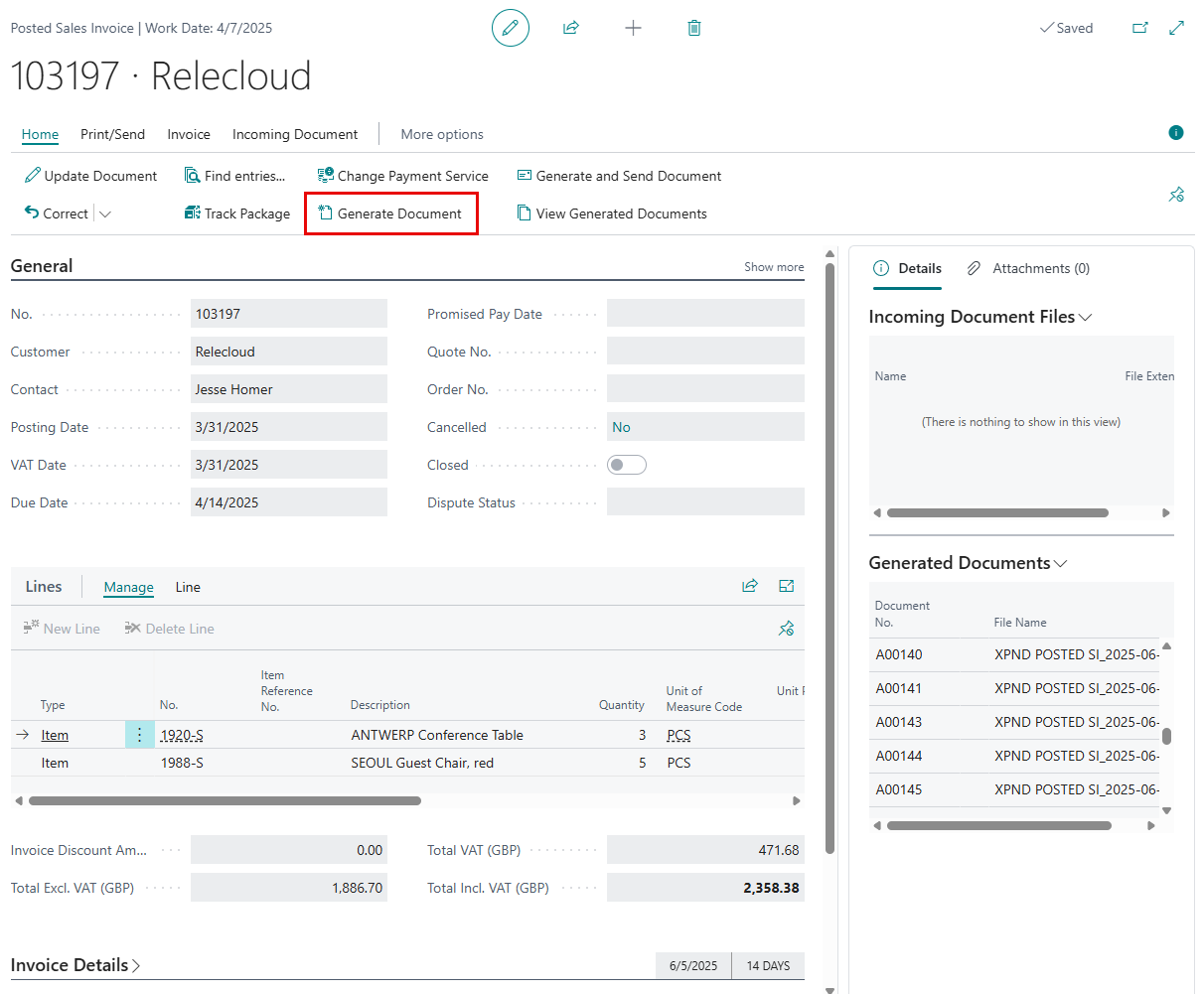
- In Business Central with the Qvaba Flexible Documents app installed, open a page where the Generate Document and Generate and Send Document actions are available (see the list of pages above).
 Note
NoteIf you generate a document directly from the document template card, the entity for which a document is being generated must be configured on that card (source data on the Tables FastTab).
- Choose the Generate Document action.
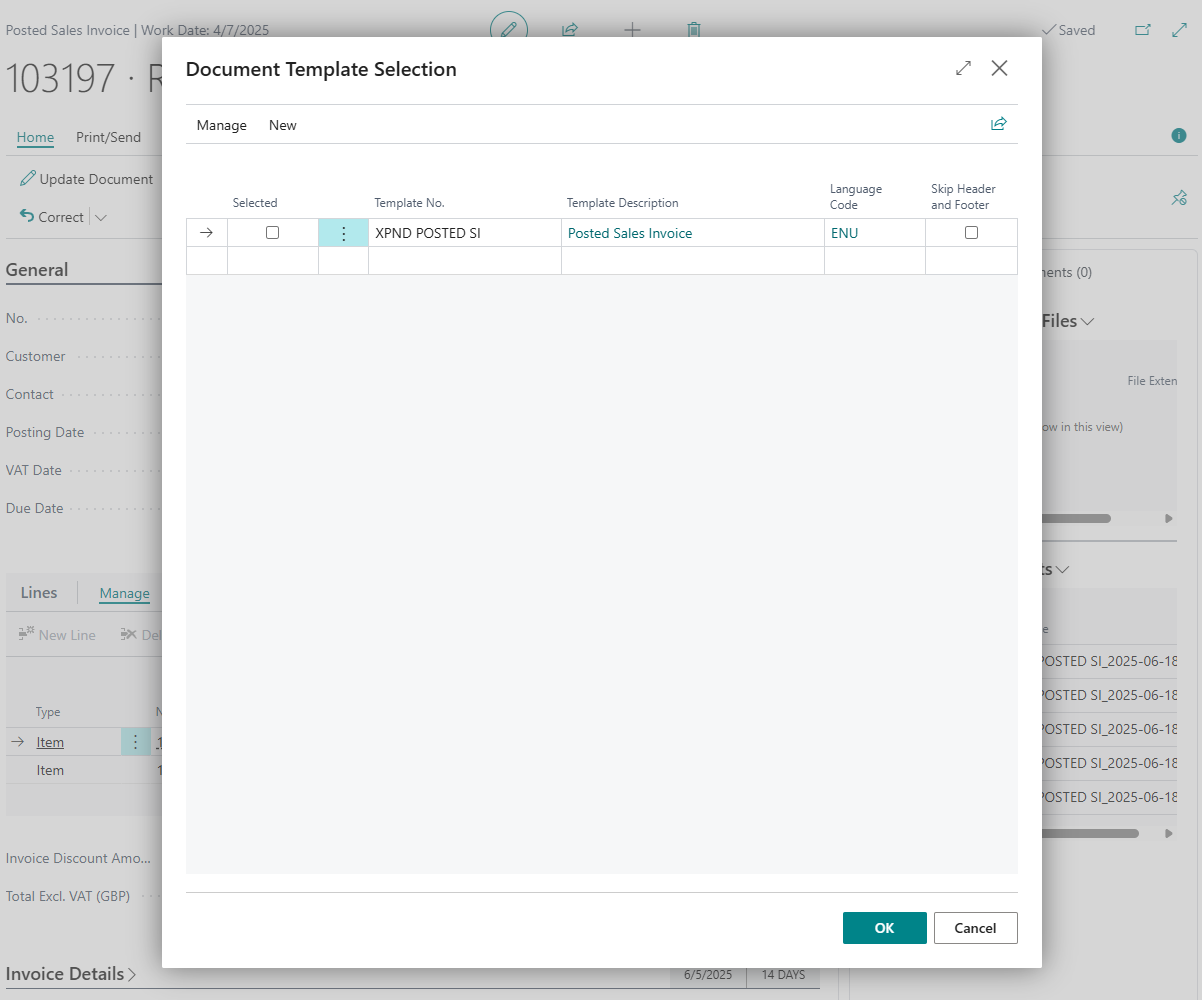
In the Document Template Selection window that opens, you can see all found document templates that were set up for the current document/entity in the document template selection setup.
Depending on where you are generating a document template from and the template configuration, you may also be asked select other data (for example, a customer that the template will be generated for when generating from a document template card). - (optional) If the document template selection was not set up, you can manually choose a document template in the Template No. field.
- (optional) Choose the Skip Header and Footer check box if you do not want the Word header and footer to be shown on the created document.
- Select the Selected check box on the line with the document template that you want to create a document from. You can select multiple lines to generate many different documents at once.
- Choose OK to generate the selected document(s).
As soon as the document(s) has been generated, the standard Save As dialog window is opened where you can select where you want to save the generate files. You can open the saved document in the corresponding application (Word, Excel, or a PDF viewer) depending on the format of the document. If you generate more than one documents, they will be downloaded as an archive.
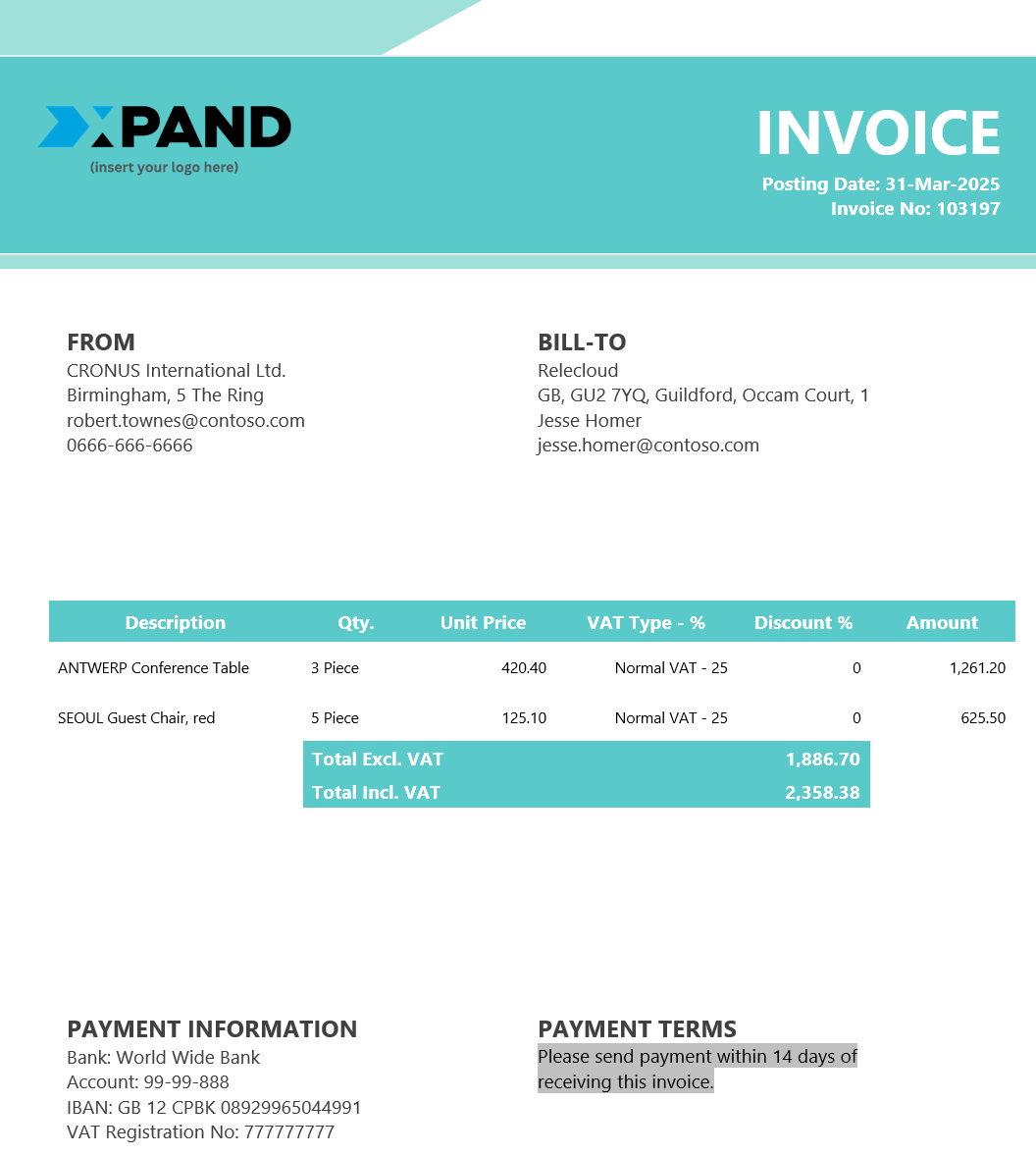
An example of a generated document with a Word/PDF layout
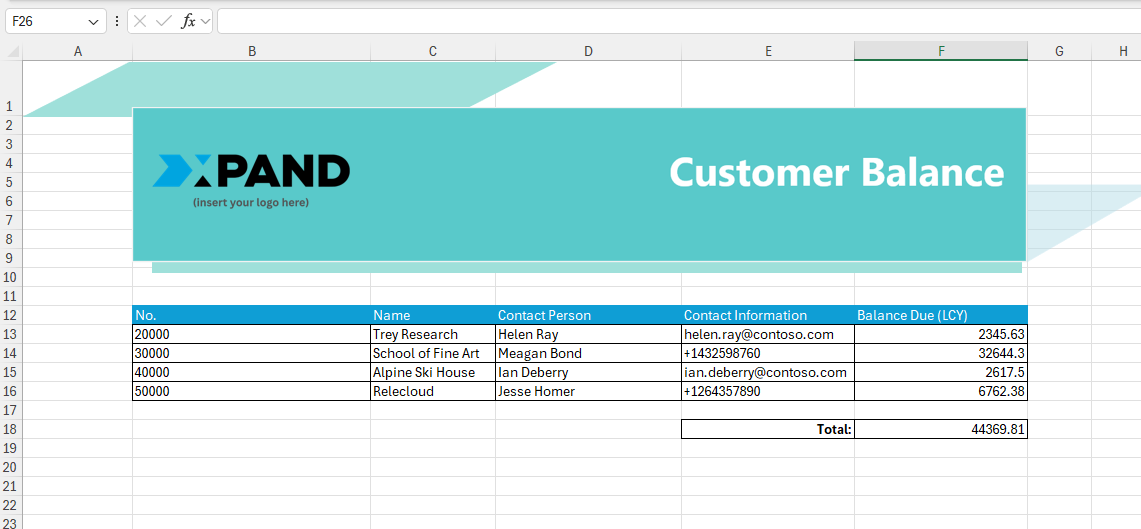
An example of a generated document with an Excel layout
Generating a document and sending it by email
You can create a document(s) from a template and immediately send them by email. You can also email a previously generated document.
To create a document and send it by email:
- In Business Central with the Qvaba Flexible Documents app installed, open a page where the Generate Document and Generate and Send Document actions are available (see the list of pages above).
- Choose the Generate and Send Document action.
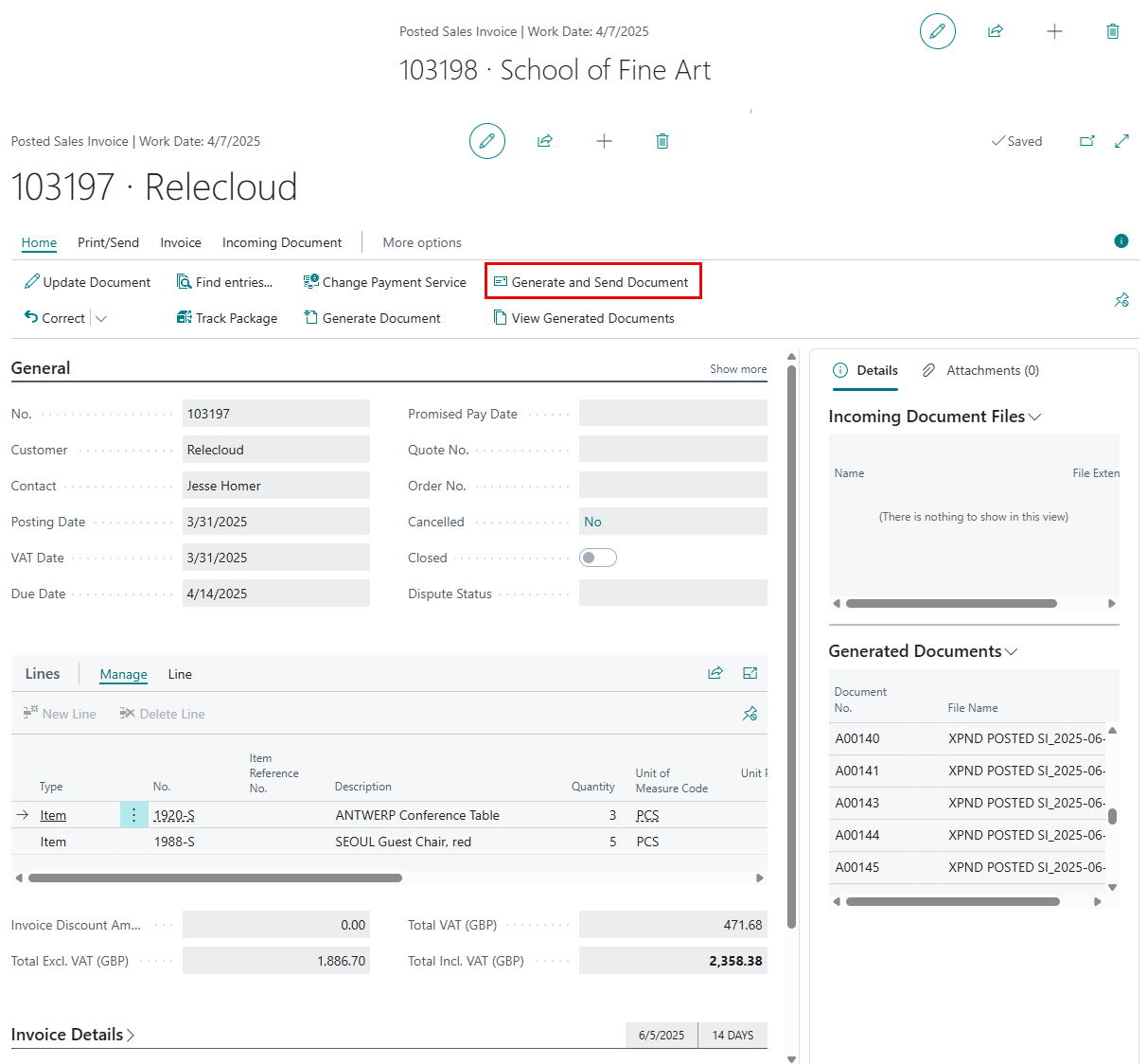
In the Document Template Selection window that opens, you can see all found document templates that were set up for the current document/entity in the document template selection setup.
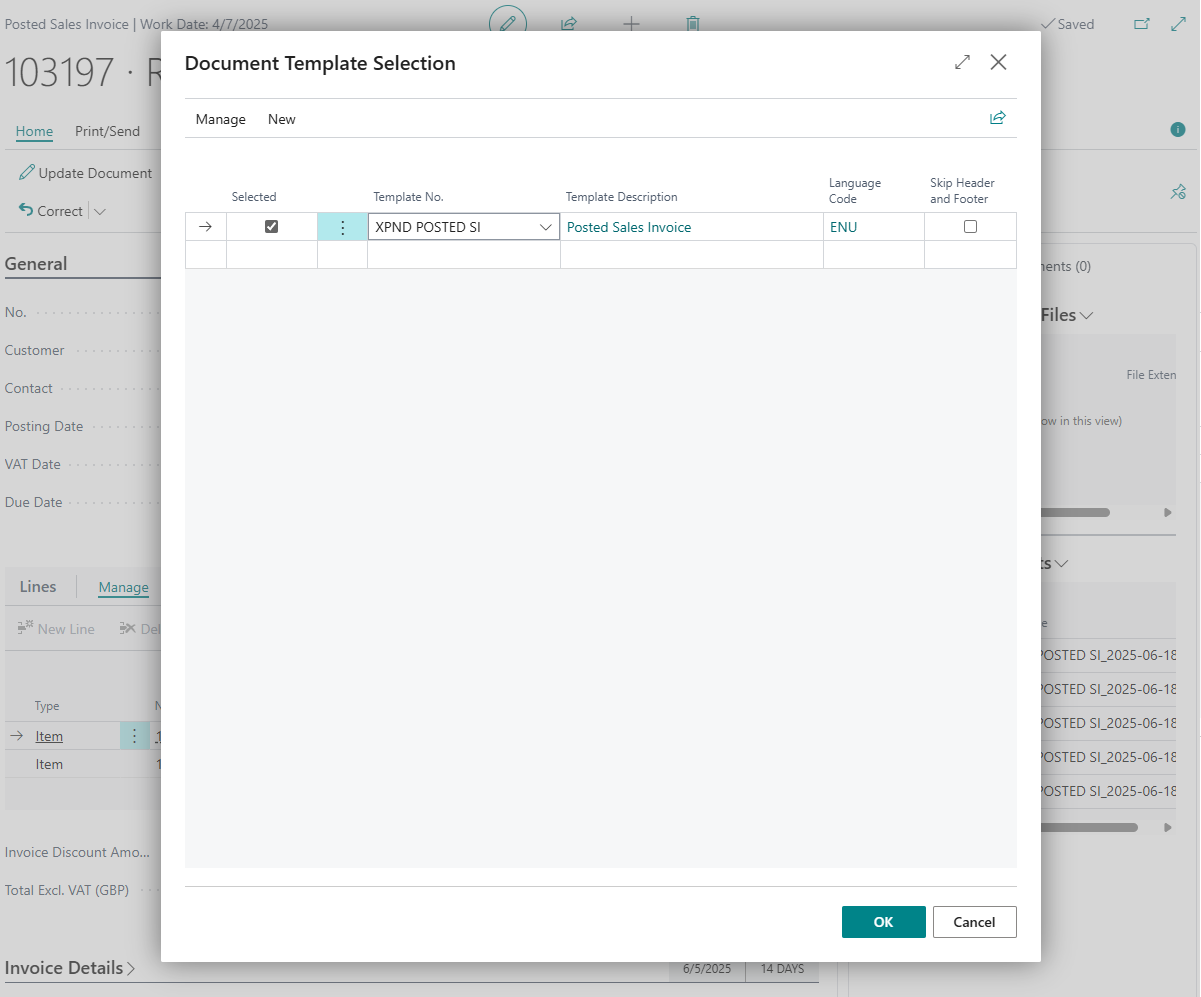
- (optional) If the document template selection was not set up, you can manually choose a document template in the Template No. field.
- (optional) Choose the Skip Header and Footer check box if you do not want the Word header and footer to be shown on the created document.
- Select the Selected check box on the line with the document template that you want to create a document from. You can select multiple lines to generate and send many different documents at once.
- Choose OK to generate the document(s) and open request window for sending an email.
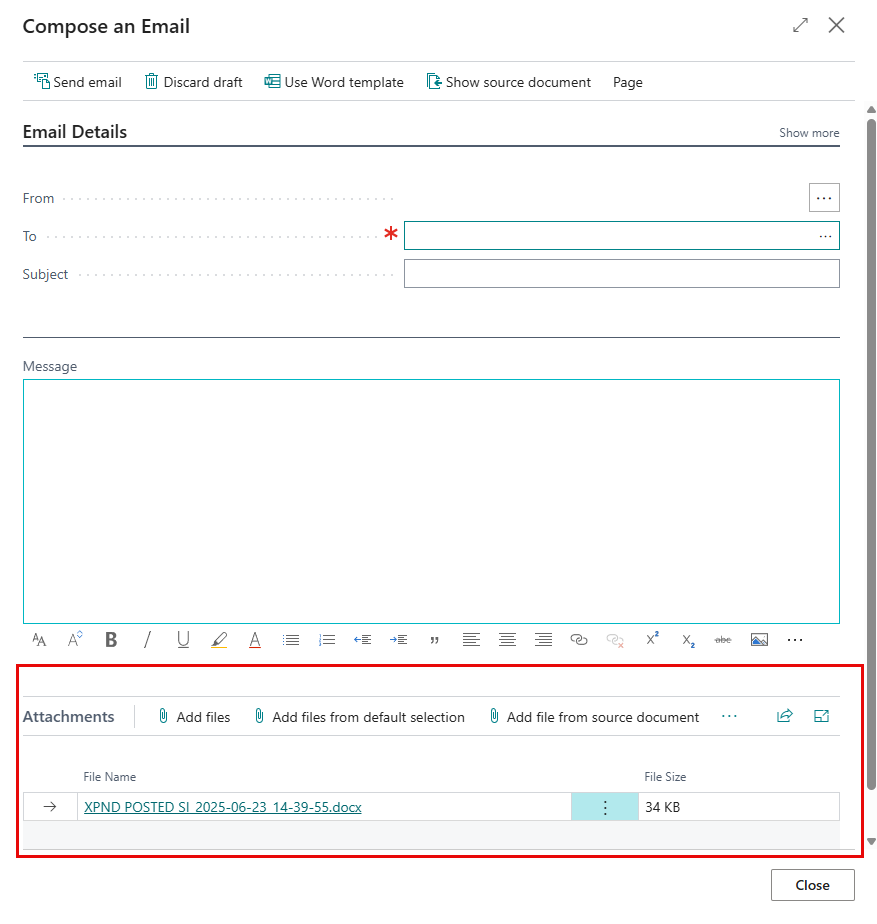
- In the standard Compose an Email window where the documents that have just been generated are already attached, fill in the recipient, subject, and email body, and then choose Send email.
- (optional) You can use the Discard draft action or close the window without sending if you decide to send the generated document(s) later; the generated document(s) will not be deleted.
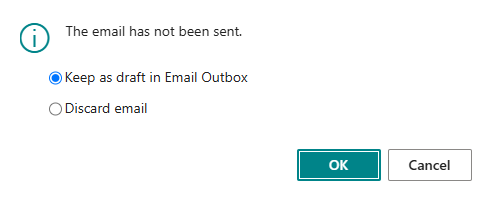
Alternatively, you can send a document by email from the Generated Documents window as described below.
Viewing/managing generated documents
You can view the list of all generated documents for a specific entity from the same window where they have been generated or from the document template card that the documents were generated from.
To view and manage generated documents:
- Open the page where the documents were generated from. The list of pages that support document generation:
- FInancial documents (from the pages below you can view generated documents only for that specific entity):
- Sales Order
- Sales Invoice
- Sales Credit Memo
- Posted Sales Invoice
- Posted Sales Credit Memo
- Purchase Order
- Purchase Invoice
- Purchase Credit Memo
- Posted Purchase Invoice
- Posted Purchase Credit Memo
- Other pages:
- Customer Card
- Document Template Card (from this page, you can view all generated documents from the selected document template for all entities)
- FInancial documents (from the pages below you can view generated documents only for that specific entity):
- The Generated Documents FactBox shows the list of all generated document for the current entity (or for all entities where the current document template was used if you view them from the document template card). Alternatively, you can choose the View Generated Documents action to open the list of generated documents in a separate window.
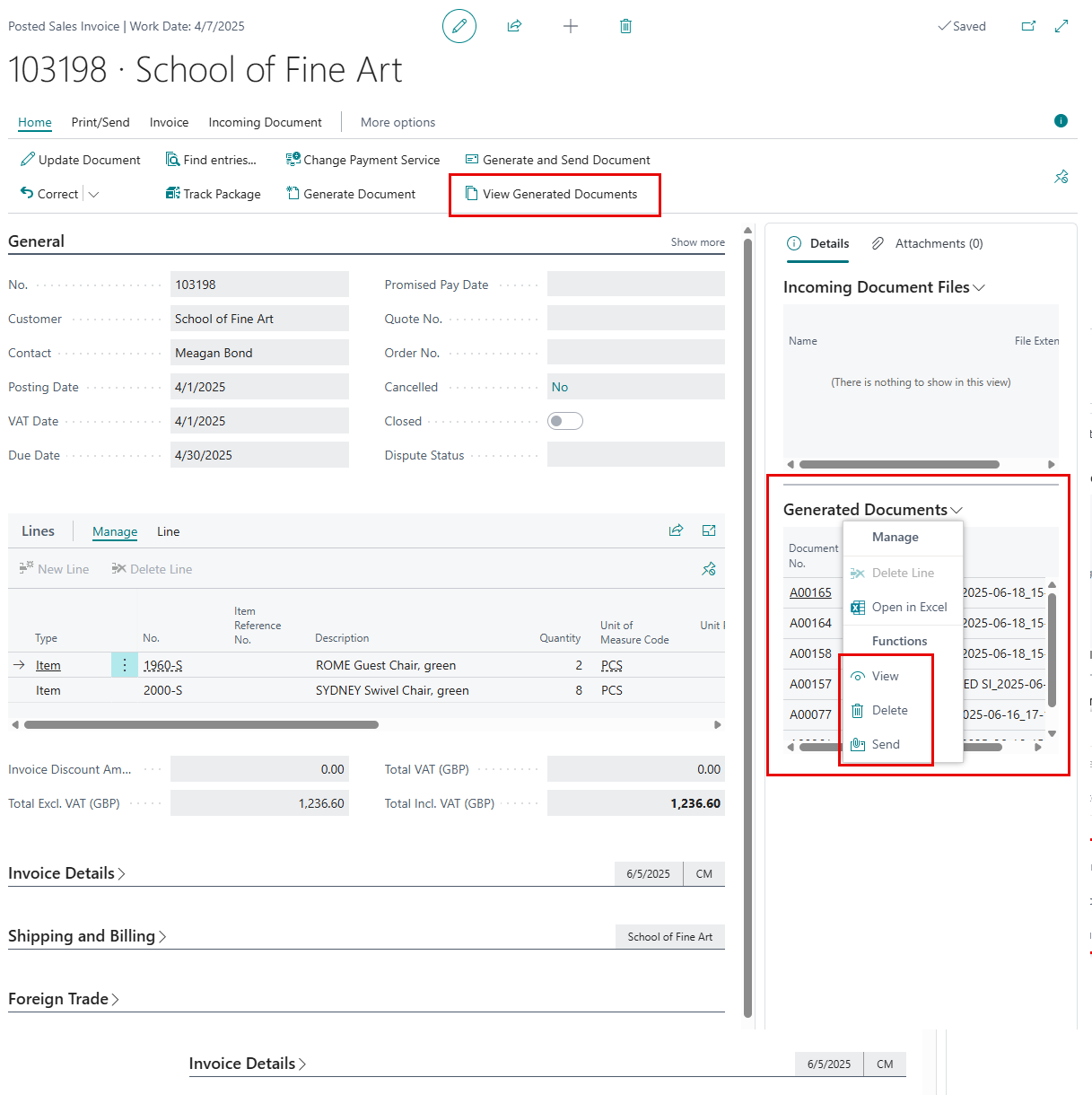
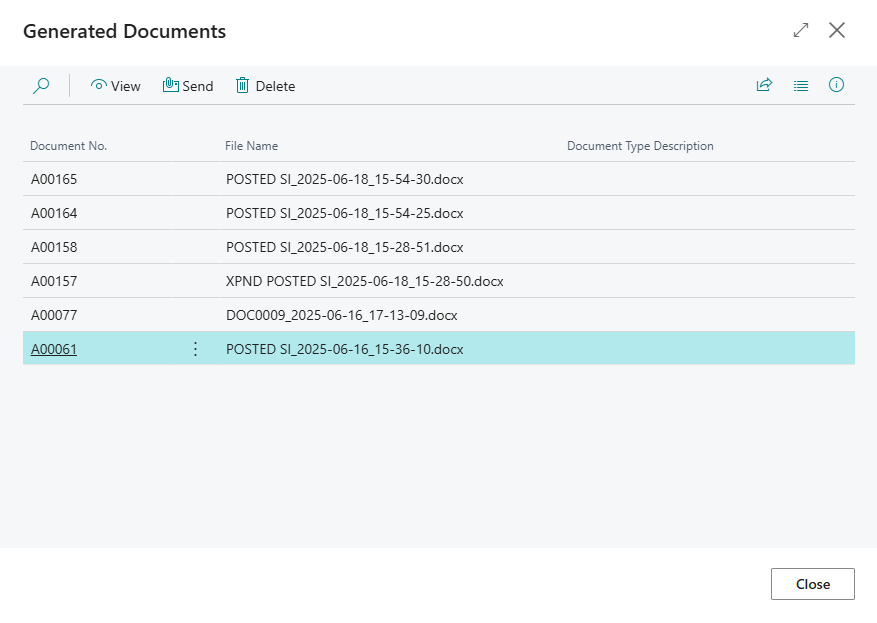
- You can perform various actions with the generated documents, either from the Generated Documents FactBox or Generated Documents window:
- View - Use this action to download the selected document, which then can be opened in the corresponding application (Microsoft Word, Microsoft Excel, or a PDF viewer) depending on the document format. You can download only one document at a time.
- Send - Use this action to send the selected document(s) by email. This opens the standard Compose an Email window where the documents that have been selected are added as attachments. You send multiple documents at once.
- Delete - Use this action to delete the selected document(s). Choose Yes on the confirmation message(s) that appears. You can delete multiple generated documents at once.
Document generation log
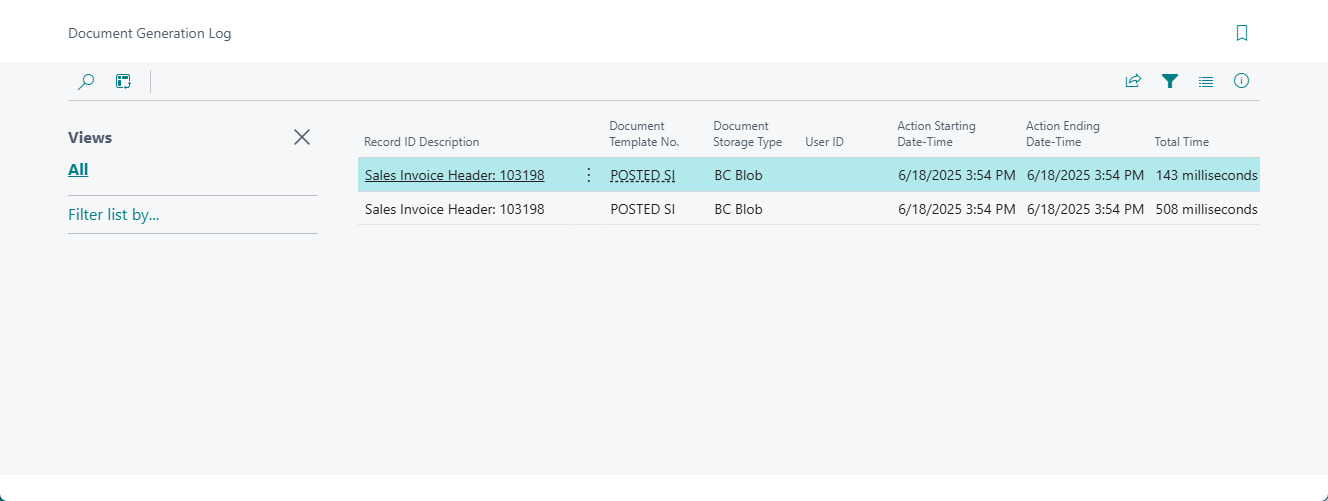
Whenever a document is generated from a template, an entry is created in the document generation log on condition that the document generation log is enabled in the Flexible Documents Setup. You can view the log for a specific document template or access a complete log covering all templates. This feature is especially useful for tracking activity, analyzing usage patterns, and identifying the cause of any issues related to document generation.
To view the document generation log:
- For all document templates: choose the
 icon, enter Doc. Generation Log, and then choose the related link.
 - For a specific document template:
- Choose the icon, enter Document Template List, and then choose the related link.
- In the Document Template List window, open the card of a document template
- In the Document Template Card window, choose the Doc. Generation Log action to view the generation log for that template.
- Choose the